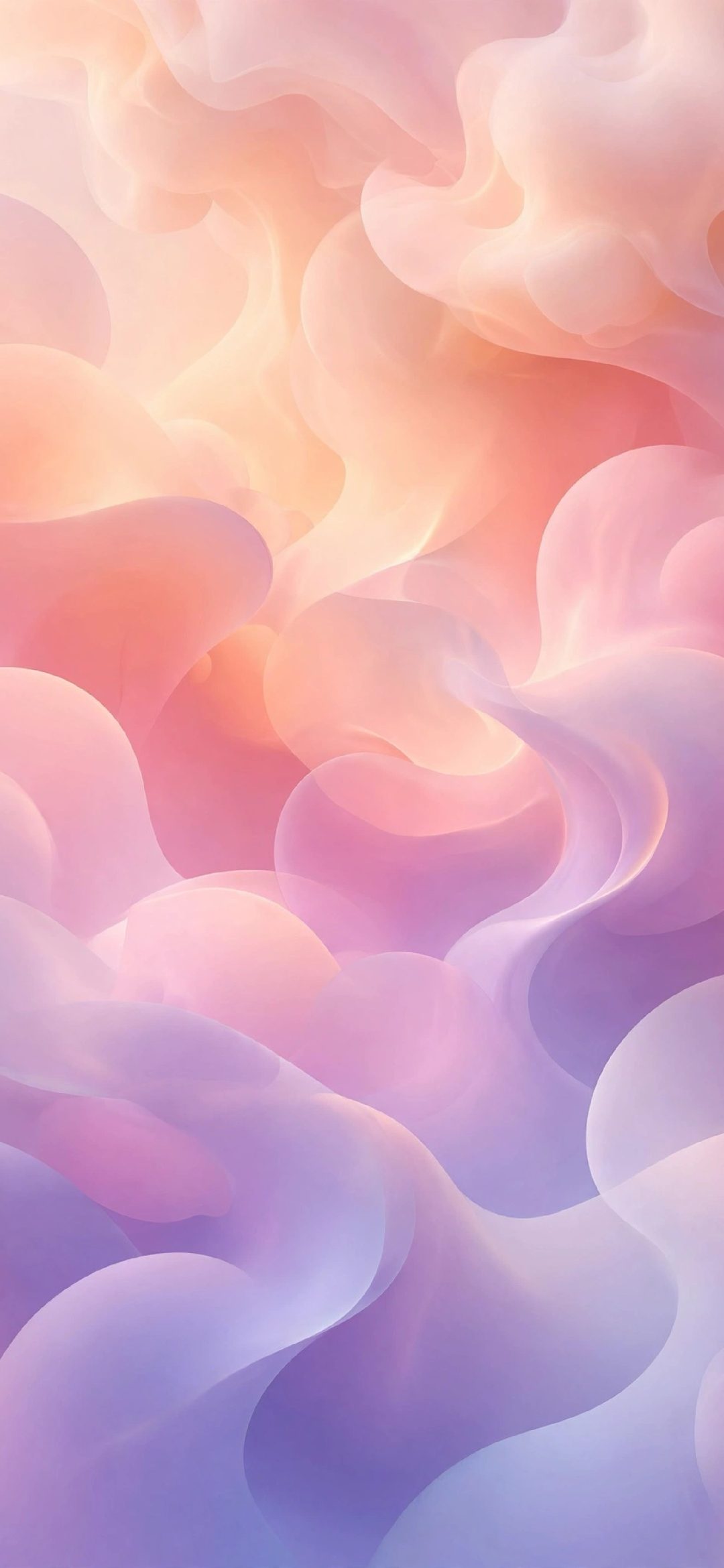
A gradient wallpaper on iPhone works best when the top third stays smooth and either clearly dark or clearly light, so the clock and widgets have an even background. Soft blob gradients suit a calm look, linear gradients suit a minimal one and mesh gradients add colour. Download the file at your exact screen size, or the 2160 × 3840 4K file, to avoid banding.

In short
- A gradient wallpaper is an image that blends two or more colours smoothly, with no hard edges or subject.
- The iOS Lock Screen clock is placed over the top part of the screen, so that area should be one even tone: deep navy, charcoal, soft peach or pale grey all work.
- Dark gradients (navy, violet, charcoal) keep a white clock readable and look deeper on OLED iPhones, which turn black pixels off.
- Banding (visible stripes in a smooth blend) usually comes from a low-resolution or heavily compressed file; an exact-size or 2160 × 3840 file avoids it.
- Set it with Settings → Wallpaper → Add New Wallpaper → Photos, or long-press the Lock Screen → + → Photos.
Why do gradients work so well on an iPhone Lock Screen?
Gradients work because they give the clock, date and widgets a quiet, even background without looking empty. A photo has edges, faces and bright spots that fight with the time; a gradient has none of that, so every element on the Lock Screen reads at a glance.
They also handle the Home Screen well. App icons and their labels sit on a smooth field of colour instead of a busy scene, and the Dock blur looks clean rather than muddy. If you like a different look on each side, a gradient makes a good Home Screen partner for a busier Lock Screen photo.
Finally, a gradient never looks wrong when iOS crops it. When you pinch to zoom or the phone shifts the image for different screen sizes, a blend of colour stays a blend of colour, while a photo can lose its subject behind the Dynamic Island.
Mesh, linear and soft blob gradients: which style should I pick?
Pick a soft blob gradient for a calm, rounded look, a linear gradient for the cleanest minimal screen, and a mesh gradient when you want colour to be the main event. The three styles differ in how the colours move across the screen.

- Linear gradient: colours change in one direction, usually top to bottom. Put the darkest or lightest end at the top and the clock always has a single tone behind it.
- Soft blob gradient: large, blurred patches of colour that melt into each other, like out-of-focus light. Pastel blob gradients in peach, pink and lavender are the classic aesthetic look.
- Mesh gradient: several colour points pulled in different directions, giving flowing waves or folds. Mesh gradients are livelier and often sit on black, which suits dark mode.
- Glow gradient: a single soft light fading into black or grey, such as a glowing orb. It acts like a gradient with a focal point.
| Style | How it looks | Best for | Clock colour that reads well |
|---|---|---|---|
| Linear | Smooth fade in one direction | Minimal setups, many widgets | Matches the end of the fade at the top |
| Soft blob | Blurred round patches of colour | Pastel, calm, aesthetic screens | Dark clock on pastels, white on deep tones |
| Mesh | Flowing waves of several colours | Bold, colourful Lock Screens | White, in a bold weight |
| Dark glow | One soft light fading into black | OLED iPhones, dark mode, Always-On | White or a soft tint of the glow |
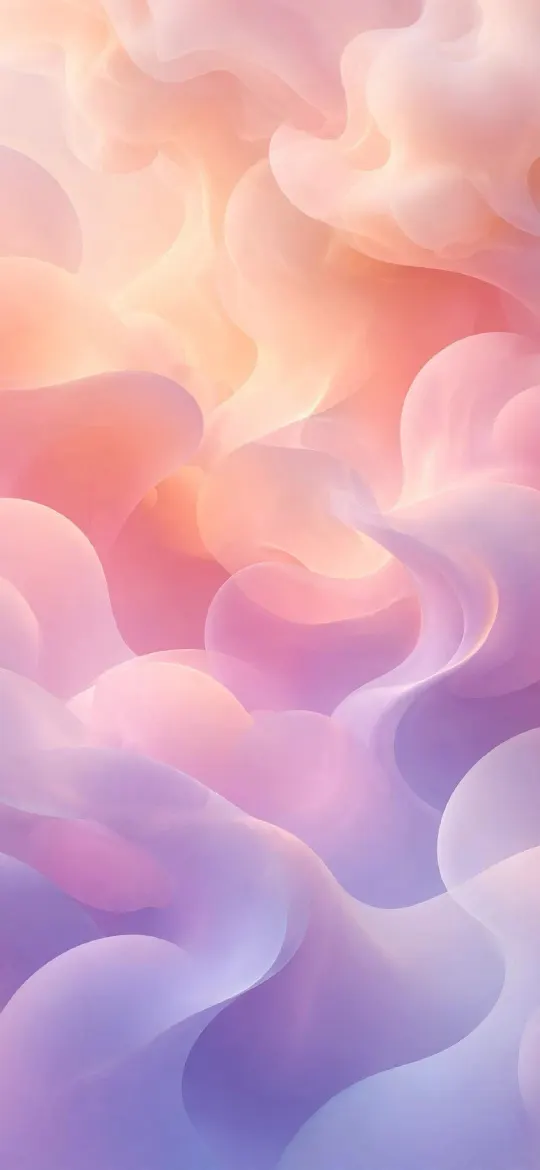 Pastel Gradient Blobs 4K Wallpaper
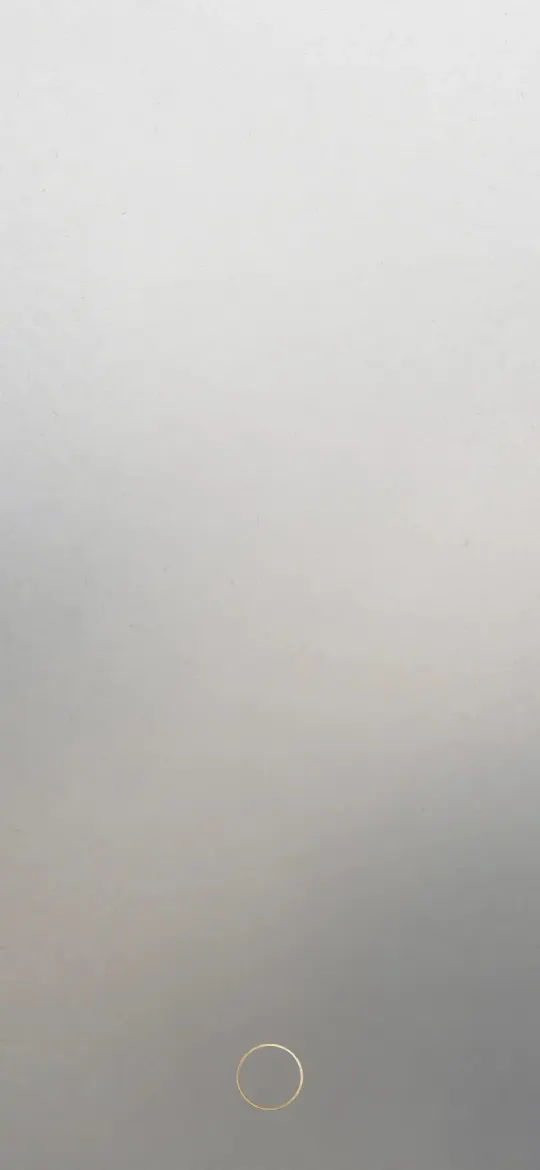 Minimal Zen Gray Gradient 4K Wallpaper
 Minimal Fog iPhone Wallpaper 4K
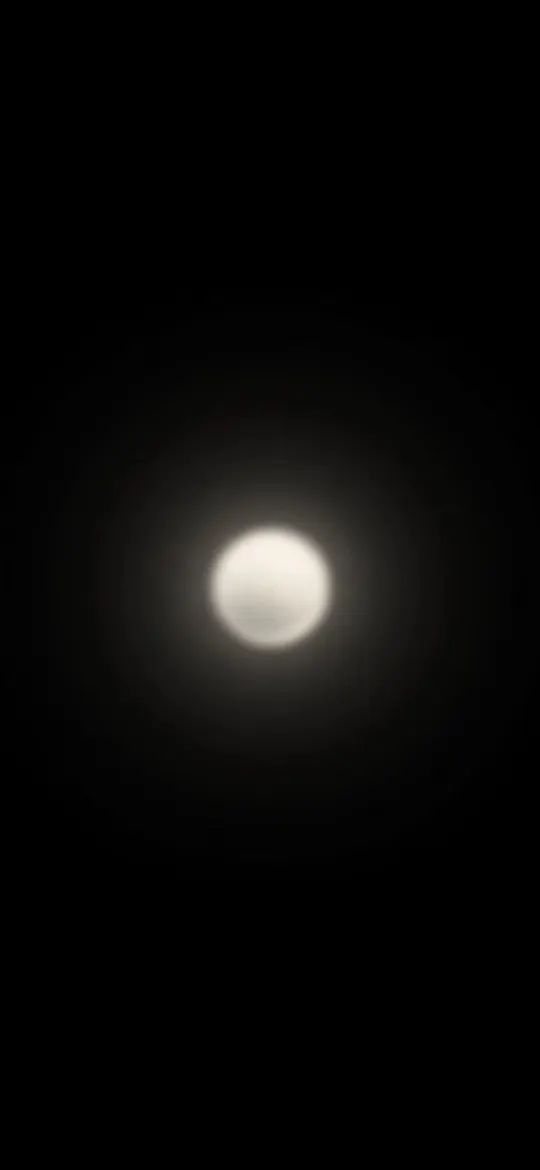 Minimalist Glowing Light Orb on Pitch Black 4K Wallpaper
 Midnight Starburst 4K iPhone Wallpaper
How do I choose gradient colours that keep the clock readable?
Choose colours by contrast first and mood second: the clock needs a strong difference in brightness from the area directly behind it. A white clock on deep navy reads instantly; a white clock on pale lilac almost disappears, even though both are pretty colours.
- Look at the top 30% of the image only. If that strip has both very light and very dark parts, the clock will look patchy.
- Use the Lock Screen editor to change the clock colour. Tap the time while customising and pick a colour from the gradient itself.
- Avoid placing two equally bright colours side by side behind the time, such as hot pink next to cyan. Hue alone does not create contrast.
- For widgets, the same rule applies: they sit straight on the wallpaper, so a calm, even area under them keeps the text crisp.
Our longer guide on keeping the Lock Screen clock readable covers clock fonts, colour and widget placement in more detail.
Dark gradients and blue gradients: what to know
A dark gradient is a blend that stays mostly in deep tones such as black, navy, plum or charcoal. On OLED iPhones, the darker the pixels, the less light the screen produces, and pure black pixels are switched off completely, so dark gradients look rich and calm at night. With Always-On display, the dimmed wallpaper stays subtle instead of glowing.

Blue gradients are the most popular colour for a reason: blue sits in the middle of the brightness range, so both a deep navy top with a white clock and a pale sky-blue top with a dark clock read well. Navy to sky blue, ice blue to burgundy and blue to violet are easy pairings that look calm on both the Lock Screen and Home Screen.
If you switch to Dark Mode at night, check Settings → Wallpaper → Dark Appearance Dims Wallpaper. With it on, iOS darkens a bright gradient while Dark Mode is on, which can turn a pastel wallpaper grey. Turn it off if you want the colours to stay true; what Dark Appearance Dims Wallpaper does explains the setting.
 Minimalist Blue Geometric Layers Abstract 4K Wallpaper
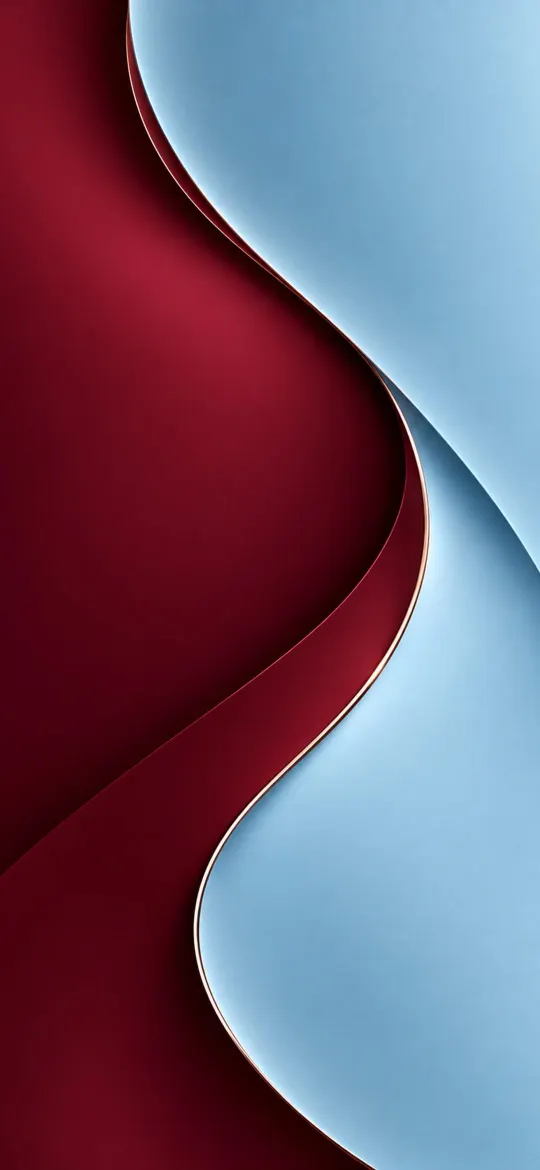 Burgundy Ice Blue Minimalist 4K Wallpaper
 Blue Red Abstract 4K iPhone Wallpaper
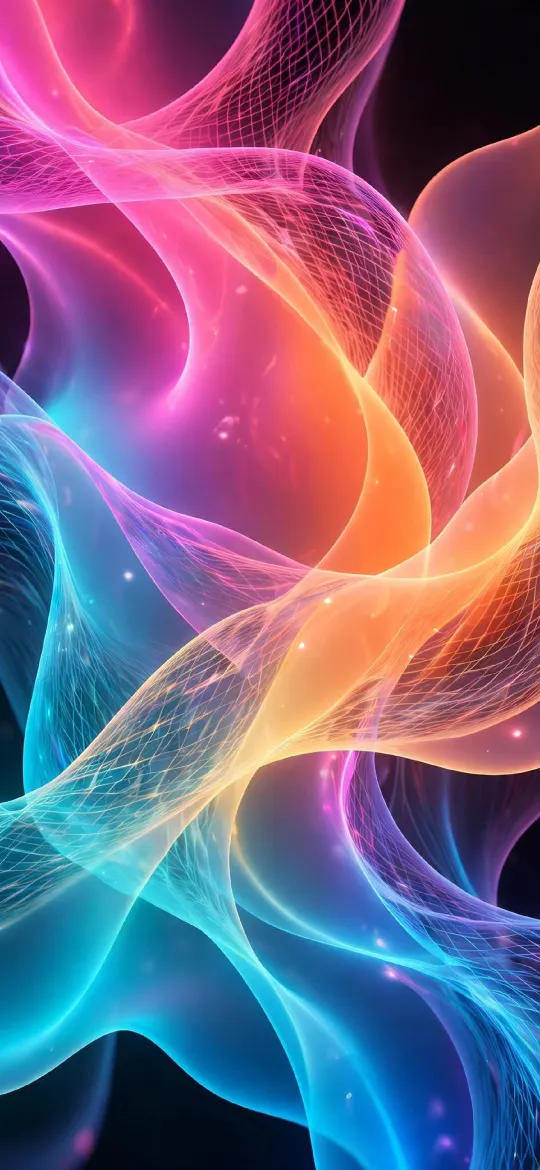 Neon Color Wave 4K Wallpaper
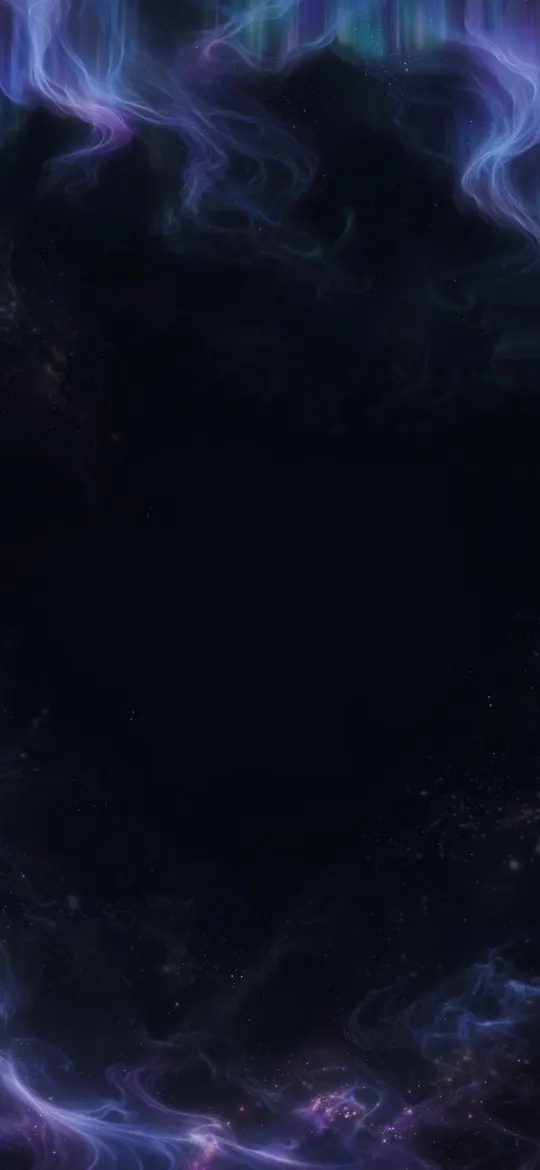 Ethereal Aurora Borealis Night Sky OLED 4K Wallpaper
Which size gradient wallpaper should I download?
Download the size made for your model, or the 2160 × 3840 universal 4K file if your model is not listed. Smooth gradients show flaws faster than photos: when a small image is stretched, the blend breaks into visible stripes called banding. On iPhonesWallpaper, every wallpaper is cut to the exact screen size of every iPhone model plus a universal 2160 × 3840 file, so the gradient is shown pixel for pixel.
| iPhone model | Wallpaper size (pixels) |
|---|---|
| iPhone 18 Pro Max / 17 Pro Max / 16 Pro Max | 1320 × 2868 |
| iPhone 18 Pro / 17 Pro / 17 / 16 Pro | 1206 × 2622 |
| iPhone 16 / 15 / 15 Pro / 14 Pro | 1179 × 2556 |
| iPhone 17e / 16e / 14 / 13 / 13 Pro / 12 / 12 Pro | 1170 × 2532 |
| Any phone (universal 4K) | 2160 × 3840 |
The full list of models is in the iPhone wallpaper sizes guide, and every gradient on the site is collected under the gradient tag.
Read next: Abstract Wallpaper for iPhone: Fluid, Glass, Geometric and Line Art and Minimalist Wallpaper for iPhone: What Works With Widgets.
Quick answers
What is the best gradient wallpaper for iPhone?
The best gradient wallpaper for iPhone has one even tone across the top third, where the clock sits, and smooth colour below. Dark blue, violet and charcoal gradients suit dark mode and OLED screens; soft pastel blob gradients suit a light, aesthetic setup.
Why does my gradient wallpaper have stripes or bands?
Stripes in a gradient, called banding, appear when the image is low resolution, heavily compressed or zoomed in. Download the file at your exact iPhone size or 2160 × 3840 and avoid zooming in the Lock Screen editor.
Do dark gradient wallpapers save battery on iPhone?
On OLED iPhones, darker pixels use slightly less power and pure black pixels are off, so a dark gradient uses a little less than a bright one. The difference is small in everyday use; see whether dark wallpapers save battery for the details.
How do I set a gradient as my iPhone wallpaper?
Save the image to Photos, then go to Settings → Wallpaper → Add New Wallpaper → Photos, or long-press the Lock Screen, tap +, choose Photos and select the gradient. Pinch to frame it, then tap Add and choose Set as Wallpaper Pair or Customise Home Screen.
Sources
- Change the wallpaper on iPhone, Apple Support
- Create a custom iPhone Lock Screen, Apple Support
- About the Super Retina display and Super Retina XDR display on your iPhone, Apple Support