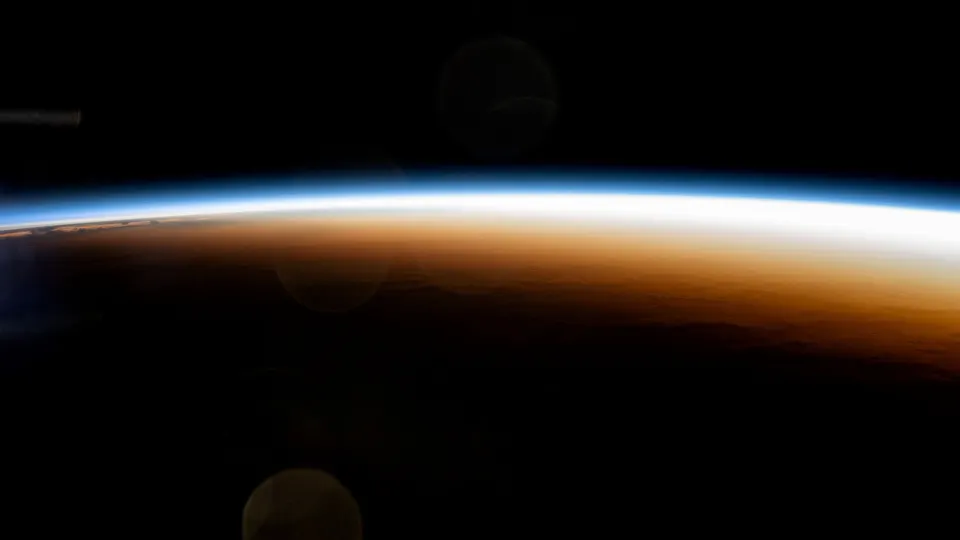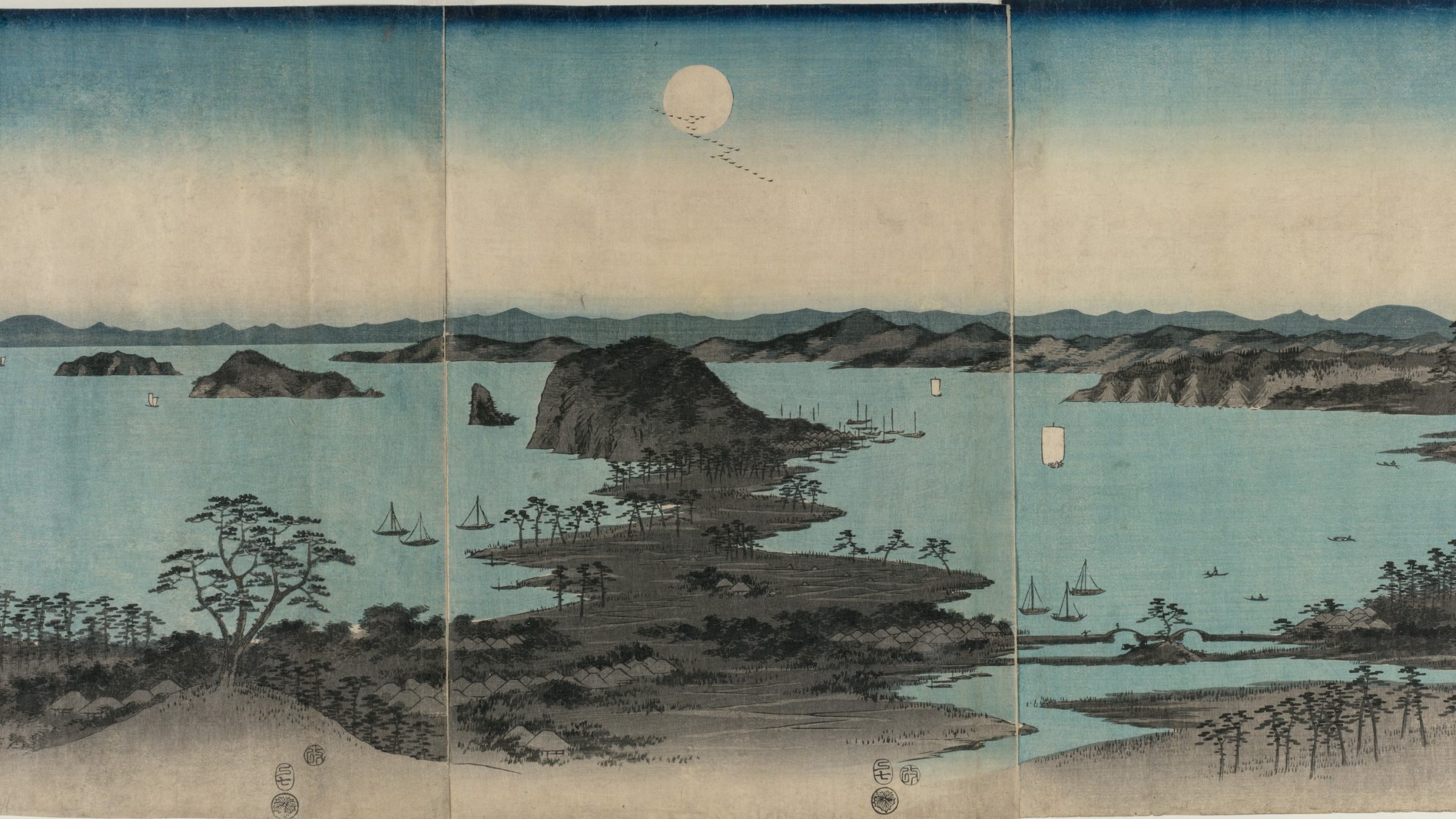
To change the lock screen wallpaper in Windows 11, open Settings → Personalisation → Lock screen and use the “Personalise your lock screen” menu. It has three options: Windows spotlight (pictures from Microsoft that change automatically), Picture (one image you choose) and Slideshow (a folder of your images). Pick Picture, click Browse photos and select a file at your screen’s resolution.
In short
- The setting lives at Settings → Personalisation → Lock screen → Personalise your lock screen.
- There are 3 choices: Windows spotlight, Picture and Slideshow.
- The lock screen and the desktop background are set separately, so changing one does not change the other.
- If Windows spotlight stops changing, switching to Picture and back to Windows spotlight is the first fix to try.
- The best lock screen file is the same size as your display, shown under Settings → System → Display.
What are the three lock screen options?
The lock screen is the full-screen picture Windows shows before you sign in, with the time and date near the top centre. Windows 11 fills it from one of three sources, each suited to a different habit.
| Option | What it shows | Changes by itself | Best for |
|---|---|---|---|
| Windows spotlight | Photos downloaded from Microsoft, often with a short caption | Yes, usually every day or so | Variety with no effort |
| Picture | One image you choose | No | A favourite photo or a wallpaper that matches your desktop |
| Slideshow | Images from folders you add | Yes, on a timer | Your own photo collection |
With Picture or Slideshow you also get a tick box for “Get fun facts, tips, tricks and more on your lock screen”. Untick it if you want a clean image without text. Below that, the “Lock screen status” menu chooses which app (such as Weather or Calendar) shows details on the lock screen.
How do I set my own lock screen wallpaper?
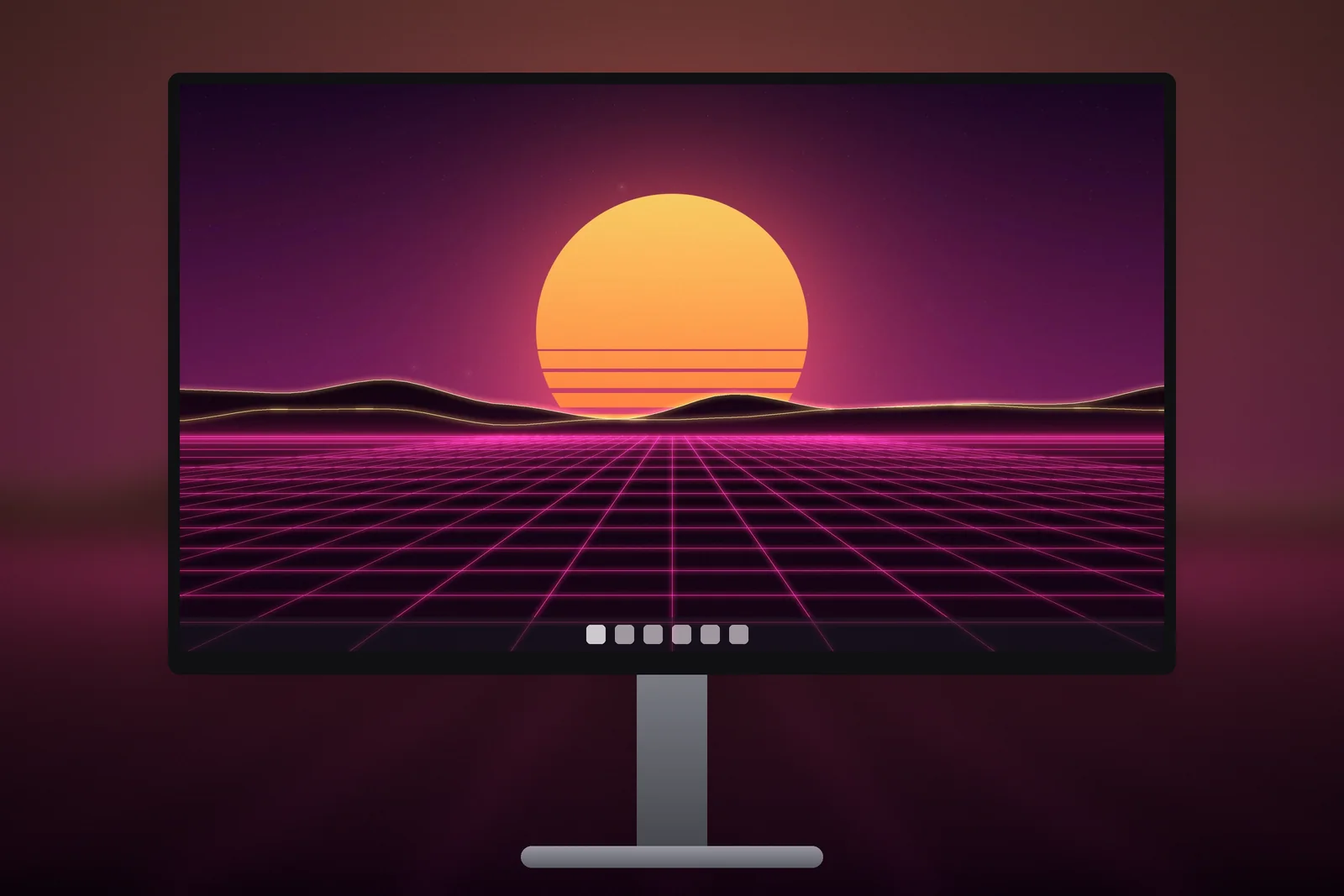
- Download a wallpaper at your screen’s resolution. For most PCs that is 1920 × 1080, 2560 × 1440 or 3840 × 2160.
- Open Settings → Personalisation → Lock screen.
- Set “Personalise your lock screen” to Picture.
- Click Browse photos and choose the file.
- Press Windows + L to lock the PC and check the result.
Windows fills the lock screen edge to edge, cropping any part of the image that doesn’t match the screen’s shape. A 16:9 picture on a 16:10 laptop loses a little from the sides, so pick the exact size where you can. The wallpaper resolution guide lists the common sizes.
Further down the Lock screen page is “Show the lock screen background picture on the sign-in screen”. Leave it on and the sign-in screen shows a blurred version of the same image; turn it off for a plain background.
Why is my Windows spotlight lock screen not changing?
Windows spotlight usually stops changing because it can’t download new pictures or its cached files are stuck. Windows spotlight is a Windows feature that downloads photos from Microsoft and rotates them on the lock screen, so it depends on a working internet connection and on Windows being allowed to fetch content in the background. Try these steps in order:
- Wait a day. Spotlight does not change every time you lock the PC; a new picture typically appears every day or so.
- Check the connection. Make sure the PC is online. If the network is set as a metered connection, Windows may hold back downloads like these.
- Switch and switch back. In Settings → Personalisation → Lock screen, choose Picture, lock and unlock the PC, then choose Windows spotlight again.
- Install updates. Run Settings → Windows Update and restart.
- Clear Spotlight’s cache. As a last step, deleting the cached Spotlight files (see the next section) and switching back to Windows spotlight makes Windows download a fresh set.
If the menu is greyed out and says some settings are managed by your organisation, a work or school policy controls the lock screen and only the administrator can change it.
Where does Windows spotlight keep its pictures?
Windows spotlight stores its pictures in a hidden folder inside your user profile, under the AppData area where Windows apps keep their local data. The files sit in a folder belonging to Windows’ content delivery component, have long random names and no file extension, and include small icons alongside the full-size photos.
To see one as an image, you would copy the larger files elsewhere and add .jpg to the name. Bear in mind that Spotlight pictures are provided by Microsoft for the lock screen; they are not a wallpaper pack you own, and Windows replaces them over time.
How do I match my lock screen and desktop wallpaper?
Set the same image in both places, because Windows 11 treats them as two separate settings. Choose Picture on the Lock screen page and the same file under Settings → Personalisation → Background → Picture. A quick way is to right-click the file in File Explorer, choose Set as desktop background, then add it on the Lock screen page.
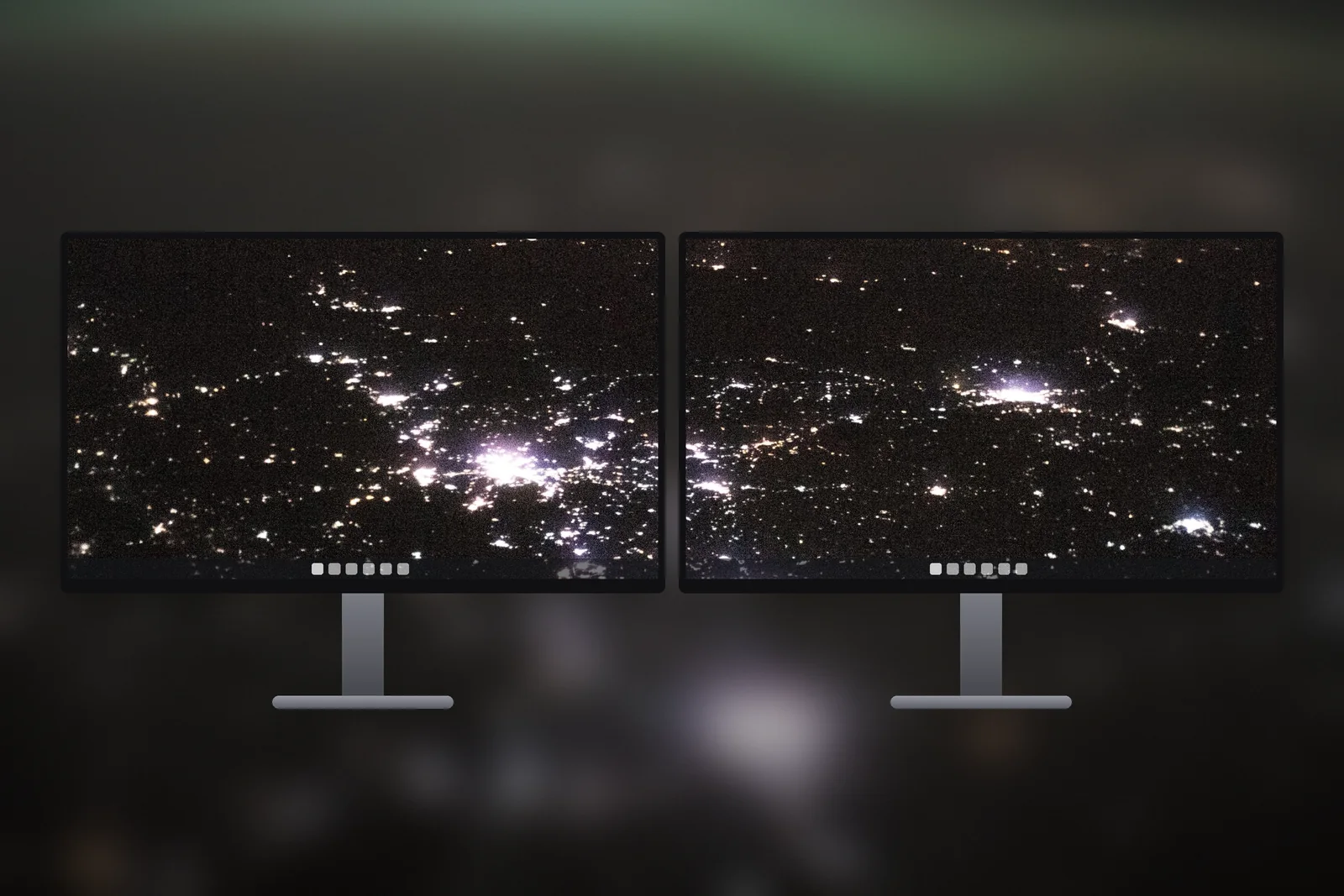
Windows 11 also offers Windows spotlight as a desktop background option, but the desktop and lock screen feeds run separately, so they often show different photos. For a guaranteed match, use your own file. Full desktop steps are in how to change wallpaper on Windows 11.
- Same picture, two crops: the lock screen covers the whole display, while on the desktop the taskbar sits over a strip at the bottom, so keep the subject above it.
- Pair, don’t copy: a coastline on the lock screen and a darker shot of the same scene on the desktop keeps icons readable.
- Several monitors and desktops: Windows has one lock screen setting, while the desktop can show a different picture on each monitor and even on each virtual desktop (right-click a desktop in Task View to change its background); the dual monitor wallpaper guide covers the desktop side.
On iPhonesWallpaper, every wallpaper in the PC section is cut to seven exact screen sizes, from 1366 × 768 to 4K UHD, so the same picture fits the lock screen and the desktop without stretching.


Read next: How to Change Wallpaper on Windows 11 (and Fix Blurry Ones) and Dark Desktop Wallpaper: 4K Picks for Dark Mode and OLED Screens.
Quick answers
How do I change the lock screen on Windows 11?
Open Settings → Personalisation → Lock screen, set “Personalise your lock screen” to Picture, click Browse photos and choose an image. Press Windows + L to check it.
Why is my lock screen wallpaper not changing in Windows 11?
If you use Windows spotlight, it needs an internet connection and changes roughly once a day. Switch to Picture and back to Windows spotlight, install updates, and check the network is not metered.
Can I have a different lock screen and desktop wallpaper?
Yes. Windows 11 sets them separately: the lock screen under Personalisation → Lock screen and the desktop under Personalisation → Background.
What size should a Windows 11 lock screen wallpaper be?
The same as your screen resolution, shown under Settings → System → Display. Common sizes are 1920 × 1080, 2560 × 1440 and 3840 × 2160.
How do I remove the fun facts and tips from the Windows 11 lock screen?
Choose Picture or Slideshow in Settings → Personalisation → Lock screen, then untick Get fun facts, tips, tricks and more on your lock screen. The option isn't offered with Windows spotlight.
Sources
- How to make your Windows computer aesthetic, Microsoft
- Stay organized by using multiple desktops, Microsoft
- Using a monitor with a closed laptop, Microsoft