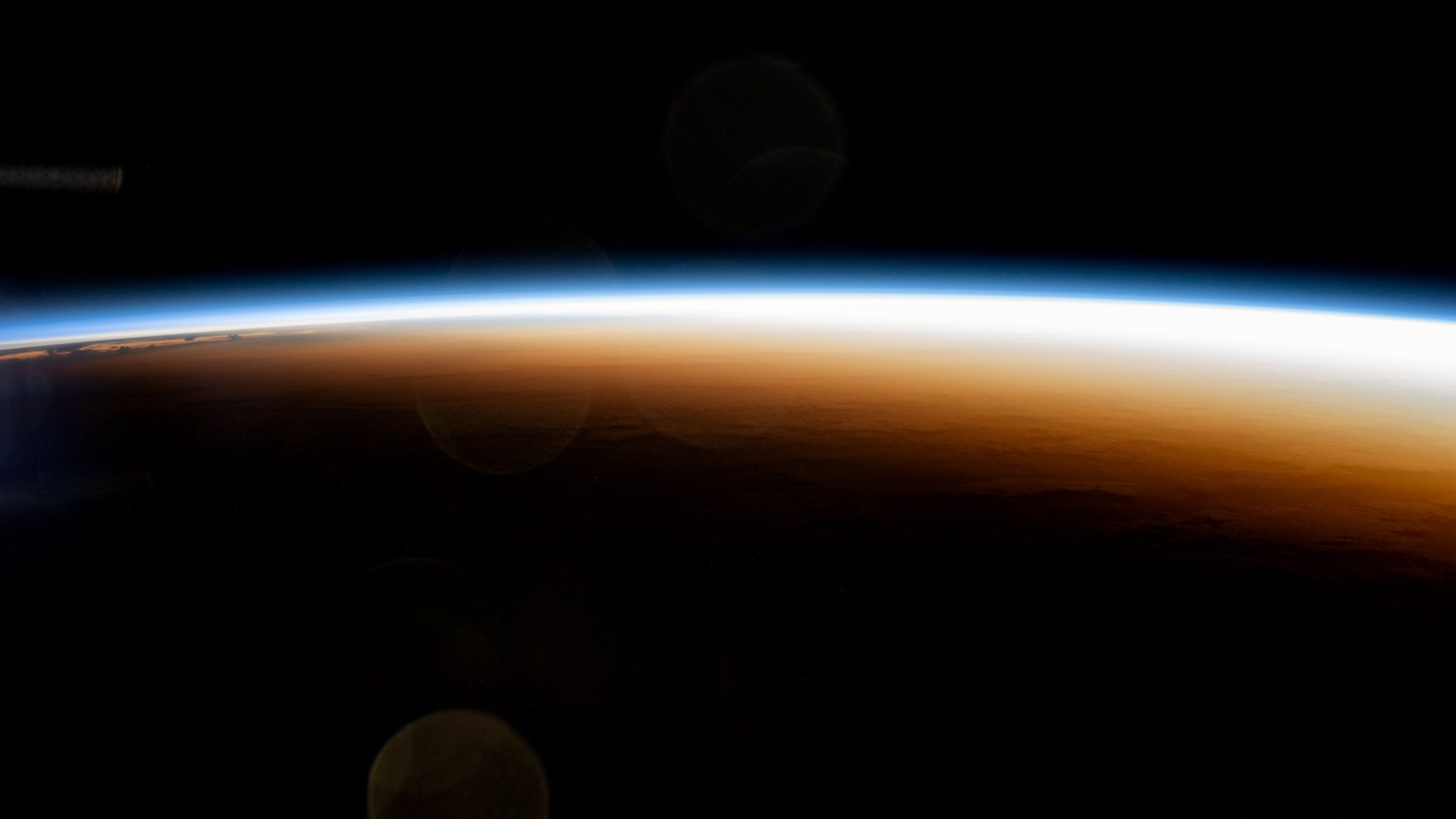
There are two ways to do a dual monitor wallpaper in Windows 11. You can stretch one wide picture across both screens with the Span fit, or you can give each monitor its own picture by right-clicking a thumbnail in Settings and choosing Set for monitor 1 or Set for monitor 2. For two Full HD screens side by side, a spanned image should be 3840 × 1080.
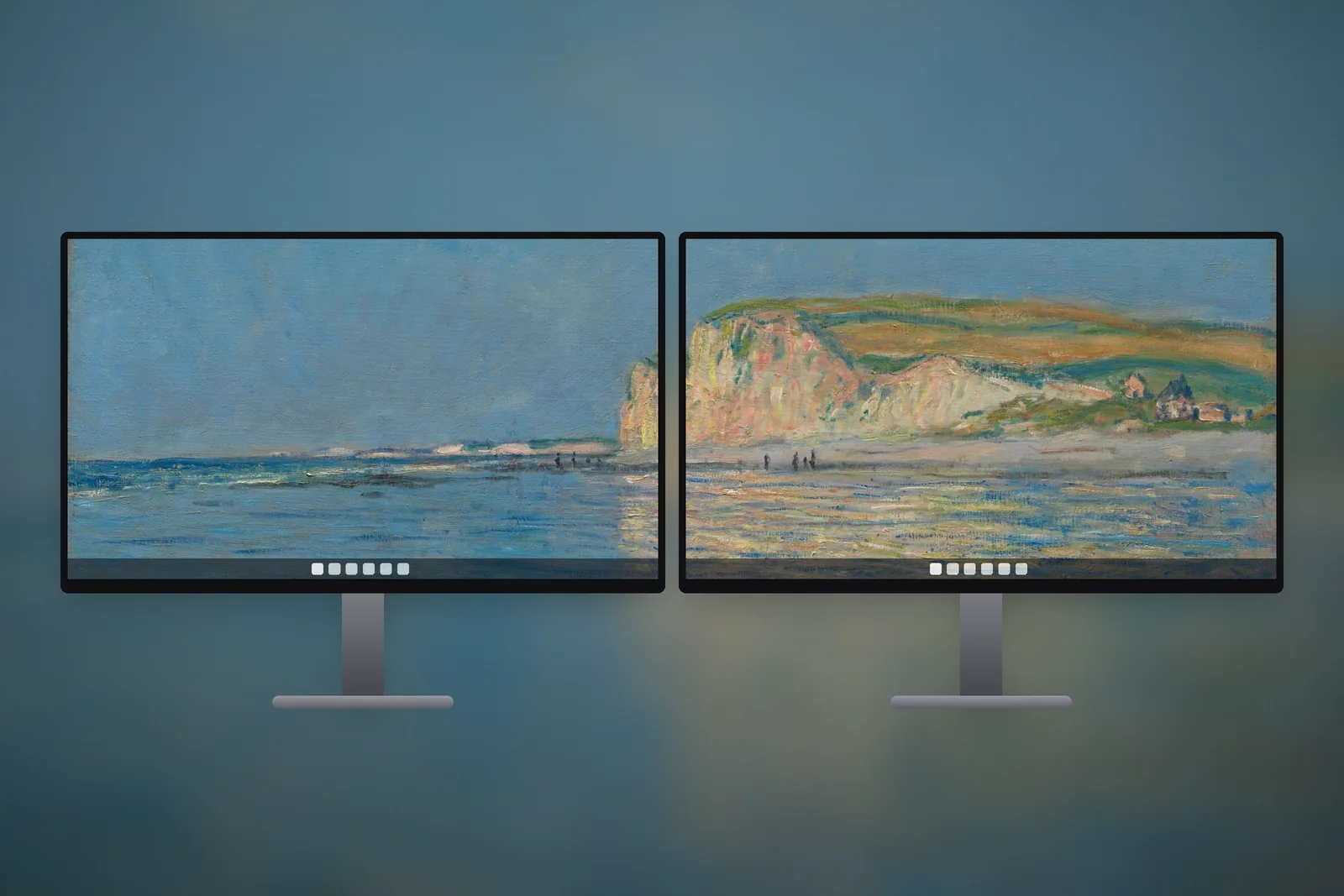
Which method looks better depends on your monitors. Matching screens suit a single spanned panorama. Mixed screens, or screens at different heights on the desk, usually look tidier with one picture each.
In short
- First make sure both screens are in Extend mode: press Win + P and choose Extend.
- To span: Settings → Personalisation → Background → Picture, then set the fit to Span. Two 1080p screens need a 3840 × 1080 image.
- To use one picture per screen: add both under Recent images, right-click each and choose Set for monitor 1 or 2, with the fit on Fill.
- Line up the monitor boxes in Settings → System → Display so the layout matches your desk.
Option 1: span one picture across both monitors
Span treats your whole desktop as one long canvas and lays a single image over it. When it works, a horizon or skyline runs straight from the left screen into the right one, broken only by the bezels.
- Open Settings → Personalisation → Background.
- Next to Personalise your background, choose Picture.
- Click Browse photos and pick your wide image.
- Open Choose a fit for your desktop image and select Span.
That is all Windows needs. The image is scaled to cover the full width of both screens, and anything that doesn't fit vertically is trimmed from the top and bottom.
Where Span falls short
Windows spans the picture over a rectangle that wraps around every monitor, based on the layout in Settings → System → Display. That causes three common problems:
- Different resolutions. A 1080p screen next to a 1440p screen shares one image, so each monitor shows a slice of a different height, and the picture looks bigger on the lower-resolution screen.
- Uneven positions. If one monitor sits higher than the other in the Display layout, the shorter screen shows only part of the image and the horizon jumps at the join.
- Wrong aspect ratio. A normal 16:9 photo spread over a 32:9 desktop loses about half its height to cropping, which often cuts the subject in two.
Option 2: a different wallpaper on each monitor
This is the better choice for most mixed setups, and it lets you pair two pictures that feel related rather than forcing one image to fit both.
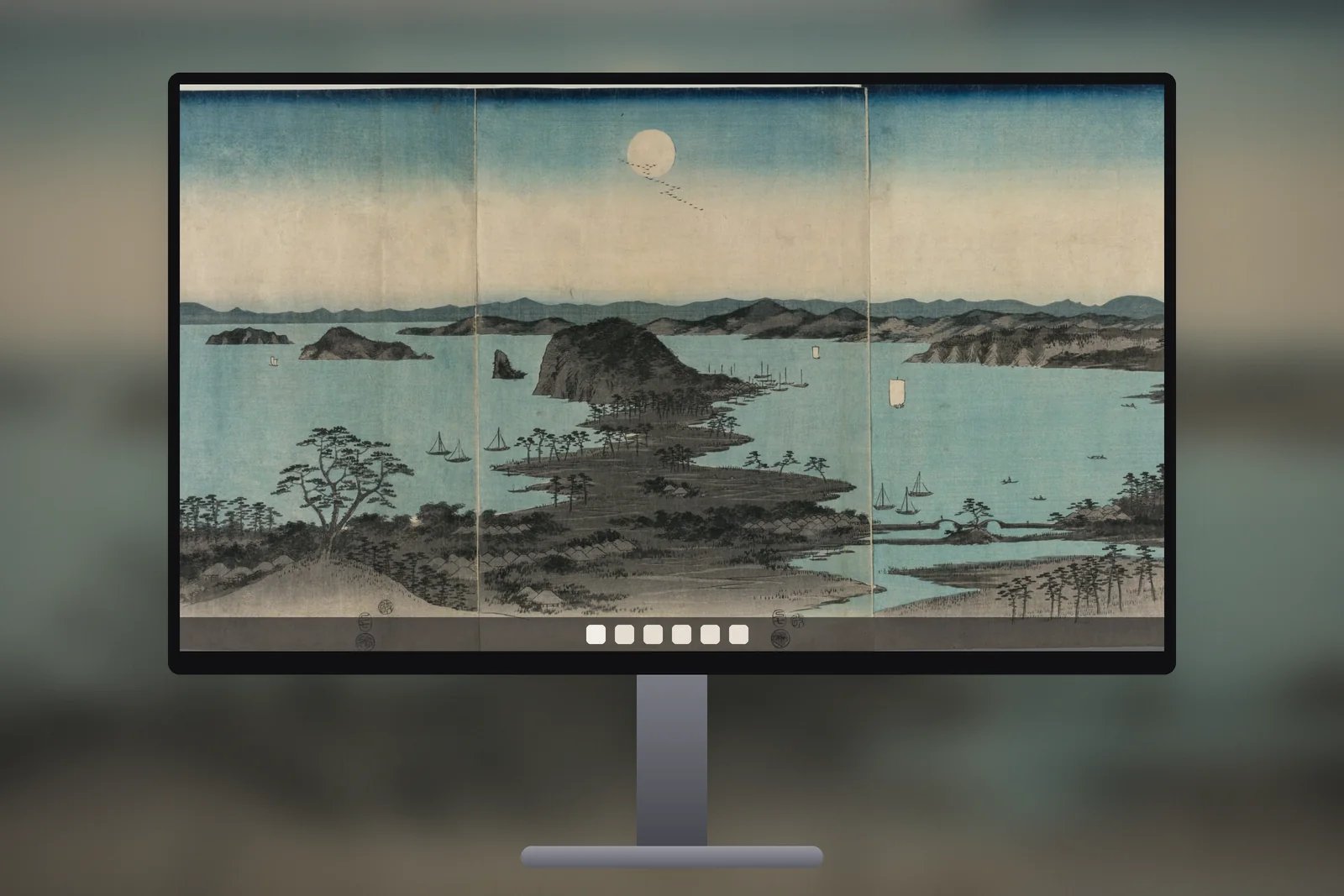
- Go to Settings → Personalisation → Background and make sure Picture is selected.
- Click Browse photos and add both wallpapers so they appear under Recent images.
- Right-click the first thumbnail and choose Set for monitor 1.
- Right-click the second thumbnail and choose Set for monitor 2.
Not sure which screen is which? In Settings → System → Display, click Identify and a large number appears on each monitor for a few seconds.
Use a fit of Fill here. Each image is then cropped to its own screen, so a 1440p monitor and a 1080p monitor can both get a sharp, correctly framed picture. The easiest way to get that is to download each wallpaper at the exact size of its screen from the PC wallpaper section, which offers 1080p, 1440p, 4K, 16:10 laptop and ultrawide versions of every picture, all free for personal use under the wallpaper licence.

What size should a dual monitor wallpaper be?
For Span, add the widths of your screens together and keep the height of one screen. Two monitors of the same resolution side by side give these sizes:
| Your two monitors | Spanned wallpaper size | Aspect ratio |
|---|---|---|
| 2 × Full HD 1920 × 1080 | 3840 × 1080 | 32:9 |
| 2 × QHD 2560 × 1440 | 5120 × 1440 | 32:9 |
| 2 × 4K 3840 × 2160 | 7680 × 2160 | 32:9 |
| 2 × 1920 × 1200 (16:10) | 3840 × 1200 | 16:5 |
If your screens are stacked one above the other instead, keep the width of one screen and add the heights, so two 1080p monitors become 1920 × 2160.
Spanned images are hard to find at exactly 3840 × 1080. A practical shortcut is to use a wide picture with plenty of sky and ground that can lose some height without losing its subject. An ultrawide 3440 × 1440 file, for example, keeps roughly two thirds of its height when spread across two 1080p screens, which is much better than the half you keep from a 16:9 photo.
Pictures that work across two screens
The bezels split whatever is in the middle of the image, so the composition matters more than the resolution.

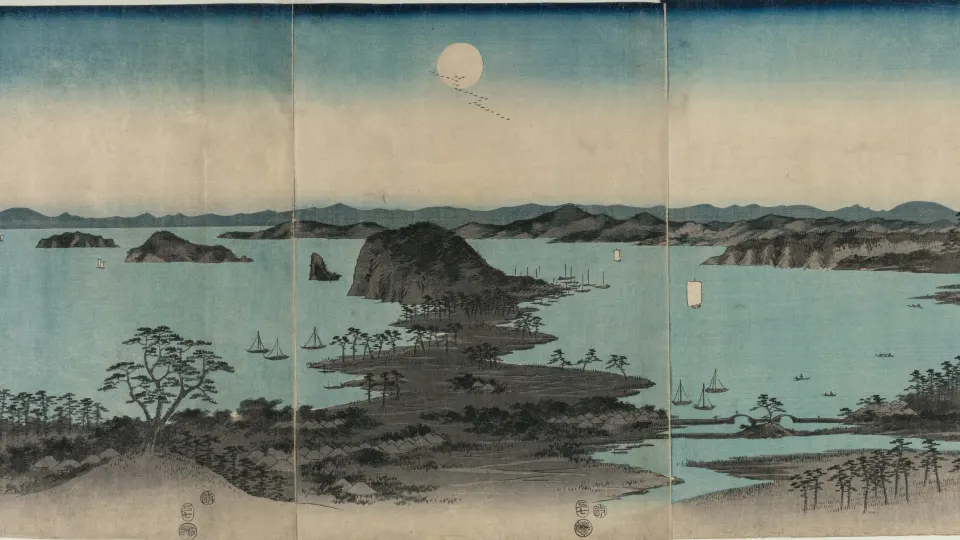
- Horizons and coastlines. A long flat line reads as continuous even with a gap in it.
- Night skies and space scenes. Stars, auroras and the curve of the Earth have no single focal point to be cut in half.
- Landscapes with the subject off-centre. A mountain or a tree on the left third ends up whole on the left monitor.
- Avoid faces, text and centred objects. These land right on the bezel and look broken.
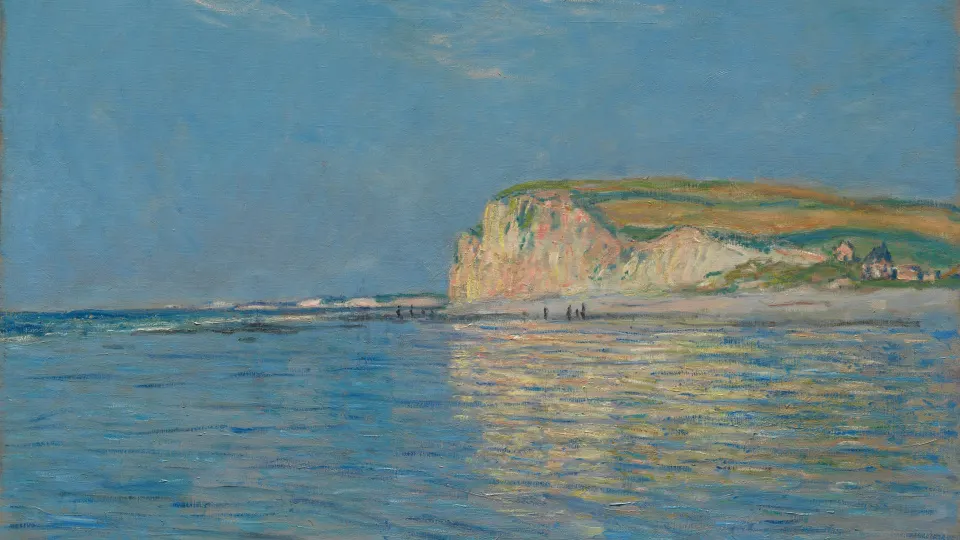
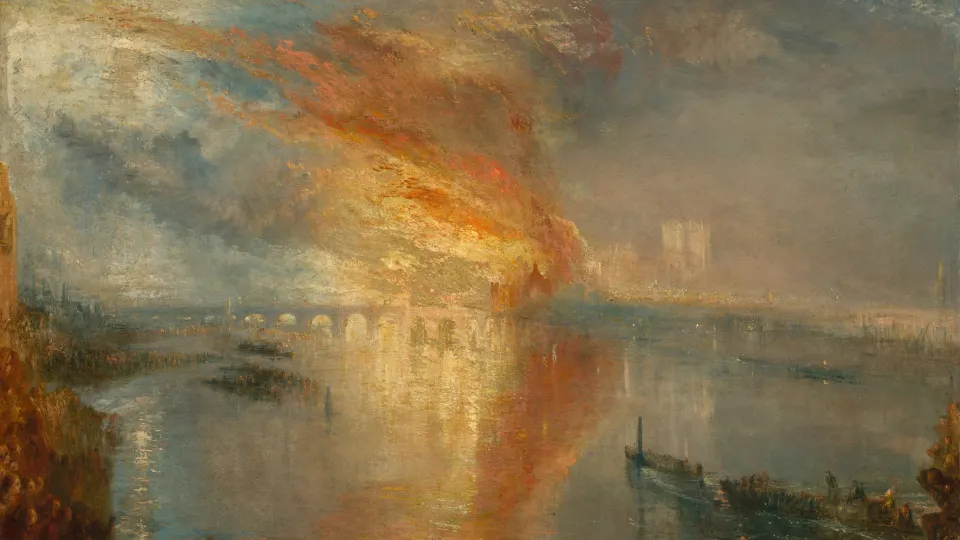
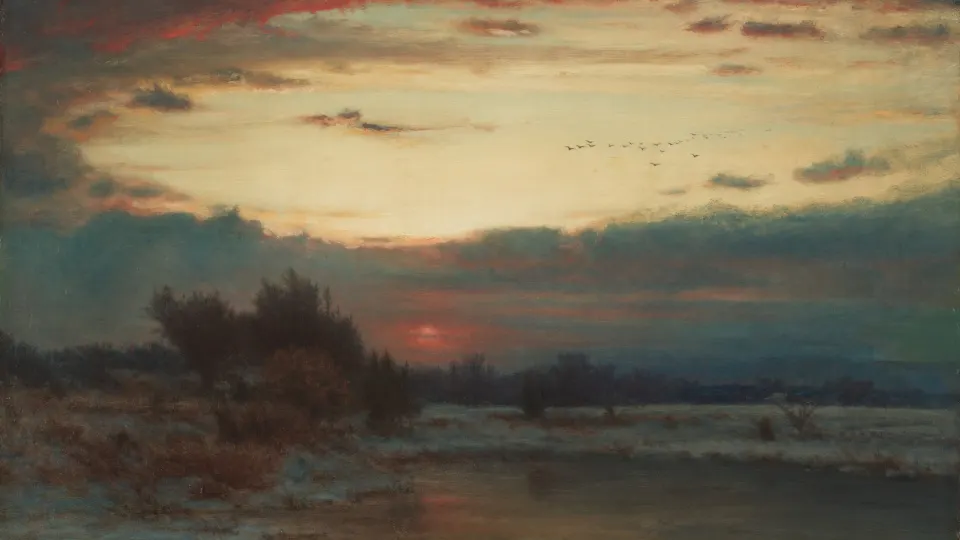
For a pair of separate wallpapers, pick two pictures with the same palette or time of day, such as two dusk scenes or two views from orbit. Browsing space wallpapers for PC is a quick way to find a matching set.


Alignment tips for a clean result
- Set both monitors to their native resolution in Settings → System → Display → Display resolution (the one marked Recommended). A non-native resolution makes the wallpaper soft as well as everything else.
- Match the top edges of the monitor boxes in the Display layout if the screens are the same height on your desk.
- If the image steps at the join, nudge one box up or down by a few pixels in the layout and apply again.
- Keep your main taskbar monitor on the side where the image is busier, so the quieter half holds your open windows.
- Turn on Show my taskbar on all displays only if the bottom of your picture is plain, otherwise the taskbar cuts across detail twice.
Read next: How to Change Wallpaper on Windows 11 (and Fix Blurry Ones) and Ultrawide Wallpaper: Sizes, Cropping and What Looks Good.
Quick answers
How do I put a different wallpaper on each monitor in Windows 11?
In Settings → Personalisation → Background, add both pictures, then right-click each thumbnail under Recent images and choose Set for monitor 1 or Set for monitor 2.
What size is a dual monitor wallpaper for two 1080p screens?
3840 × 1080 pixels. For two 1440p screens it is 5120 × 1440, and for two 4K screens 7680 × 2160.
Why does my spanned wallpaper not line up?
Span follows the monitor layout in Settings → System → Display. If the boxes are offset vertically or the screens have different resolutions, the image breaks at the join. Line up the boxes, or set a separate picture per monitor instead.
What size wallpaper do I need for a vertical monitor?
Swap the numbers: a 1080p monitor in portrait needs 1080 × 1920, and a 4K one 2160 × 3840. The 4K universal phone wallpapers are exactly 2160 × 3840, so they fit a portrait 4K screen and scale cleanly to portrait 1080p.
Can each virtual desktop have its own wallpaper in Windows 11?
Yes. Open Task View (Windows key + Tab), right-click a desktop and choose to change its background. This is separate from monitors: each virtual desktop keeps its own picture across the screens it uses.