 Deep Teal Honeycomb
MacBook Pro 16-inch wallpapers
Free wallpapers at exactly 3456 × 2234 pixels, the native resolution of the 16-inch MacBook Pro from 2021 on, the largest pixel count of any MacBook. Each file fills the screen pixel for pixel.
MacBook Pro 16-inch (2021 and later) · 3456 × 2234 · 113 wallpapers
- 3456 × 2234native pixels, about 7.7 megapixels
- 16.2-inchLiquid Retina XDR display
- 254 ppipixel density
- 1728 × 1117the default "looks like" size in Displays settings
Deep Teal Honeycomb
















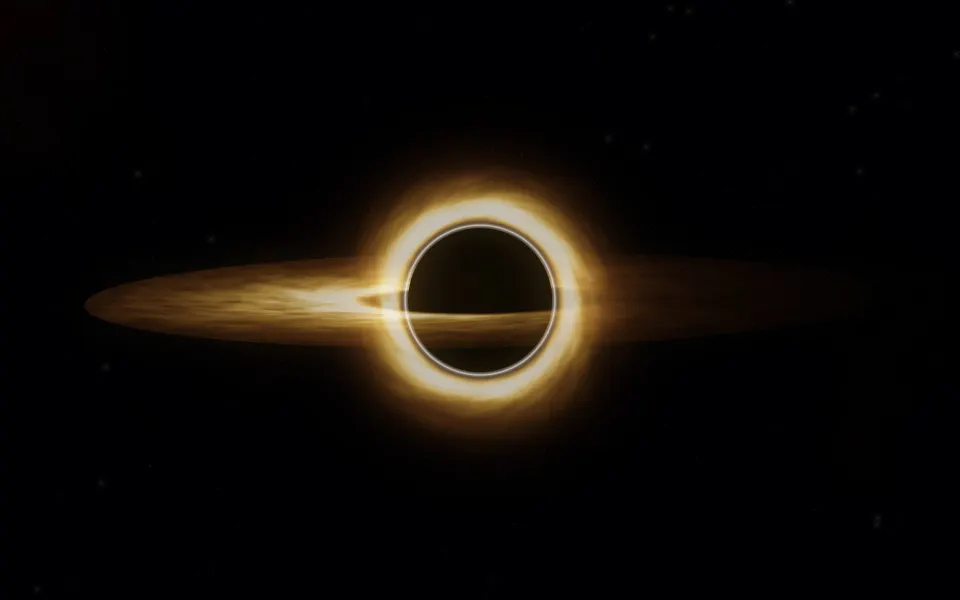
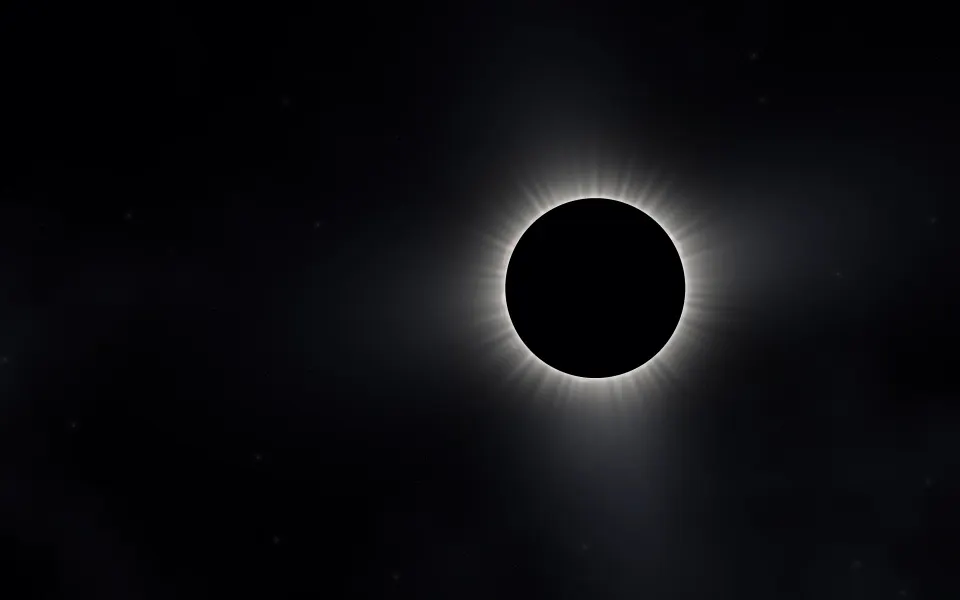


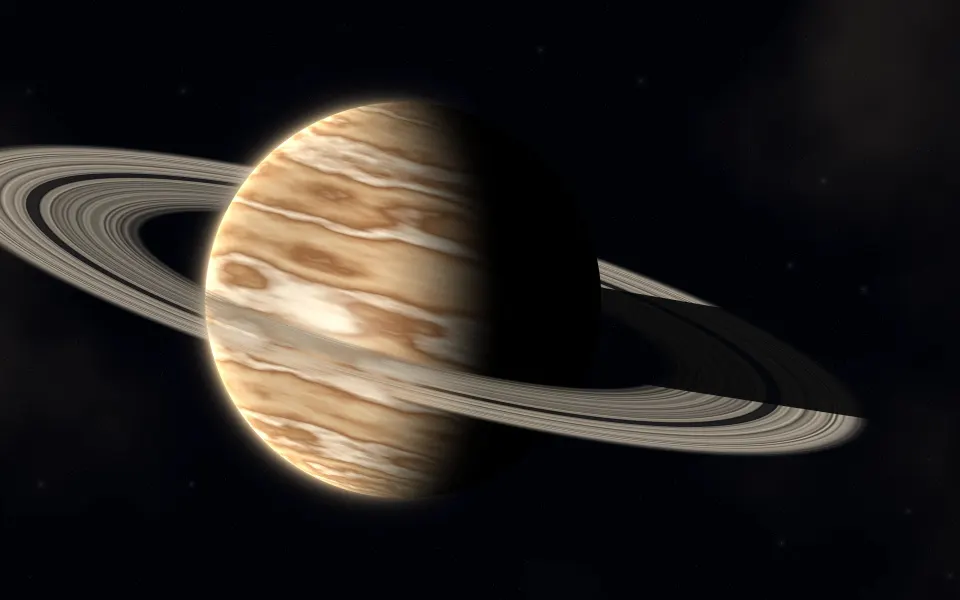


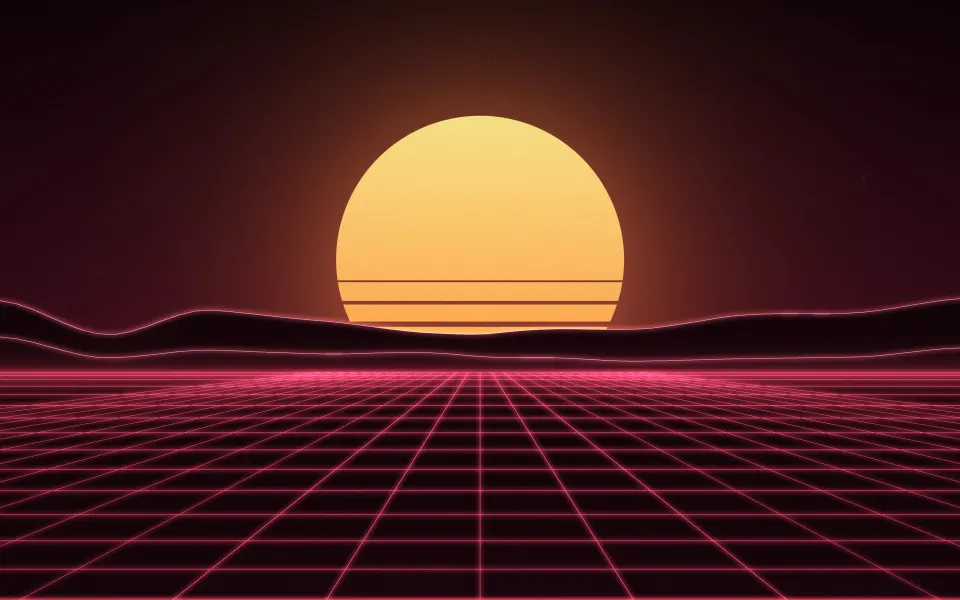

Which MacBook Pro is 3456 × 2234?
The 16-inch MacBook Pro has had this screen since the 2021 redesign. With almost 7.7 million pixels it shows any softness in a wallpaper, which is why the file should be at the native size rather than a smaller picture enlarged.
The screen is slightly taller than 16:10 because of the strip around the notch. A 4K picture (16:9) is narrower in shape and also smaller than this screen, so macOS has to enlarge and crop it; the exact file avoids both.
Other sizes: MacBook Air 13-inch wallpapers, MacBook Air 15-inch wallpapers, MacBook Pro 14-inch wallpapers, MacBook Air M1 & 13-inch MacBook Pro wallpapers, MacBook Neo wallpapers, iMac 24-inch wallpapers, 5K wallpapers for Studio Display, 6K wallpapers for Pro Display XDR. Every wallpaper's page lists all MacBook & iMac sizes; browse them in MacBook & iMac wallpapers. Every model and its size: Mac wallpaper sizes: MacBook Air, MacBook Pro, iMac and displays.
MacBook Pro 16″ wallpaper questions
What size wallpaper fits the 16-inch MacBook Pro?
3456 × 2234 pixels, the native resolution of the 16-inch MacBook Pro from 2021 on.
Is a 4K wallpaper enough for the 16-inch MacBook Pro?
Not quite: 3840 × 2160 is shorter than the screen's 2234 rows, so macOS enlarges and crops it. The 3456 × 2234 file fits exactly.
Why does Displays show 1728 × 1117?
That is the default scaled size of the Retina screen. A wallpaper should use the full 3456 × 2234 pixels.
How do I set a wallpaper on a Mac?
Open System Settings › Wallpaper and add the picture, or right-click the downloaded file in Finder and choose Set Desktop Picture. Choose Fill Screen so it covers the display.
Are these wallpapers free?
Yes. Every wallpaper is free to download and use on your own devices. The license page explains the details.