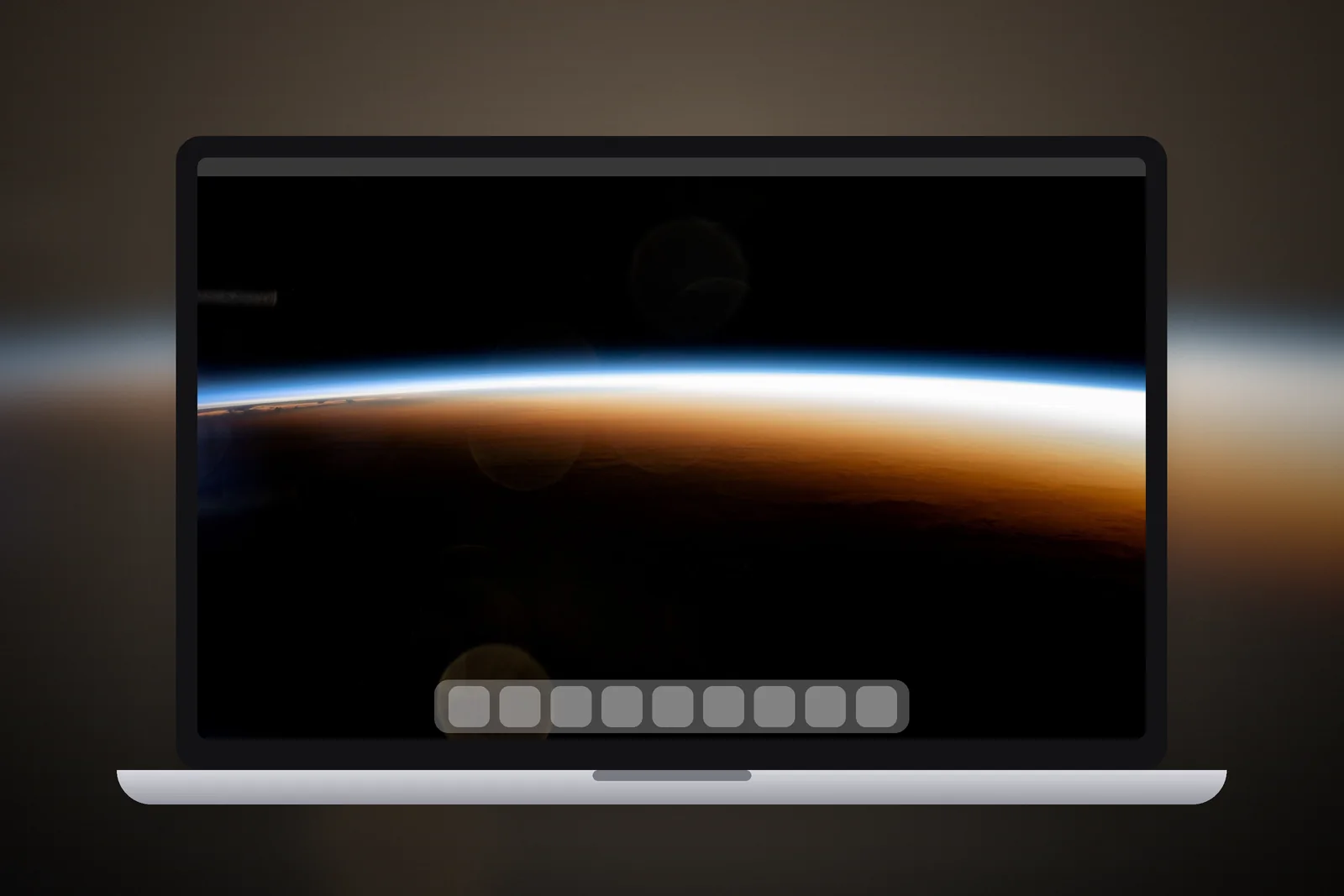
A Mac dynamic wallpaper is a built-in desktop picture that gradually brightens and darkens through the day, based on the time of day where you are. Choose one under Dynamic Wallpapers in System Settings → Wallpaper and pick Dynamic in the pop-up menu next to the thumbnail. To rotate your own pictures instead, scroll to Your Photos, click Add Photo → Choose Folder, then use the Rotate option to shuffle through the folder.
In short
- Dynamic wallpapers hold several versions of one scene; macOS shows the one that matches the time of day for your current location.
- Their pop-up menu has four settings: Automatic (follows Light or Dark Appearance), Dynamic (changes through the day), Light (Still) and Dark (Still).
- To rotate your own images: System Settings → Wallpaper → Your Photos → Add Photo → Choose Folder, then turn on Rotate and choose how long each picture shows.
- Aerial wallpapers (Landscape, Cityscape, Underwater, Earth) are the moving option: they animate as you lock or unlock the Mac.
- If a down arrow sits next to a wallpaper's name, click it once to download it before it can be used.
What is a dynamic wallpaper on Mac?
A dynamic wallpaper is a single wallpaper file that contains several pictures of the same scene, each linked to a time of day. Apple introduced the idea as Dynamic Desktop in macOS Mojave in 2018. Through the day the Mac moves between them, so a scene goes from pale morning light to warm evening to a dark night sky. In macOS 27 Golden Gate, the Golden Gate wallpaper itself is one of them.
They are different from a slideshow. A dynamic wallpaper is one scene that changes with the clock. A slideshow, or rotating wallpaper, is a set of different pictures that change on a timer you choose.
| Type | What changes | Set it up | Uses your own pictures? |
|---|---|---|---|
| Dynamic | One scene, by time of day | Dynamic Wallpapers → pop-up menu → Dynamic | No |
| Light and Dark | Two versions, by Appearance | Dynamic Wallpapers → pop-up menu → Automatic | No |
| Aerial | Animates as you lock or unlock | Landscape, Cityscape, Underwater or Earth | No |
| Shuffle Aerials | Still aerial images, at an interval | Shuffle Aerials → choose how often | No |
| Rotating folder | Different pictures, on a timer | Your Photos → Add Photo → Choose Folder → Rotate | Yes |
| Single still | Nothing | Add Photo → Choose File, or Set Desktop Picture in Finder | Yes |
How do I turn on a dynamic wallpaper?
- Open the Apple menu → System Settings, then click Wallpaper in the sidebar (you may need to scroll down).
- Pick a wallpaper under Dynamic Wallpapers. If a down arrow appears next to its name, click it once so it downloads.
- Use the pop-up menu next to the current wallpaper thumbnail and choose Dynamic, rather than Light (Still) or Dark (Still).
- Automatic is the other choice: with Appearance set to Auto it switches from light to dark at sunset; with Appearance set to Light or Dark it stays that way.
Light and Dark wallpapers are a simpler cousin of dynamic ones. Set System Settings → Appearance to Auto, choose Automatic for the wallpaper, and the desktop switches from light to dark at sunset based on your location. Our guide to changing the wallpaper on Mac covers the basic steps and the fit options.
How do I make my Mac wallpaper change automatically?
The way to rotate your own pictures is a folder slideshow. macOS shows each image in the folder in turn, at whatever interval you choose.

- Create a folder in Finder, for example Pictures → Desktop Rotation, and put your wallpapers in it.
- Open System Settings → Wallpaper, scroll down to Your Photos and click Add Photo.
- Click Choose Folder, select the folder, then click Open. (To use a Photos album instead, select it under Photo Sets.)
- Select the folder, then click the Rotate button below its name to shuffle through the images.
- Choose how long each picture shows from the pop-up menu next to the current wallpaper thumbnail, and select Randomly if you want a mixed order.
If you use several desktops (Spaces) or more than one display, the Show on all Spaces switch decides whether they all share the same wallpaper. Turn it on for one rotating set everywhere.
How do I build a rotating set from these Mac wallpapers?
You can make something that feels like a dynamic wallpaper with a hand-picked set. On iPhonesWallpaper, every wallpaper in the Mac section is cut to exact Mac sizes, so download each picture at your screen's resolution (see the MacBook wallpaper size guide; 2560 × 1664 for a 13-inch MacBook Air with M2 or later, 3024 × 1964 for a 14-inch MacBook Pro) and save them all in one folder.
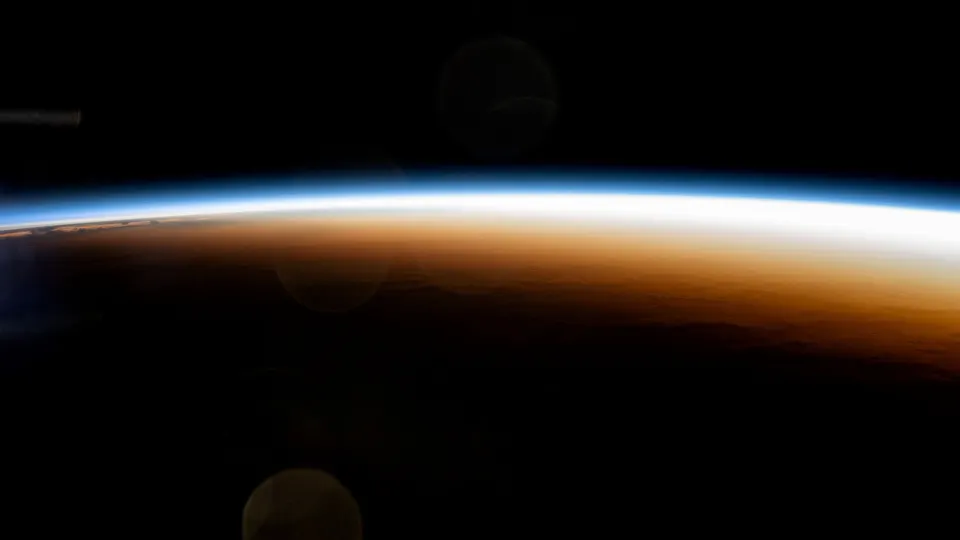
A set from morning to night might start with an orbital sunrise, move through a bright blue coast and a warm valley evening, and end on city lights seen from space:
 Orbital Sunrise Horizon
 Low Tide Blue Coast
 Tuscan Valley Evening
 Winter Marsh Sunset
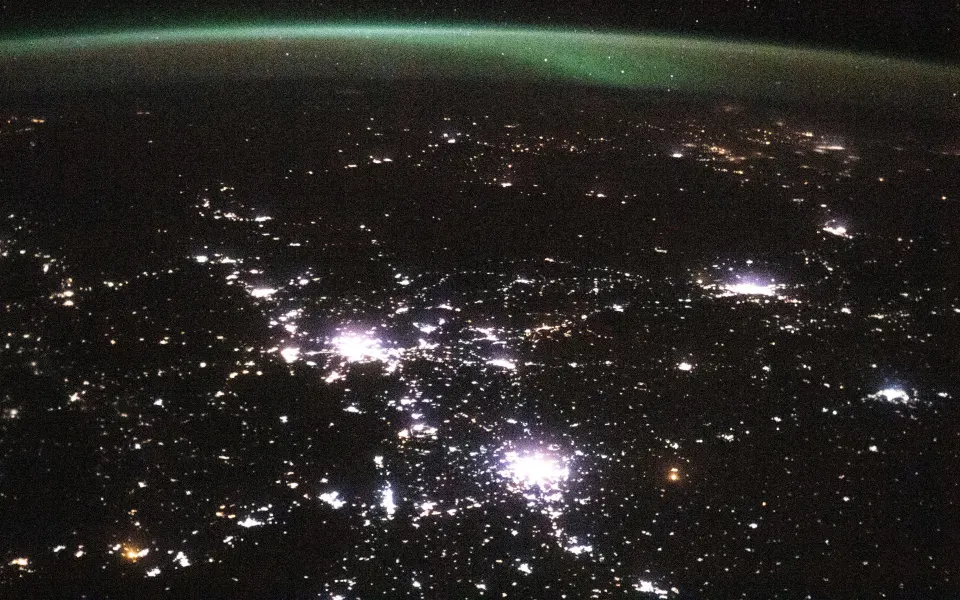 City Lights From Space
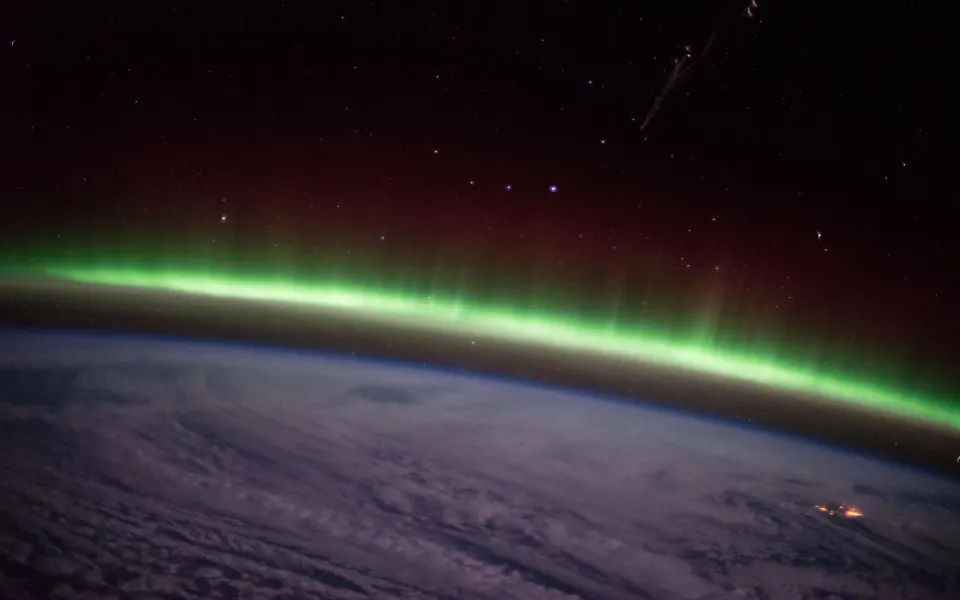 Green Aurora Arc
- Keep the set to one mood or palette so the changes feel smooth rather than jarring.
- Use the same file size for every picture, so nothing jumps between sharp and soft.
- Remember that a folder rotates on a timer, not by clock time, so the order is not tied to the time of day.
- For a dark-mode set, use only space pictures from the Mac space collection.
Why is my dynamic wallpaper not working?
A dynamic wallpaper usually stops changing because macOS cannot work out the time of day for your location, or because a still version has been selected. A rotating folder usually stops because the folder has moved or its files are not on the Mac.

| Problem | Likely cause | Fix |
|---|---|---|
| Dynamic wallpaper stays the same | Light (Still) or Dark (Still) is selected | Choose Dynamic in the pop-up menu next to the thumbnail |
| Wallpaper won't apply | It hasn't been downloaded yet (down arrow next to its name) | Click the image once and wait for the download |
| Changes at the wrong time | Location or time zone is not set automatically | Turn on Location Services and Set time zone automatically |
| Only switches at sunset | Wallpaper is set to Automatic (Appearance) | Choose Dynamic if you want gradual changes through the day |
| Folder does not rotate | Folder was moved or renamed, or Rotate is off | Add the folder again under Your Photos and turn Rotate on |
| Some pictures are skipped | Files are only in iCloud, not downloaded | Download the files to the Mac, or keep the folder outside iCloud |
For time-of-day changes, check System Settings → Privacy & Security → Location Services is on, and that your time zone is set automatically under General → Date & Time.
Read next: How to Change Wallpaper on Mac (and Fix One That Won't Fit) and MacBook Wallpaper Aesthetic: Styles That Work With the Dock.
Quick answers
How do I get a dynamic wallpaper on my Mac?
Open System Settings → Wallpaper, choose a wallpaper under Dynamic Wallpapers and select Dynamic in the pop-up menu next to the thumbnail. It then brightens and darkens through the day automatically.
Can I make my own dynamic wallpaper on Mac?
Not from System Settings, which only offers Apple's dynamic wallpapers. The simple alternative is a folder of your own pictures set to rotate, ordered from morning scenes to night ones.
How do I make my Mac wallpaper a slideshow?
Put your pictures in a folder, then go to System Settings → Wallpaper → Your Photos → Add Photo → Choose Folder. Select it, click Rotate and pick how long each picture shows.
Why does my Mac wallpaper keep changing?
It is probably a dynamic wallpaper, a wallpaper set to Automatic, a rotating folder or Shuffle Aerials. Pick a single still picture, or choose Light (Still) or Dark (Still), in System Settings → Wallpaper to stop it.
Can I have a moving wallpaper on a Mac?
Yes. Apple's aerial wallpapers (Landscape, Cityscape, Underwater and Earth) animate as you lock or unlock the Mac, and the same aerial can play in slow motion as your screen saver.
Sources
- Customize the wallpaper on your Mac (macOS 27), Apple Support
- Wallpaper settings on Mac (macOS 27), Apple Support
- Wallpaper settings on Mac (macOS Sequoia, Rotate options), Apple Support
- Apple introduces macOS Mojave, Apple Newsroom