The right MacBook wallpaper size is your screen's native resolution in pixels. For a 13-inch MacBook Air with M2 or later that is 2560 × 1664; for the 15-inch MacBook Air it is 2880 × 1864. A file at exactly that size is drawn pixel for pixel, which is why it looks sharper than a generic 1920 × 1080 picture.
Here is the full list for current MacBooks and desktop displays, a plain explanation of Retina scaling, and how to check which model is on your desk.
In short
| Mac | Native resolution = wallpaper size |
|---|---|
| MacBook Air 13-inch (M2 to M5) | 2560 × 1664 |
| MacBook Air 15-inch | 2880 × 1864 |
| MacBook Pro 14-inch / 16-inch | 3024 × 1964 / 3456 × 2234 |
| MacBook Neo 13-inch | 2408 × 1506 (use a 2560 × 1600 file) |
| iMac 24-inch | 4480 × 2520 |
MacBook and iMac wallpaper sizes in pixels
Every wallpaper in our Mac wallpapers section is cut to these eight sizes. Find your model and download the matching file.
| Mac | Screen | Wallpaper size (pixels) |
|---|---|---|
| MacBook Air 13-inch (M2 and later) | 13.6-inch | 2560 × 1664 |
| MacBook Air 13-inch (M1) / older MacBook Pro 13-inch | 13.3-inch | 2560 × 1600 |
| MacBook Air 15-inch | 15.3-inch | 2880 × 1864 |
| MacBook Pro 14-inch | 14.2-inch | 3024 × 1964 |
| MacBook Pro 16-inch | 16.2-inch | 3456 × 2234 |
| iMac 24-inch | 24-inch | 4480 × 2520 |
| Studio Display / iMac 27-inch 5K | 27-inch | 5120 × 2880 |
| Pro Display XDR 6K | 32-inch | 6016 × 3384 |
Notice the two 13-inch Air rows. The M1 model has a 16:10 screen at 2560 × 1600. From the M2 onwards the screen is a little taller, with extra rows at the top where the menu bar sits around the camera notch, so it needs 2560 × 1664. The same notch design is why the 14-inch and 16-inch MacBook Pro sizes look slightly unusual.
The newest laptop, the 13-inch MacBook Neo, has a 2408 × 1506 screen according to Apple. We don't cut that exact size yet, but its shape is 16:10, the same as the 2560 × 1600 file, so download that one: macOS shrinks it by about 6 percent and crops almost nothing.
Retina scaling: looks like vs real pixels
Open System Settings → Displays on a MacBook and you will see a set of scaled resolutions, with the one your Mac uses by default selected. Move the pointer over the thumbnails to see their sizes. Those figures are the size the screen looks like, not the number of pixels it has, and all of them are smaller than the panel's native resolution.
Retina Macs draw everything with twice the detail. Each point you see is made of a 2 × 2 block of pixels, so text and icons are the same physical size as on an older Mac but far crisper. At the default setting, macOS draws the desktop at twice the looks-like size and fits the result to the panel's real pixels, 2560 × 1664 on a 13-inch Air.
So the looks like figure is a comfort setting for text size. The panel underneath never changes, and that is the number a wallpaper has to match.
- Native resolution is the number of physical pixels in the panel. It never changes.
- Looks like is how big text and windows appear. You can make it larger or smaller in Displays settings.
- For wallpapers the native resolution is what counts, because the desktop picture fills every physical pixel.
This is the most common reason a Mac wallpaper looks soft. Someone reads the looks-like figure, downloads an image about half the native width, and macOS has to stretch it to nearly double. Using the native size from the table avoids that entirely.
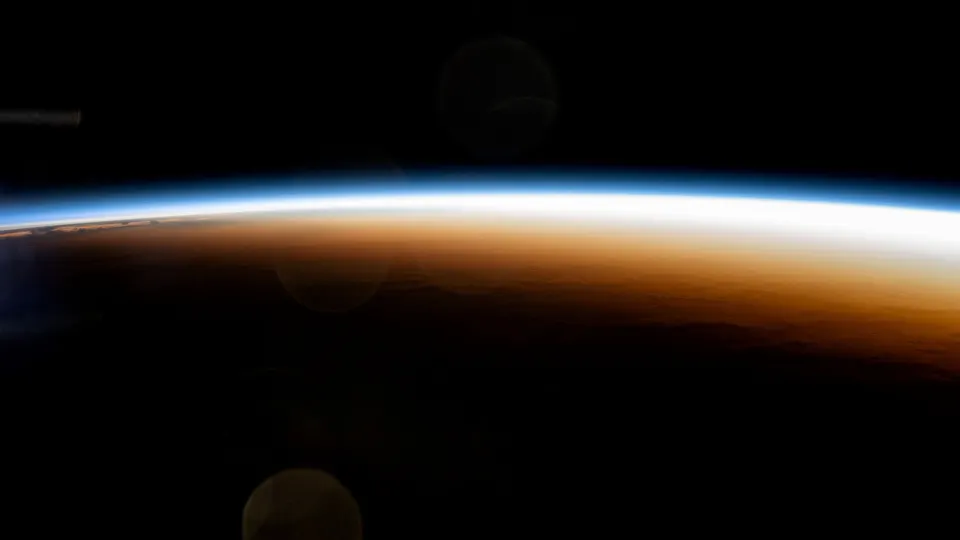
 Orbital Sunrise Horizon
 Tuscan Valley Evening
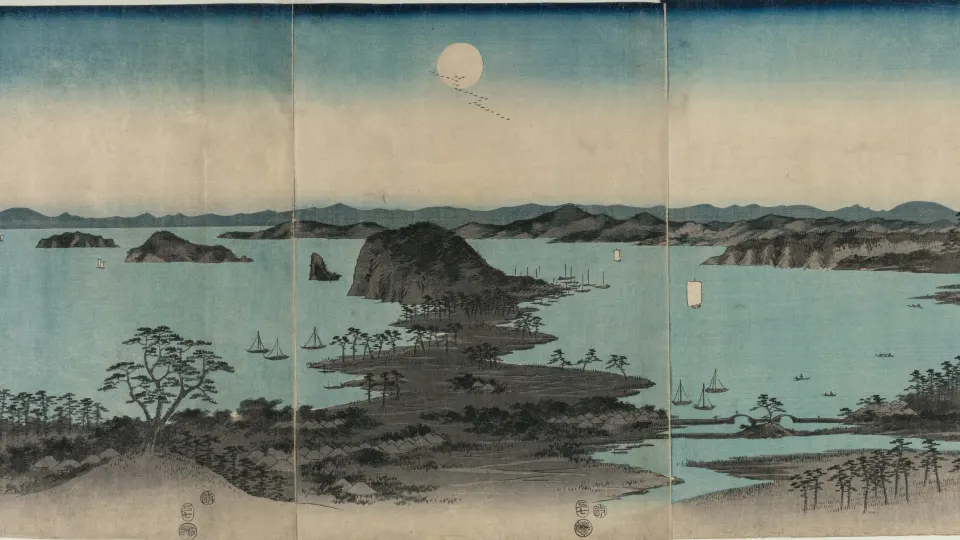
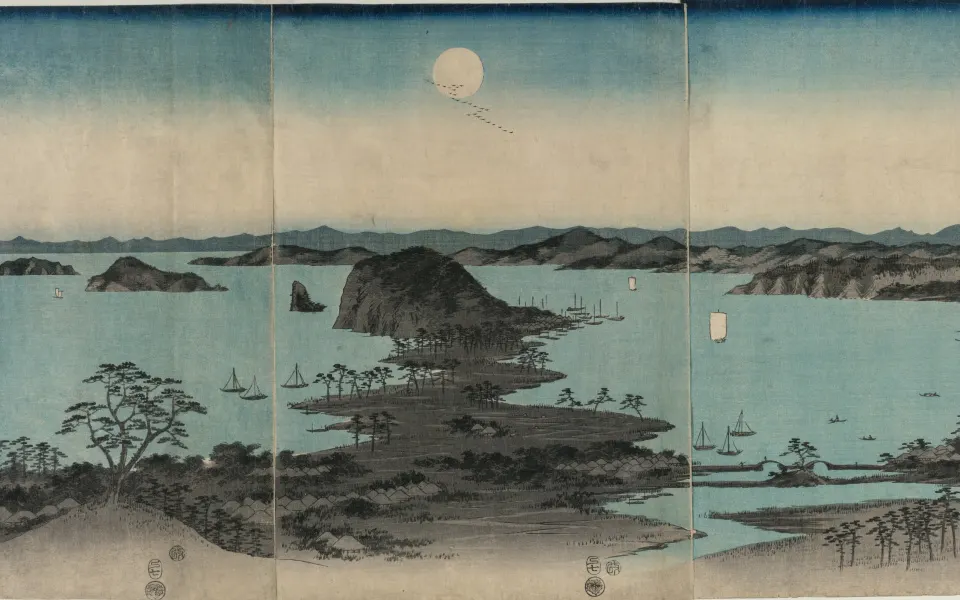 Moonlit Bay Islands
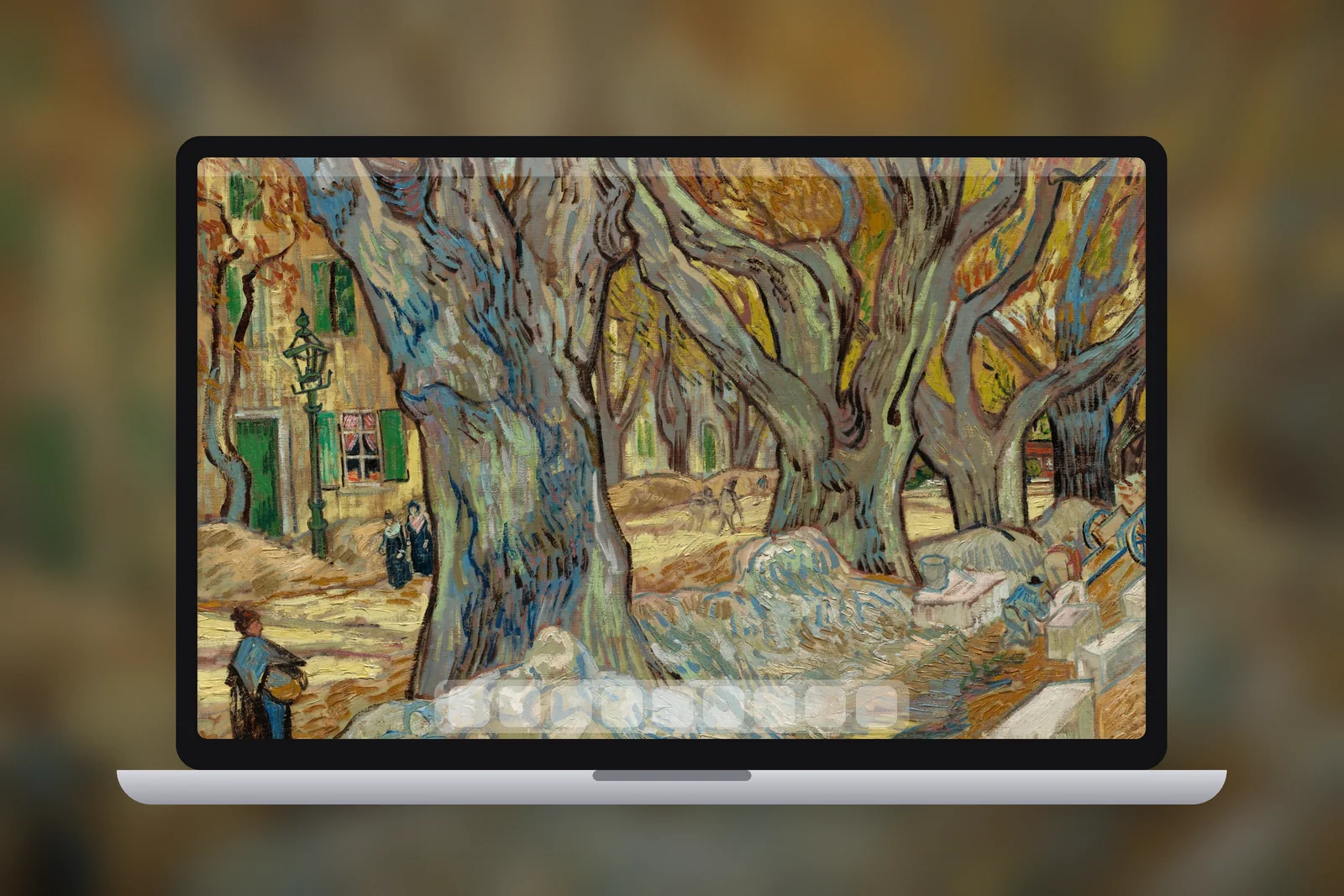
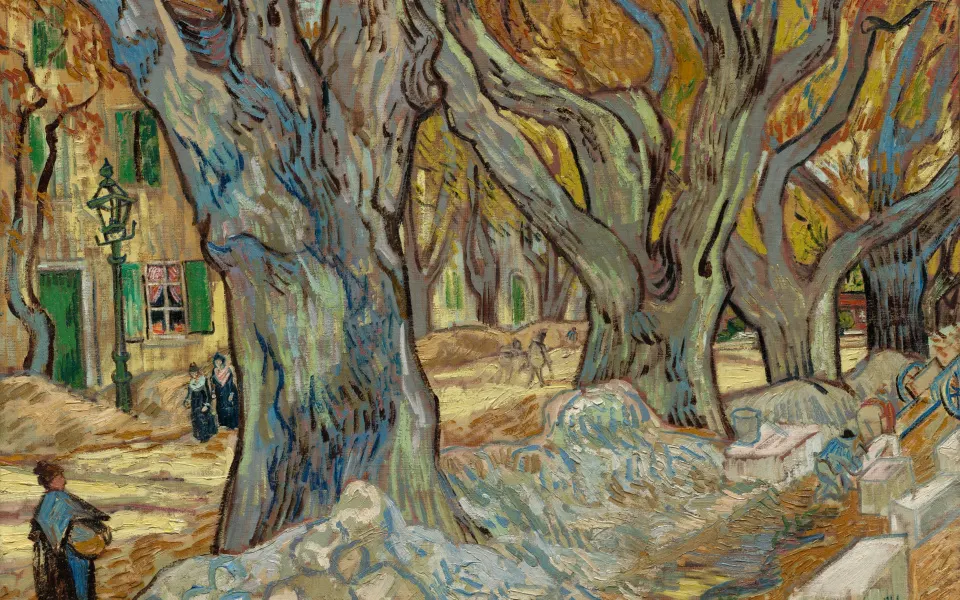 Golden Plane Tree Avenue
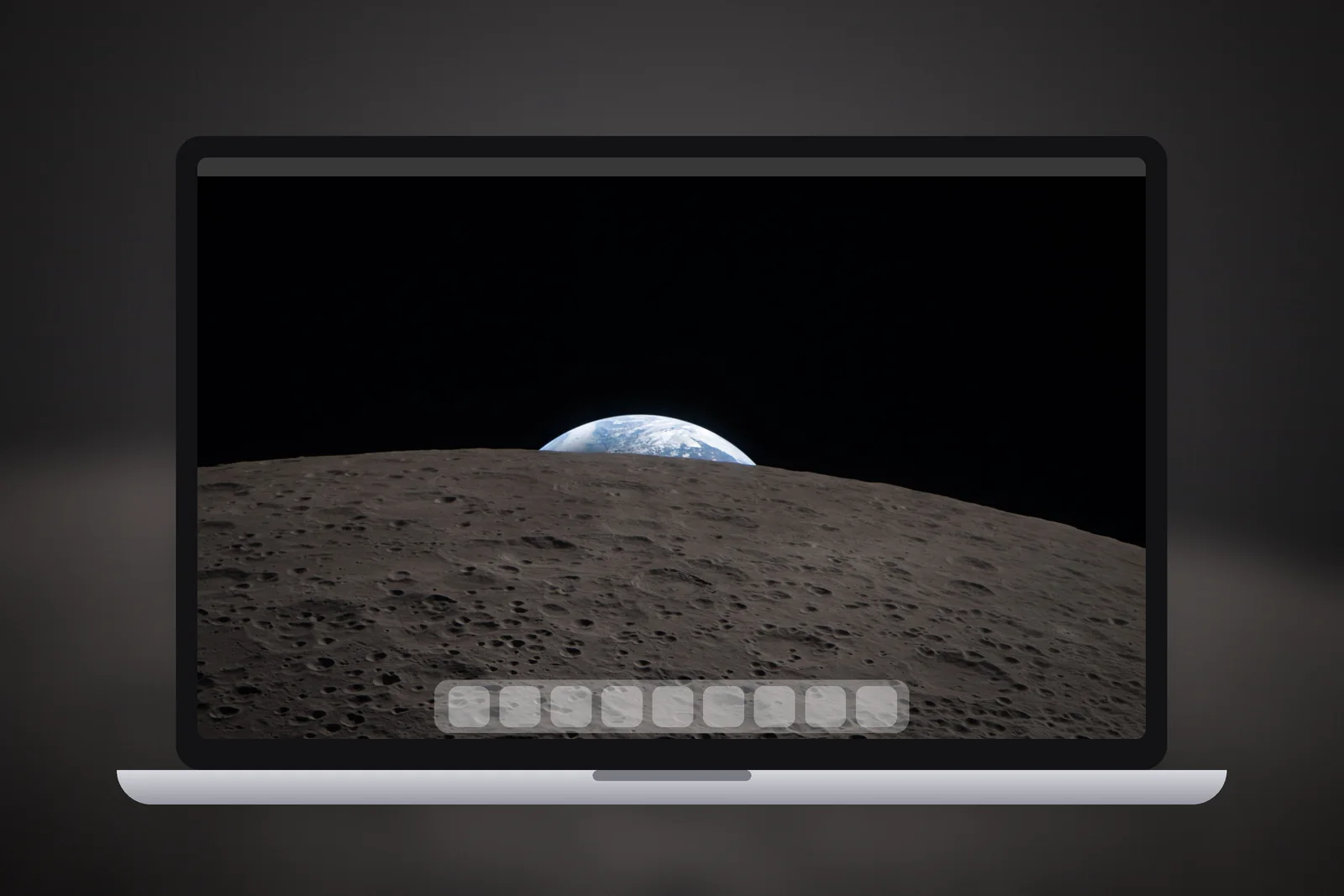
 Earthset Over the Moon
How to check which Mac you have
- Click the Apple menu in the top-left corner.
- Choose About This Mac.
- Read the model name under the Mac's picture, for example MacBook Air 13-inch, M3, 2024.
- Match it to the table above.
If you want the exact model, hold the Option key while choosing Apple menu → System Information, select Hardware and note the Model Identifier; Apple's "Identify your Mac" articles match it to a model name. The native resolution for that model is listed on its tech specs page, and in the table above.
Why the native size looks sharpest
When the wallpaper and the panel have the same number of pixels, macOS does not need to resize anything. Each pixel in the file lands on one pixel of the screen, so edges, stars and fine textures appear exactly as they were saved.

Any other size forces macOS to rescale. Shrinking a larger image costs little, but it can thin out fine lines slightly. Enlarging a smaller image is worse: the Mac has to invent pixels that were never there, which shows as blur and halos around high-contrast edges. A different shape adds cropping on top, because Fill Screen trims whatever does not fit.
- Exact native size: sharp, correctly framed, nothing cut off.
- Larger than native, same shape: fine, just a bigger download.
- Smaller than native: visibly soft on a Retina display.
- Different aspect ratio: parts of the picture are cropped or bars appear.
If you also use a Windows laptop or an external 16:9 monitor, those need different files; our PC wallpapers section covers 1080p, 1440p, 4K and ultrawide sizes.
Setting the wallpaper once you have it
Download the file for your model, then open System Settings → Wallpaper, scroll to Your Photos, click Add Photo and choose Choose File. Or Control-click the image in Finder and choose Set Desktop Picture. If a size and position option appears, leave it on Fill Screen: with a native-size file it fills the display with no cropping at all. For dark scenes that suit a MacBook at night, try the Mac space wallpapers.
Read next: How to Change Wallpaper on Mac (and Fix One That Won't Fit) and Wallpaper Resolution Guide: What Size Do You Need?.
Quick answers
What size is a MacBook Air 13-inch wallpaper?
For the 13-inch MacBook Air with M2 or later, including the M5 model, use 2560 × 1664 pixels. The M1 model and older 13-inch MacBook Pro take 2560 × 1600.
What is the MacBook Air 15-inch wallpaper size?
The 15-inch MacBook Air has a native resolution of 2880 × 1864 pixels, so that is the sharpest wallpaper size for it.
Is 1920 × 1080 good enough for a MacBook wallpaper?
It works, but it looks soft on a Retina screen and gets cropped because the shape is different. A file at your Mac's native resolution is noticeably crisper.
What size wallpaper fits the MacBook Neo?
Its 13-inch screen is 2408 × 1506 pixels. Use a 2560 × 1600 wallpaper, which has the same 16:10 shape, so macOS scales it down slightly with almost no crop.
What is the MacBook Pro 16-inch wallpaper size?
3456 × 2234 pixels, the native resolution of its 16.2-inch screen. The 14-inch MacBook Pro takes 3024 × 1964.
Sources
- MacBook Air – Tech Specs, Apple
- MacBook Pro – Tech Specs, Apple
- MacBook Neo – Tech Specs, Apple
- Change your Mac display's resolution (macOS 27), Apple Support