An aesthetic MacBook wallpaper keeps the top strip and bottom edge quiet, because the menu bar sits across the top and the Dock across the bottom. Choose a wide image with its subject slightly below centre, soft colours behind your desktop icons on the right, and a file at your Mac's native size, such as 2560 × 1664 for a 13-inch MacBook Air (M2 and later).

In short
- The menu bar covers the top of the screen and, on newer MacBooks, wraps around a camera notch in the top centre; keep the main subject away from it.
- Desktop icons line up on the right edge by default, so that side should be calm or dark.
- Minimal coastal scenes, Earth from orbit and painted landscapes are the most reliable aesthetic styles on a laptop screen.
- Native sizes: 2560 × 1664 (MacBook Air 13-inch M2+), 2880 × 1864 (Air 15-inch), 3024 × 1964 (Pro 14-inch), 3456 × 2234 (Pro 16-inch).
- Set it in System Settings → Wallpaper → Your Photos → Add Photo → Choose File, or Control-click (right-click) the image in Finder and choose Set Desktop Picture.
What makes a Mac wallpaper look aesthetic?
A Mac wallpaper looks aesthetic when the picture and the interface feel planned together. Unlike a phone, a Mac desktop has fixed furniture: the menu bar, the Dock, desktop icons and open windows. The wallpaper only really shows around those edges and whenever you clear the screen.
So the best desktop pictures have a clear subject, plenty of calm space and a limited palette. A horizon, a single island or the curve of the Earth gives the eye somewhere to land, while the rest of the frame stays quiet enough for icons and windows.
Which styles suit a laptop screen?
| Style | Strength on a MacBook | Best for |
|---|---|---|
| Minimal coast or sea | Wide flat areas behind icons; soft blues and greys | Work Macs, light mode |
| Earth and aurora from orbit | Near-black background, subject in the middle band | Dark mode, evening use |
| Painted landscapes | Warm colour and texture without sharp clutter | A cosy, gallery-like desktop |
| Dramatic weather | Strong mood with darker edges | Desktops with few icons |
Minimalist Mac wallpapers
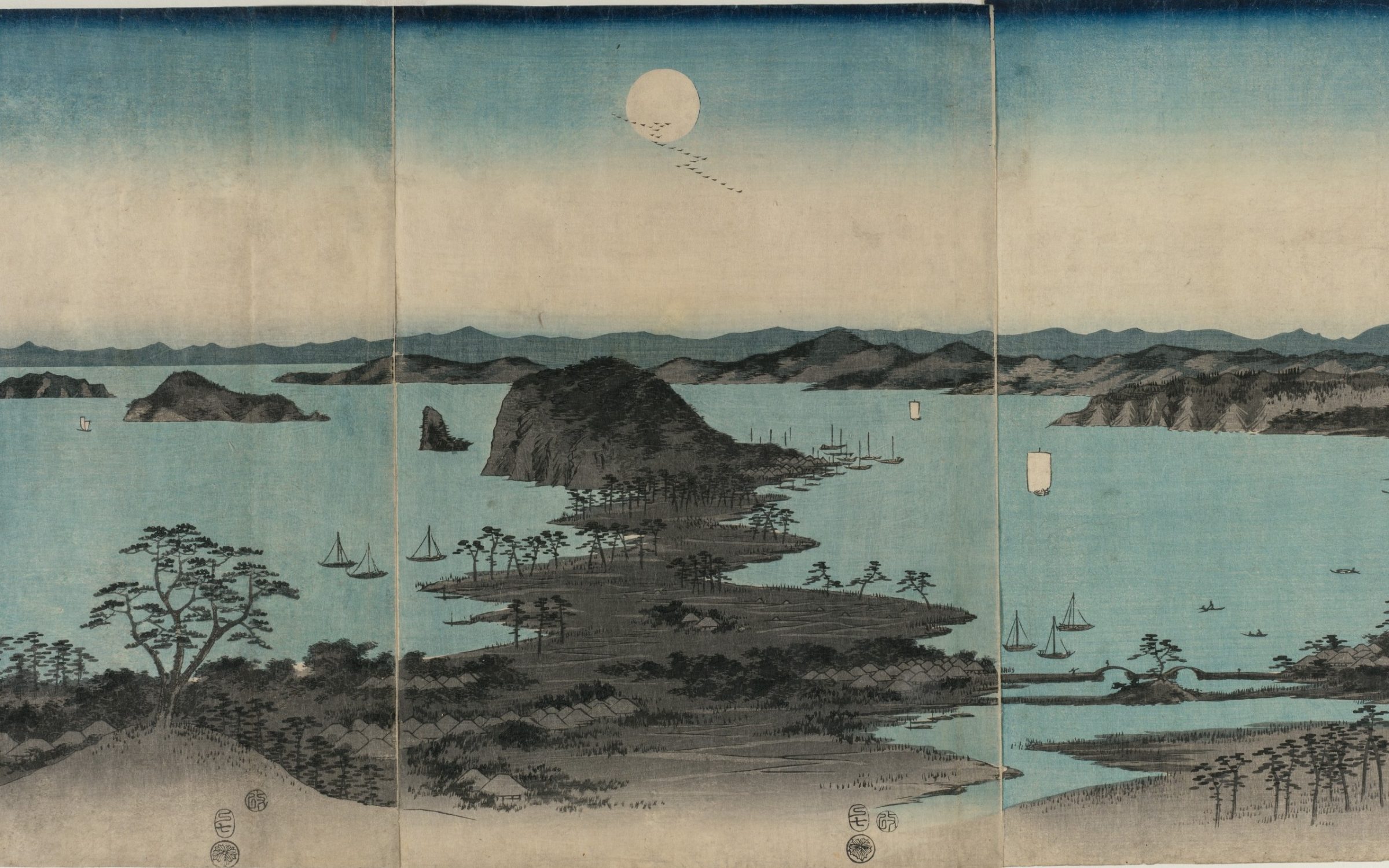
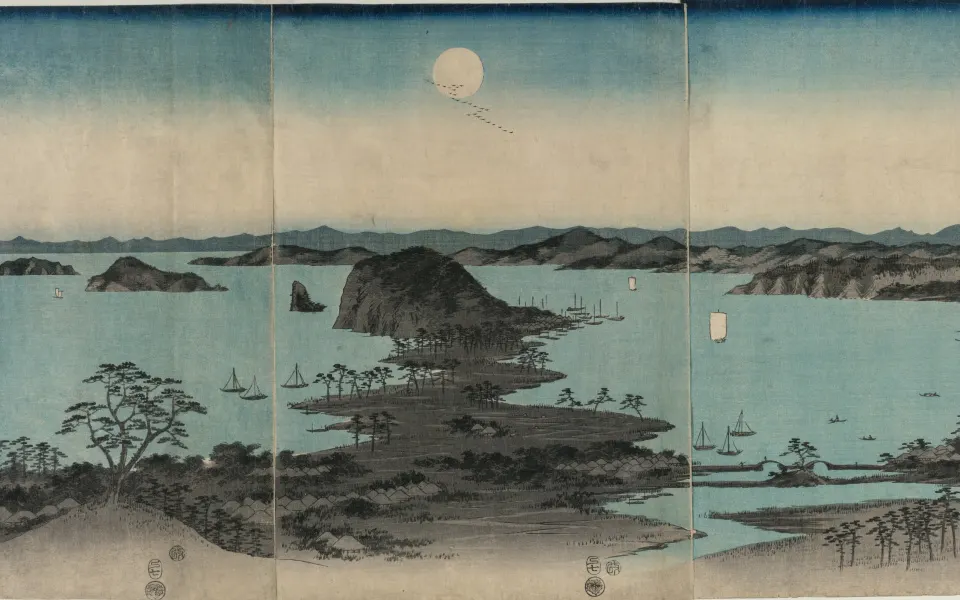
A minimalist Mac wallpaper is one with a single subject and large areas of even colour. Low tide on a flat coast, islands in moonlight or a lone mountain at dawn all fit. These suit light mode in particular, because the translucent menu bar and Dock pick up the soft tones instead of clashing with them.


Space and orbit
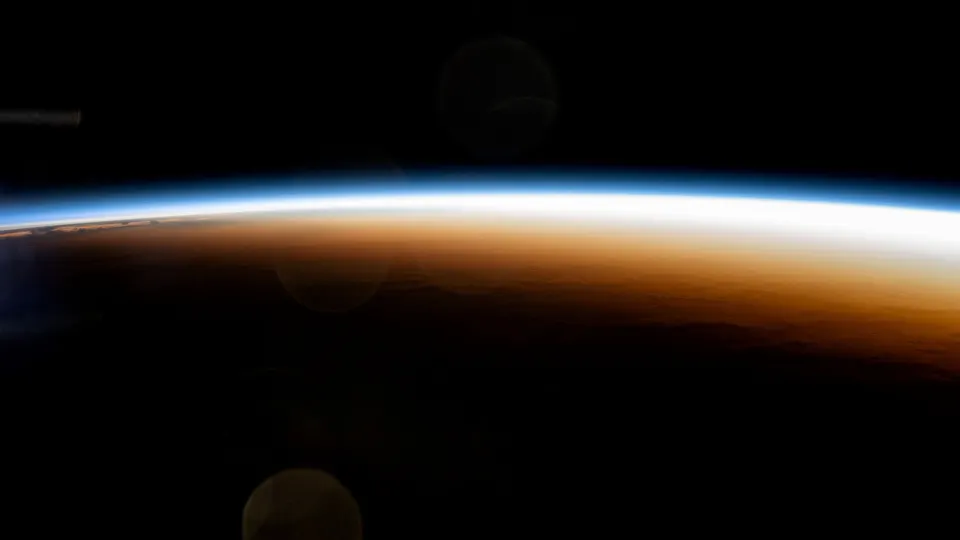
Pictures of Earth from orbit are almost made for a laptop: the planet's curve runs across the middle, the top is black space behind the menu bar, and lights or auroras give a thin line of colour. They look best in dark mode and are easy on the eyes at night. Browse the Mac space wallpapers for the full set.
Painted and warm landscapes
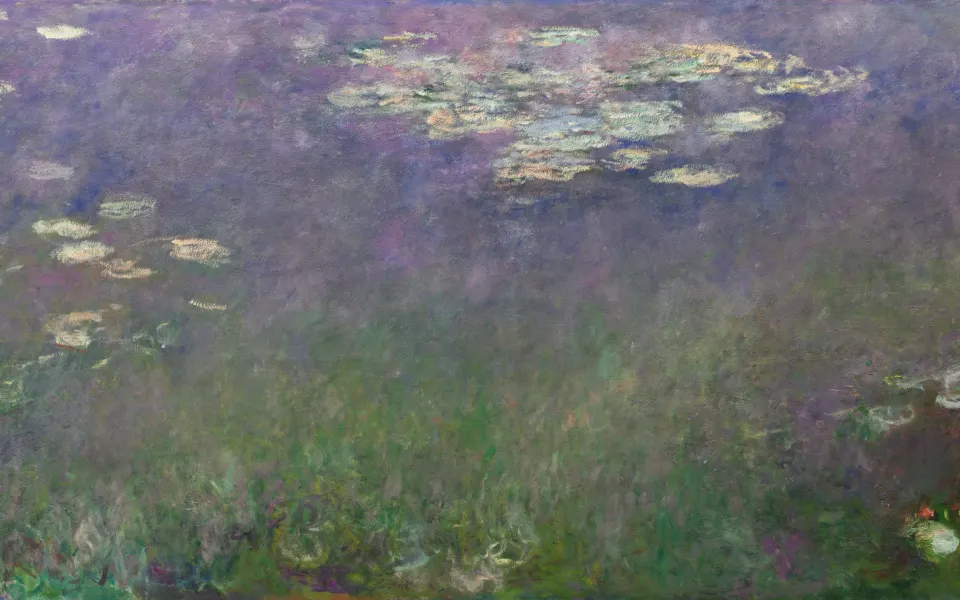
Painted valleys, tree-lined avenues and river scenes at dusk bring warmth to a cool aluminium machine. Look for ones where the bright sky sits in the upper middle and the lower part is darker, so white Dock icons still read clearly. The Mac nature collection has several in amber and brown tones.
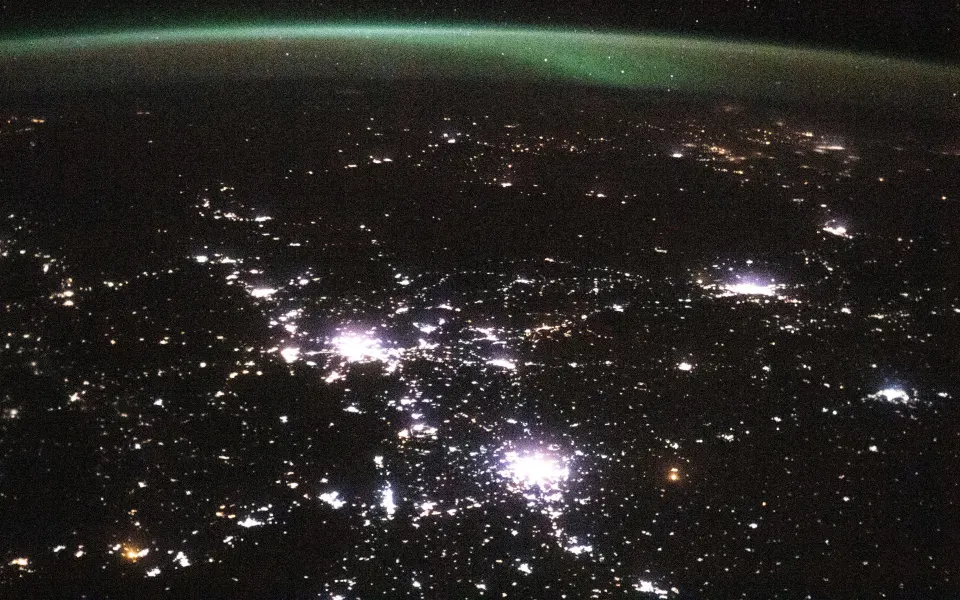 City Lights From Space
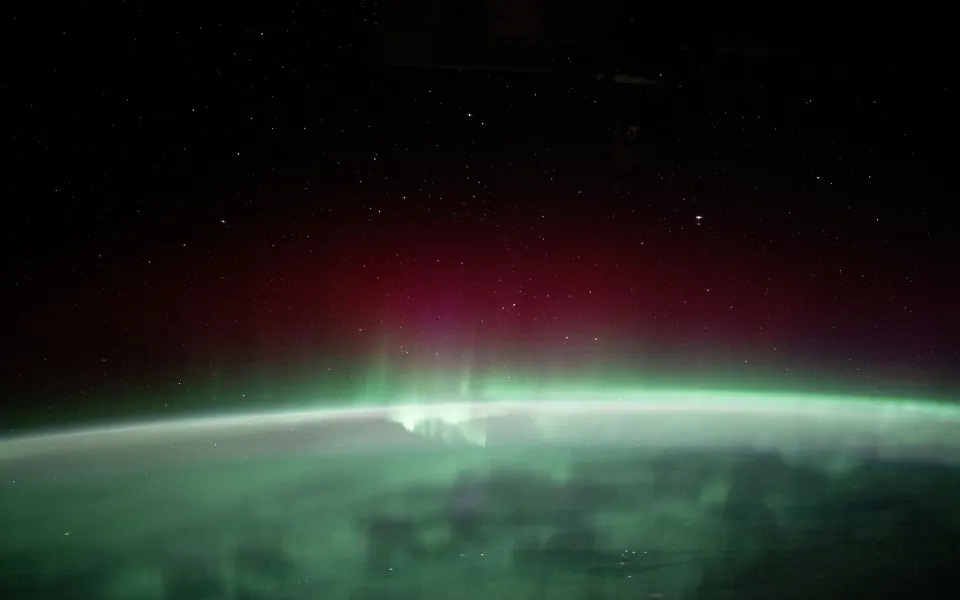 Northern Lights From Orbit
 Orbital Sunrise Horizon
 Tuscan Valley Evening
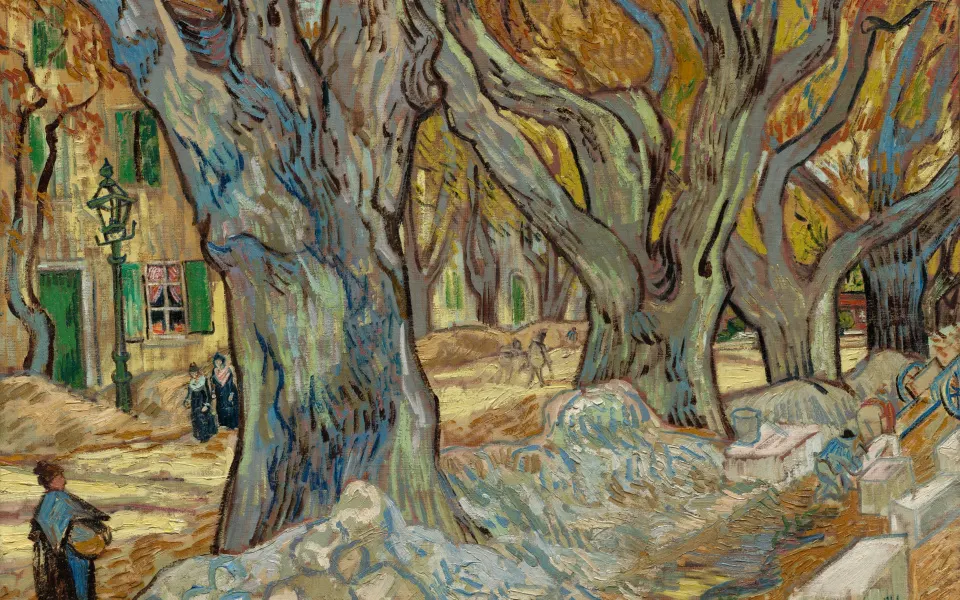 Golden Plane Tree Avenue
 Winter Marsh Sunset
How do I keep desktop icons readable?
Desktop icons sit on the right-hand side by default, with white file names. A bright or busy right edge makes them hard to read, so check that side first when you choose a wallpaper.

- Choose pictures that are darker or plainer on the right, or move the icons by dragging them to a quieter area.
- Control-click (right-click) the desktop and choose Use Stacks, or press Control-Command-0, to gather files into neat piles. Stacks can be grouped by kind, date or Finder tags.
- Control-click the desktop → Show View Options to make icons bigger or smaller, change their spacing or move labels to the side.
- Clear the desktop altogether: a clean desktop shows off a minimal wallpaper far better than any image choice.
What about the notch and menu bar?
The notch is the camera housing cut into the top centre of the screen on the MacBook Air (M2 and later) and the 14-inch and 16-inch MacBook Pro. The menu bar fills the strip on either side of it. Anything in that strip is partly hidden behind menu titles and status icons.

Pick wallpapers where the top edge is sky, space or plain colour. A dark top edge also makes the notch disappear visually, because the black camera area blends into it. Avoid images with a face, a moon or a building right at the top centre.
Which size should I download for 4K-sharp results?
Download your Mac's native resolution rather than a generic 4K file. A file at the exact screen size is shown pixel for pixel, while a 16:9 4K image (3840 × 2160) has to be cropped to fit the taller MacBook screen. On iPhonesWallpaper, every wallpaper in the Mac section is cut to eight exact Mac sizes, from 2560 × 1600 up to 6016 × 3384 for the Pro Display XDR. The new 13-inch MacBook Neo (2408 × 1506) has no exact file yet; its screen has the same 16:10 shape as the 2560 × 1600 file, which macOS scales down with almost no crop. If you are unsure of your model, the MacBook wallpaper size guide shows how to check it.
Read next: Mac Dynamic Wallpaper: Time of Day, Slideshows and Fixes and MacBook Wallpaper Size: Native Resolutions for Every Mac.
Quick answers
What is a good aesthetic wallpaper for MacBook?
A wide image with a calm top edge and a subject in the middle band: minimal coasts, Earth from orbit or a painted landscape. Download it at your MacBook's native resolution so it stays sharp.
What size is a MacBook Air wallpaper?
The 13-inch MacBook Air (M2 and later, including M5) uses 2560 × 1664, the 15-inch uses 2880 × 1864, and the 13-inch M1 model uses 2560 × 1600.
How do I make my Mac desktop look aesthetic?
Choose a calm wallpaper, clear or stack your desktop files, match the accent colour in System Settings → Appearance to the picture, and keep the Dock small or set it to hide automatically.
Does a 4K wallpaper look good on a MacBook?
It looks sharp, but a 3840 × 2160 file is 16:9 and the MacBook screen is taller, so macOS crops the sides when you use Fill Screen. A file at the native size avoids the crop.
How do I stop desktop icons covering my Mac wallpaper?
Turn on desktop stacks: click the desktop and choose View → Use Stacks, or press Control-Command-0. Files gather into a few piles at the edge and the wallpaper shows through.
Sources
- MacBook Air – Tech Specs, Apple
- MacBook Pro – Tech Specs, Apple
- Use desktop stacks on Mac (macOS 27), Apple Support
- Customize the wallpaper on your Mac (macOS 27), Apple Support