Yes, an iPhone can use a different wallpaper for the Lock Screen and the Home Screen. Long-press the Lock Screen, tap Customise, choose Home Screen, then tap Photos at the bottom and pick a second picture. Tap Done. The Lock Screen keeps its own photo, and the new one appears behind your apps.
In short
- Each Lock Screen in the gallery has a matching Home Screen, called a wallpaper pair. You can change the Home Screen half without touching the Lock Screen.
- The Home Screen side offers the paired picture, a colour you pick or a custom photo, plus a Blur option.
- You can also start in Settings → Wallpaper and tap Customise under the Home Screen preview.
- When you add a new wallpaper, iOS asks "Set as Wallpaper Pair" or "Customise Home Screen"; the second lets you pick a different Home Screen picture straight away.
- A different Home Screen belongs to that one Lock Screen. Switch Lock Screens (or Focus) and its own Home Screen comes with it.
Can you have different wallpapers on iPhone?
You can, and it has been possible on every iPhone for years. Since iOS 16 brought the customisable Lock Screen, the two screens are managed together as a wallpaper pair: one Lock Screen design plus the Home Screen that goes with it. A wallpaper pair is the Lock Screen and Home Screen combination saved as one entry in the Lock Screen gallery.
By default the Home Screen copies the Lock Screen photo. Changing the Home Screen half is a separate step, which is why many people think the option disappeared.
How do I set a different Home Screen wallpaper?
Open the Lock Screen editor, tap Customise, choose the Home Screen preview and pick a new photo with the Photos button. The steps take under a minute.
- Unlock the iPhone with Face ID or Touch ID, but stay on the Lock Screen.
- Press and hold an empty part of the Lock Screen until the gallery opens.
- Tap Customise under the Lock Screen you want to change.
- Choose the Home Screen preview on the right.
- Tap Photos in the bottom row, choose a picture, pinch and drag to frame it.
- Tap Done.
The same editor opens from Settings → Wallpaper → Customise under the Home Screen preview. And if you are setting a brand-new wallpaper, tap Customise Home Screen instead of Set as Wallpaper Pair when iOS asks; that jumps straight to step 5.
What do the Home Screen options do?
The Home Screen side has three looks and one switch. Pick the one that keeps your app labels readable.
| Option | What you get | Best for |
|---|---|---|
| Pair (original) | The Lock Screen photo repeated behind your apps | A simple, matching look |
| Colour | A solid colour you pick from a palette | Maximum readability, very calm |
| Photos | Any picture from your library | A truly different wallpaper |
| Blur (switch) | A soft, out-of-focus version of the current choice | Busy photos that fight with icons |
Blur is a switch that softens whichever Home Screen picture is showing. It helps a detailed photo sit quietly behind icons. If your Home Screen looks fuzzy and you did not mean it to, this switch is almost always the reason.
Which Lock Screen and Home Screen pairings work?
The pairings that work best put the detailed picture on the Lock Screen, where nothing covers it, and a calmer picture on the Home Screen, where icons and widgets sit on top. A few combinations to try:

- Scene and close-up: a wide landscape on the Lock Screen and a quiet detail, such as mist or a gradient, on the Home Screen.
- Bright and dark: a colourful Lock Screen with a near-black Home Screen. On OLED iPhones the black areas stay off.
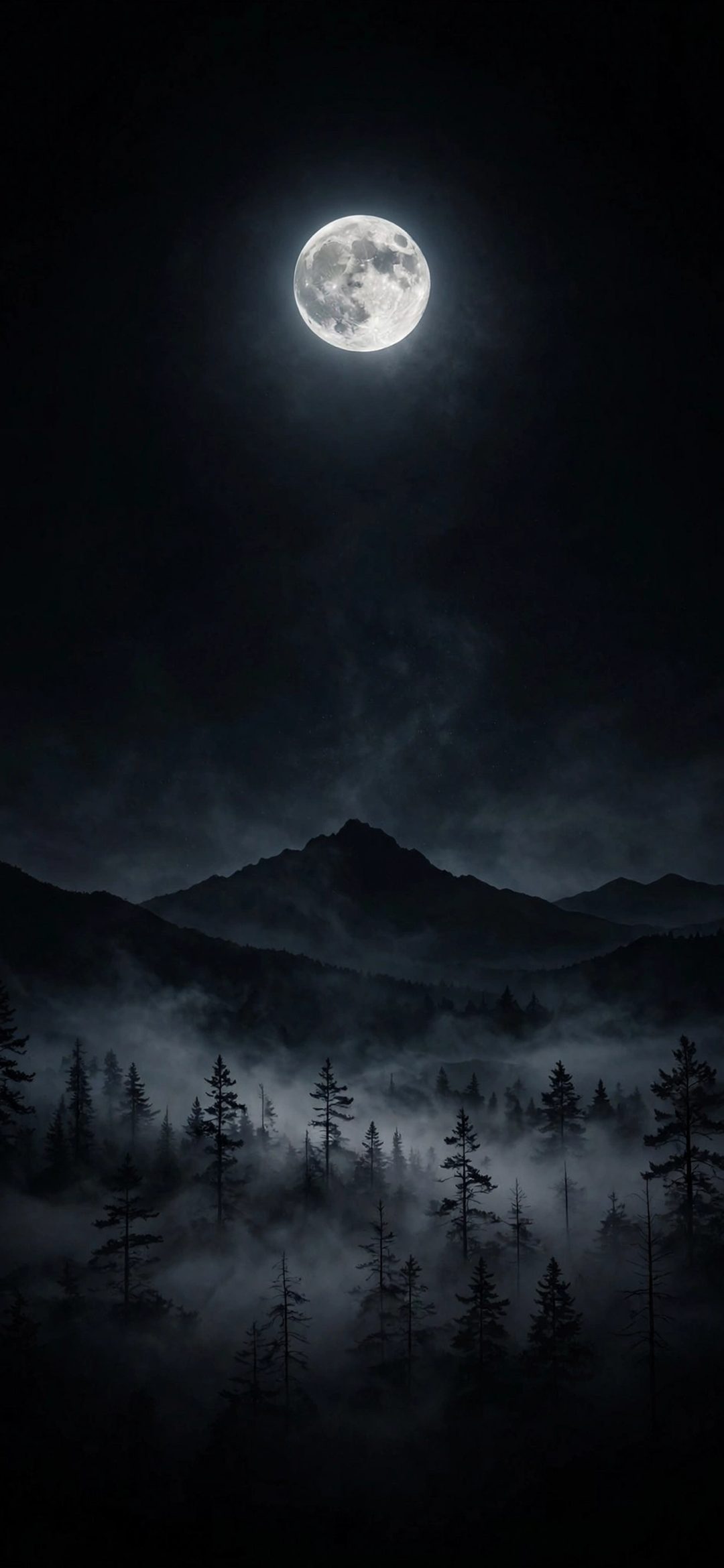
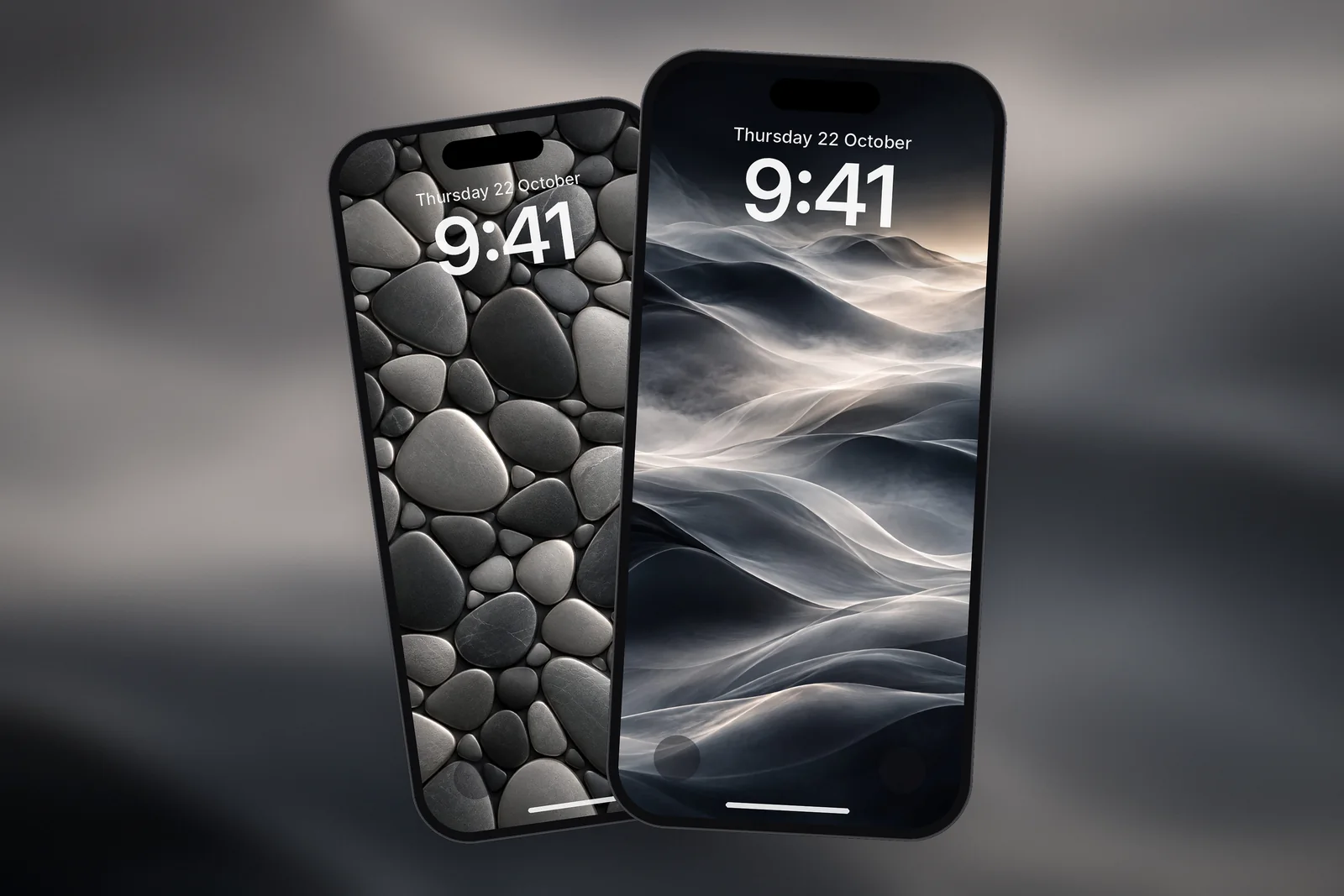
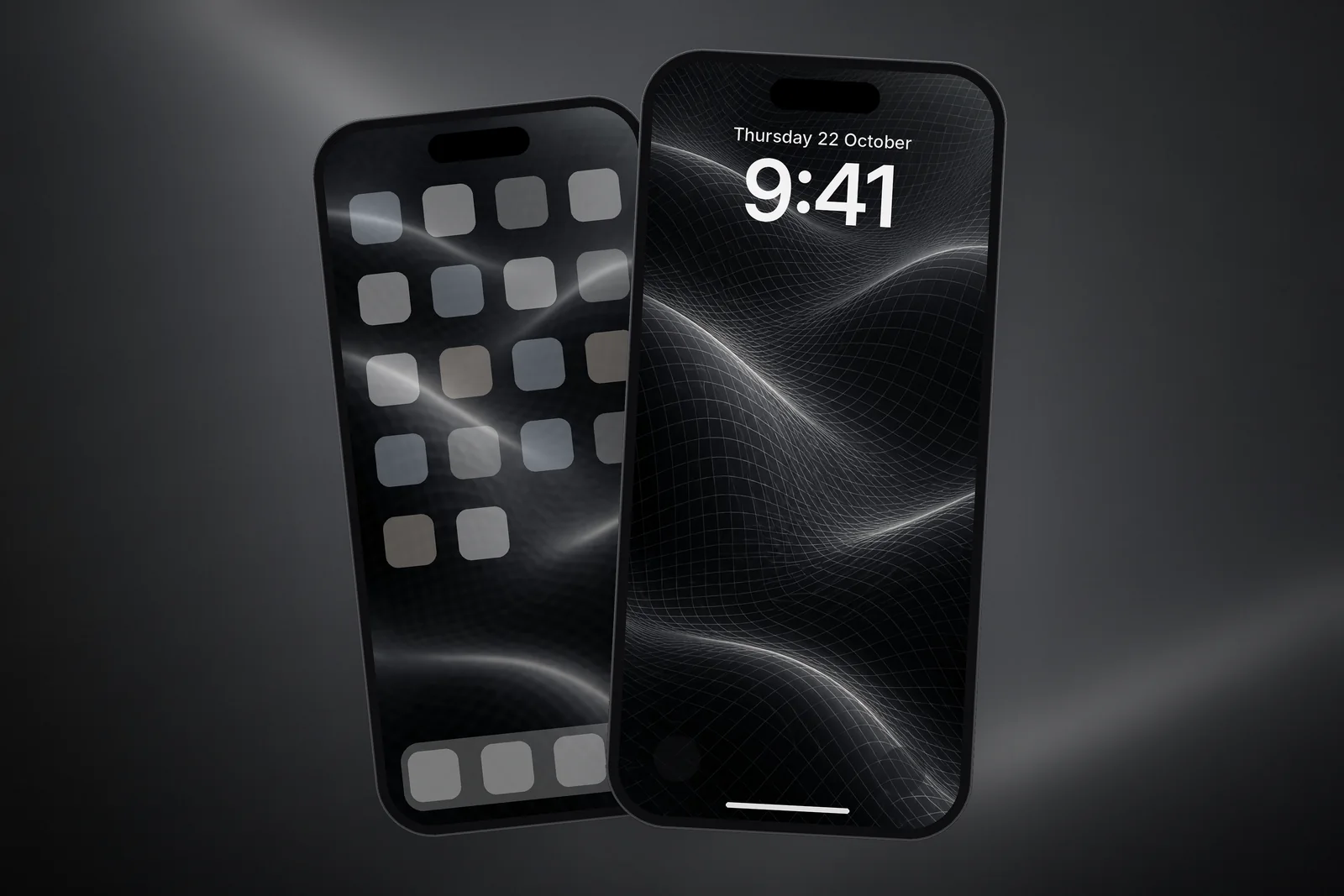
- Same colour, different shape: a moon on the Lock Screen and a dark, textured pattern in the same tones behind your apps.
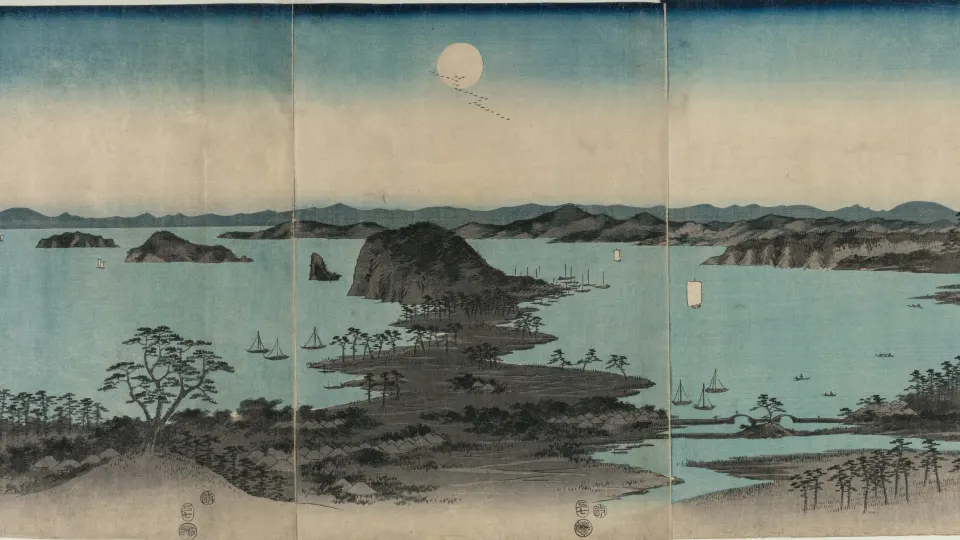
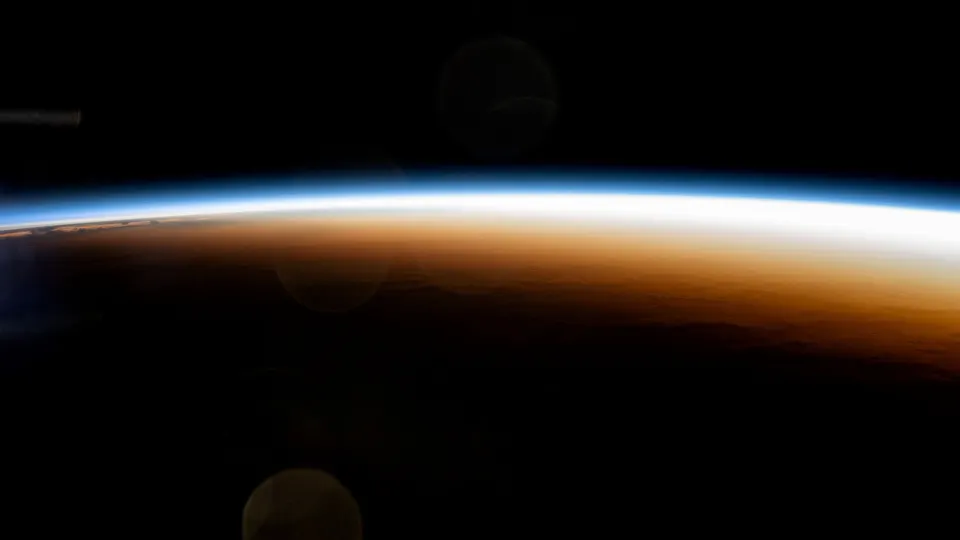
- Day and night: a sunrise scene on the Lock Screen and its moonlit counterpart behind the apps.
 Full Moon Over Misty Pine Forest Mountain 4K Wallpaper
 Minimal Fog iPhone Wallpaper 4K
 Himalayan Snow Peaks Sunrise Valley 4K Wallpaper
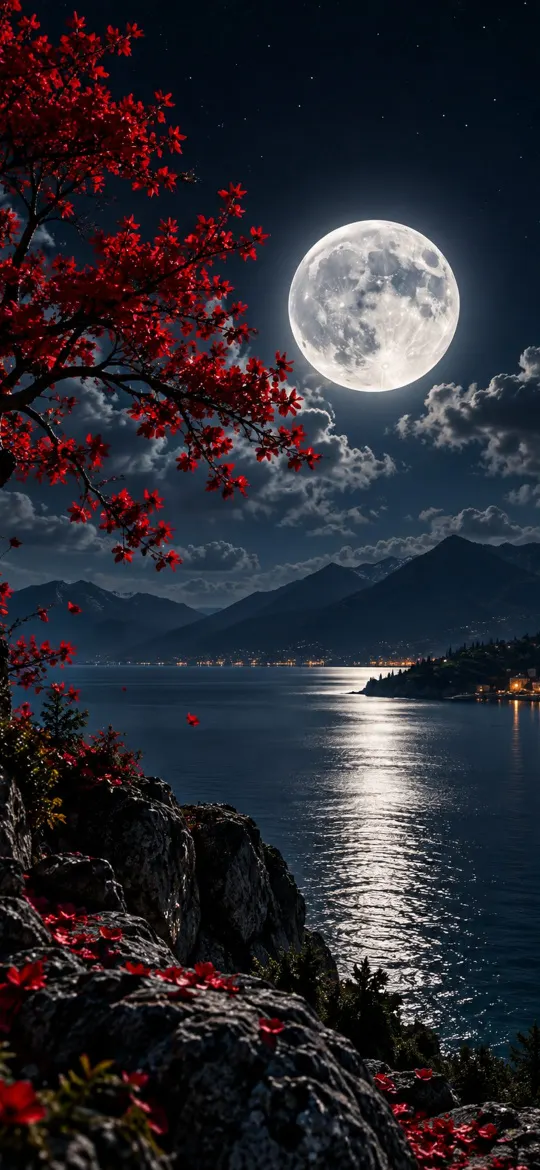 Moonlit Lake 4K Wallpaper – Full Moon Night Landscape
 Graphite Pebble 4K iPhone Wallpaper
 Dark Wireframe Waves 4K iPhone Wallpaper
For more backdrops that keep app labels legible, see Home Screen wallpaper ideas. The minimal category is a good source of quiet Home Screen pictures, and if you want a pair that matches someone else's phone, the matching wallpapers for couples post has ideas. On iPhonesWallpaper, each wallpaper is cut to 15 exact iPhone screen sizes plus a 4K file, so both halves of your pair fill the screen without zooming.
Why won't my iPhone keep two different wallpapers?
Usually because the change was made to a different wallpaper pair, the Home Screen was set back to Pair, or a Focus is switching Lock Screens. Check these:
- Changing the wrong pair: the gallery can hold many Lock Screens. Make sure you tapped Customise on the one currently in use.
- Adding a new wallpaper resets the pair: choosing Set as Wallpaper Pair makes both screens the same again. Choose Customise Home Screen instead.
- Focus switching: if a Lock Screen is linked to a Focus, turning that Focus on switches to its own Lock Screen and Home Screen. Long-press the Lock Screen and check the Focus button under each design.
- Home Screen looks blurred or plain: Blur is on, or a colour was picked instead of a photo.
- Photo cropped oddly: a picture with the wrong shape gets zoomed. The guide to setting a wallpaper on iPhone covers framing in detail.
Read next: Home Screen Wallpaper Ideas That Keep Your Apps Readable and How to Delete Wallpaper on iPhone (and Tidy the Gallery).
Quick answers
Can you have a different Lock Screen and Home Screen wallpaper on iPhone?
Yes. Long-press the Lock Screen, tap Customise, choose Home Screen, tap Photos and pick a different picture. The Lock Screen keeps its own photo.
How do I change only the Home Screen wallpaper on iPhone?
Go to Settings → Wallpaper and tap Customise under the Home Screen preview, then choose a photo or a colour. The Lock Screen is not affected.
Why is my iPhone Home Screen wallpaper blurry?
The Blur switch on the Home Screen side of the wallpaper editor is on. Open Customise → Home Screen and turn Blur off.
Why did my Home Screen wallpaper change back?
You probably added a wallpaper with Set as Wallpaper Pair, or a Focus switched you to a different Lock Screen. Each Lock Screen keeps its own Home Screen, so check the one in use.
How do I delete a Lock Screen and Home Screen pair?
Touch and hold the Lock Screen, swipe to the pair you no longer want, swipe up on it, tap the Trash button and then Delete This Wallpaper.
Sources
- Change the wallpaper on iPhone, Apple Support
- Create a custom iPhone Lock Screen, Apple Support
- Change your iPhone wallpaper, Apple Support