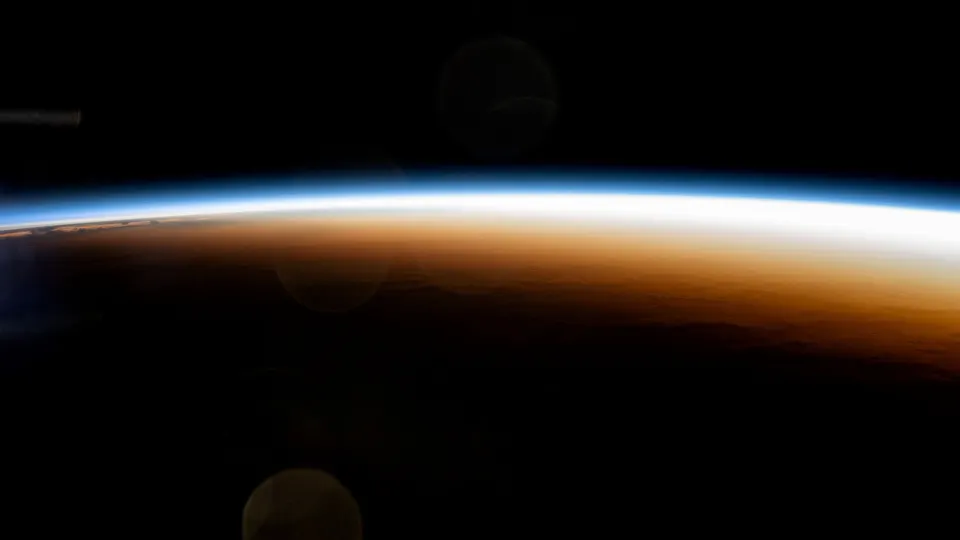
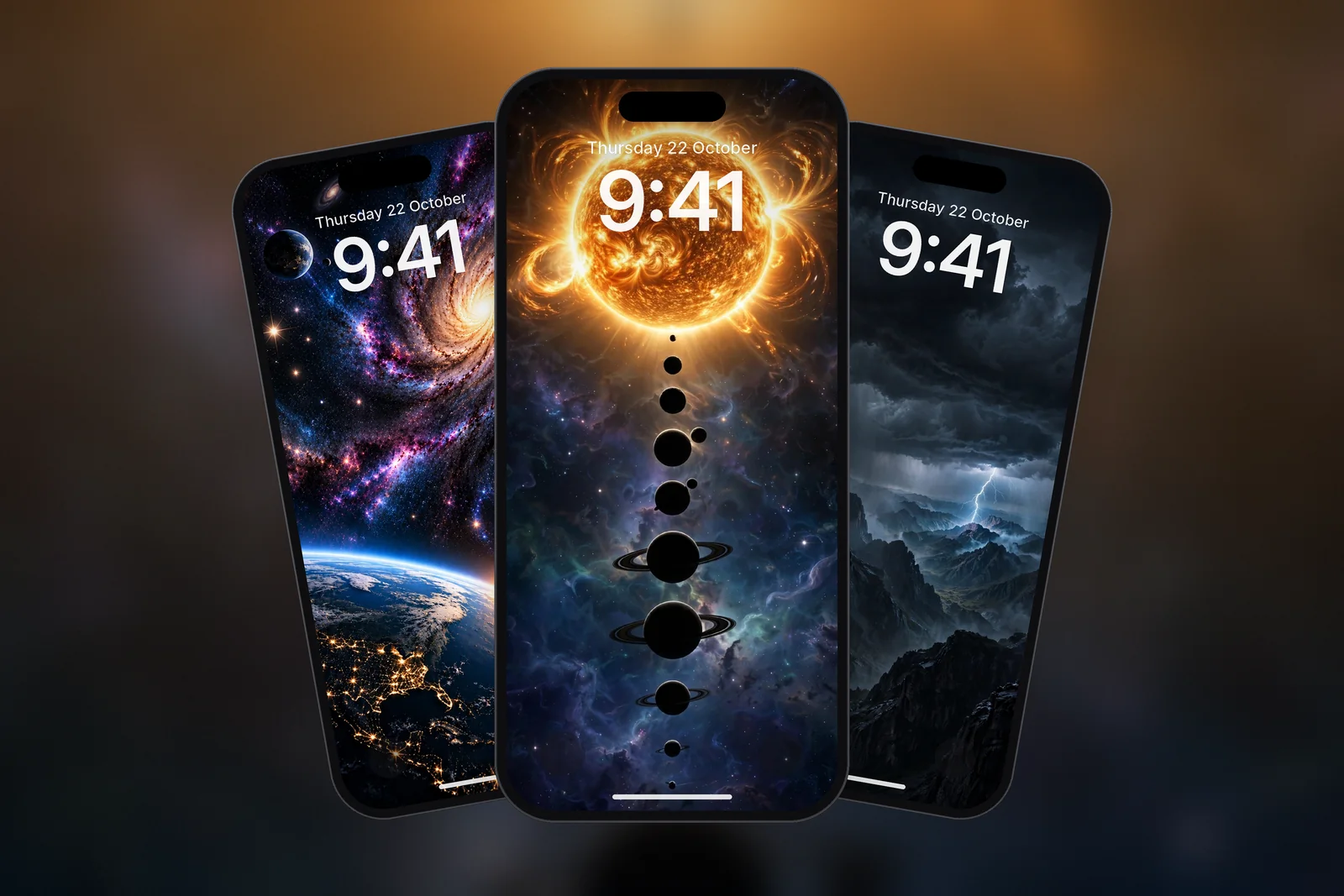
On iPhone, Astronomy and Weather are built-in dynamic wallpapers that change on their own. Astronomy shows the Earth, Moon or Solar System as they currently look, and Weather shows live conditions where you are. Add one from Settings → Wallpaper → Add New Wallpaper, or long-press the Lock Screen and tap +, then choose Astronomy or Weather. In iOS 27, if you don't see them, scroll down the gallery and tap Get below the one you want.

In short
- Astronomy and Weather live in the Add New Wallpaper gallery, which Apple groups into categories such as Weather & Astronomy, Emoji and Colour; in iOS 27 they may need a tap on Get first.
- Astronomy offers several views of the Earth, the Moon and the Solar System; the Earth views can mark your location.
- Weather shows an animated scene of current conditions (sun, cloud, rain, snow) for your location and changes through the day.
- Weather needs Location Services to show local conditions, and the Earth view uses it to mark where you are.
- Dynamic wallpapers may use slightly more battery than a still image, mostly on the Lock Screen.
What are the Astronomy and Weather wallpapers?
Astronomy is a built-in iPhone wallpaper that shows a real-time view of the Earth, the Moon or the Solar System, lit according to the current time. Weather is a built-in wallpaper that shows an animated scene of the weather at your location, from clear skies to rain or snow, updated through the day.
Both are live wallpapers drawn by iOS rather than photos, so they always fit your screen exactly and need no download from a website. The trade-off is control: you choose the view, but not the framing or the colours.
| Wallpaper | What it shows | Needs location? | Changes when |
|---|---|---|---|
| Astronomy: Earth | The globe with day and night sides, optionally your location | For the location marker | Through the day |
| Astronomy: Moon | The current Moon phase | No | As the phase changes |
| Astronomy: Solar System | Planet positions around the Sun | No | Slowly over time |
| Weather | Animated sky for current conditions | Yes | When the forecast changes |
| A still photo | The same image all the time | No | Only when you change it |
How do I set up the Astronomy or Weather wallpaper?
You set both up from the wallpaper gallery in a few taps.
- Open Settings → Wallpaper → Add New Wallpaper, or long-press the Lock Screen and tap +.
- Find Astronomy or Weather. If neither shows, scroll down and tap Get below the one you want.
- For Astronomy, swipe left or right to choose the Earth, Moon or Solar System view.
- Add widgets if you like; a weather or Moon widget pairs well.
- Tap Add, then choose Set as Wallpaper Pair or Customise Home Screen.
Why does the Astronomy or Weather wallpaper need location?
The Weather wallpaper needs your location to know which conditions to show, and the Astronomy Earth view uses it to place the location marker. The settings to check are in Settings → Privacy & Security → Location Services.
- Location Services itself must be on; Apple warns that many features stop working without it.
- Tap Weather in the app list and allow access to your location, so the wallpaper and Weather widgets can update.
- Leave Precise Location on for a more accurate spot on the Earth view and truly local weather; with it off, apps get only an approximate location.
Why is my weather wallpaper not working?
A Weather or Astronomy wallpaper that won't update usually has one of these causes:
| Problem | Likely cause | Fix |
|---|---|---|
| Weather scene doesn't match outside | Location access off or set to Never | Allow location for Weather in Location Services |
| Location marker missing on Earth | Location turned off for this wallpaper or for Weather | Allow location and re-add the Astronomy wallpaper |
| Wallpaper frozen on old conditions | Low Power Mode is on and the iPhone is saving power | Turn off Low Power Mode, or wait until it switches off at 80% charge |
| Wallpaper switched to another one | A Focus linked to a different Lock Screen is on | Check the Focus label in the Lock Screen gallery |
| Still not updating | A stuck wallpaper | Restart the iPhone, delete the wallpaper and add it again |
If a different wallpaper keeps appearing, a linked Focus or Photo Shuffle is usually the reason rather than the Weather wallpaper itself.
Do Astronomy and Weather wallpapers use more battery?
Dynamic wallpapers may use slightly more battery than a still image, because they animate and check for updates. The difference is small for most people. On iPhones with an Always On display, a bright, animated wallpaper adds a little more than a dark still one.
If you want the look without the updates, a still space or nature wallpaper is the alternative. Our article do dark wallpapers save battery covers the effect of black pixels on OLED screens.
Still alternatives: space and sky wallpapers
A still wallpaper won't track the real Moon or weather, but it never stops updating, needs no location and shows the exact framing you choose. On iPhonesWallpaper, every iPhone wallpaper is cut to 15 exact iPhone screen sizes plus a universal 4K file (2160 × 3840), so planets and skylines aren't cropped badly.

For an Astronomy-style look, browse the space category or the Earth-from-orbit space wallpapers:
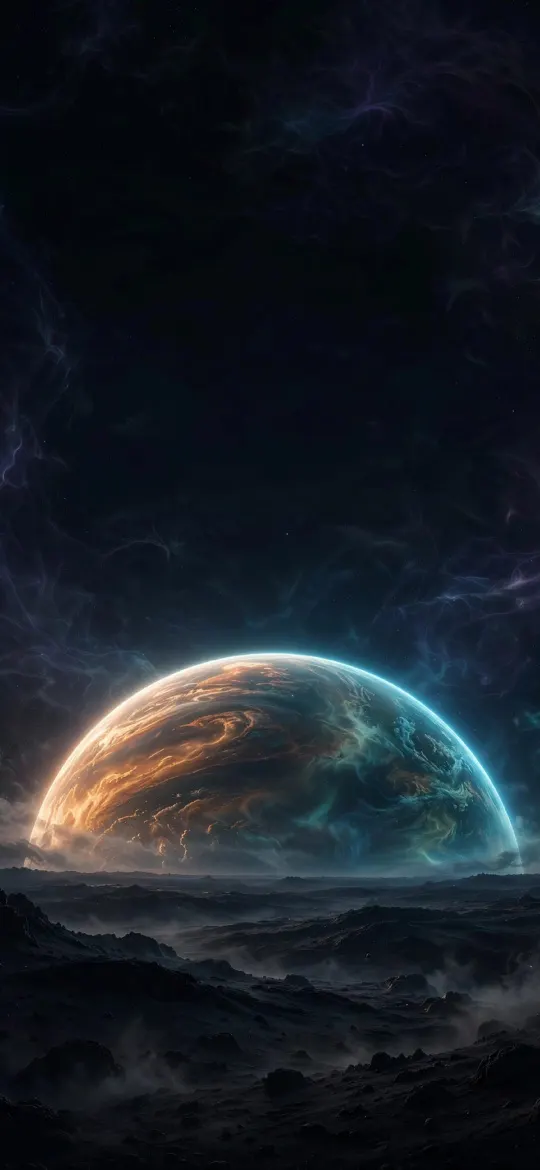 Massive Planet Rising Cosmic Horizon 4K Wallpaper
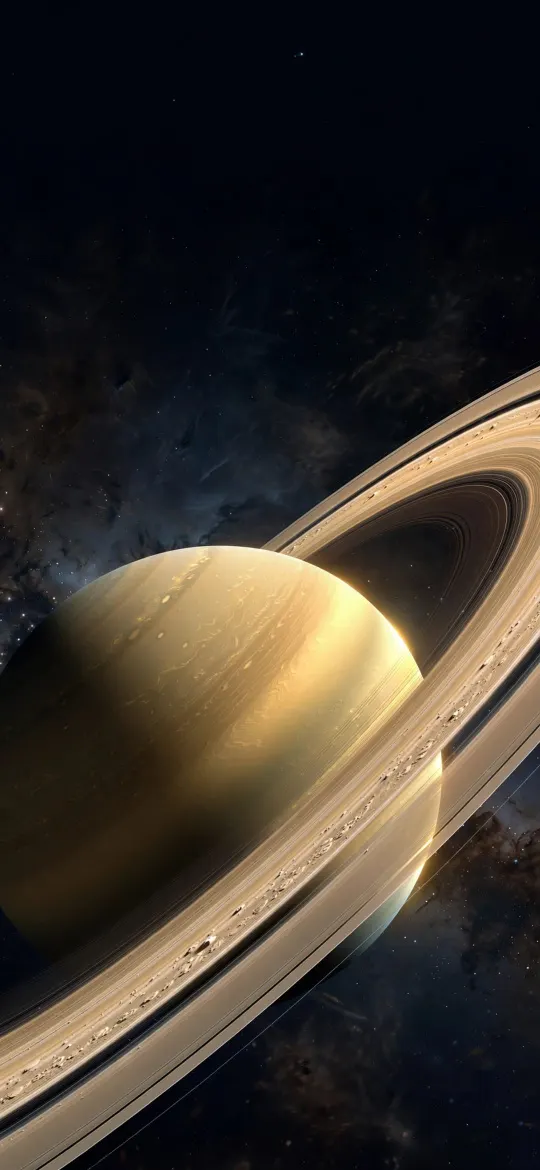 Saturn Rings Close-Up 4K Wallpaper
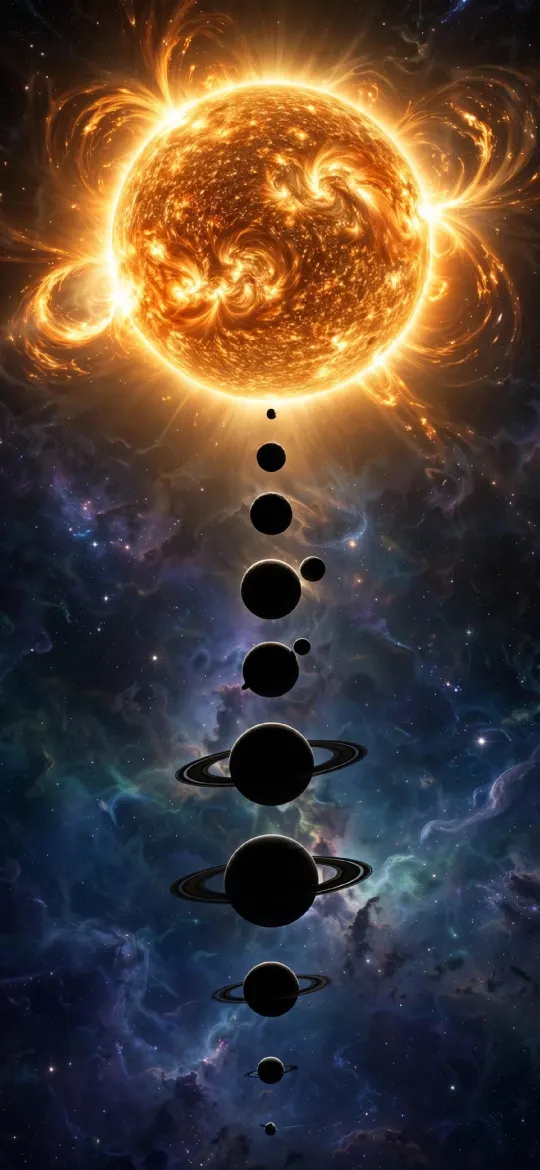 Solar System Sun Wallpaper 4K
 4K Space Galaxy iPhone Wallpaper
 Dark Night Sky Crescent Moon & Tiny Stars 4K Wallpaper
For a Weather-style mood, skies and landscapes from the nature category work well:
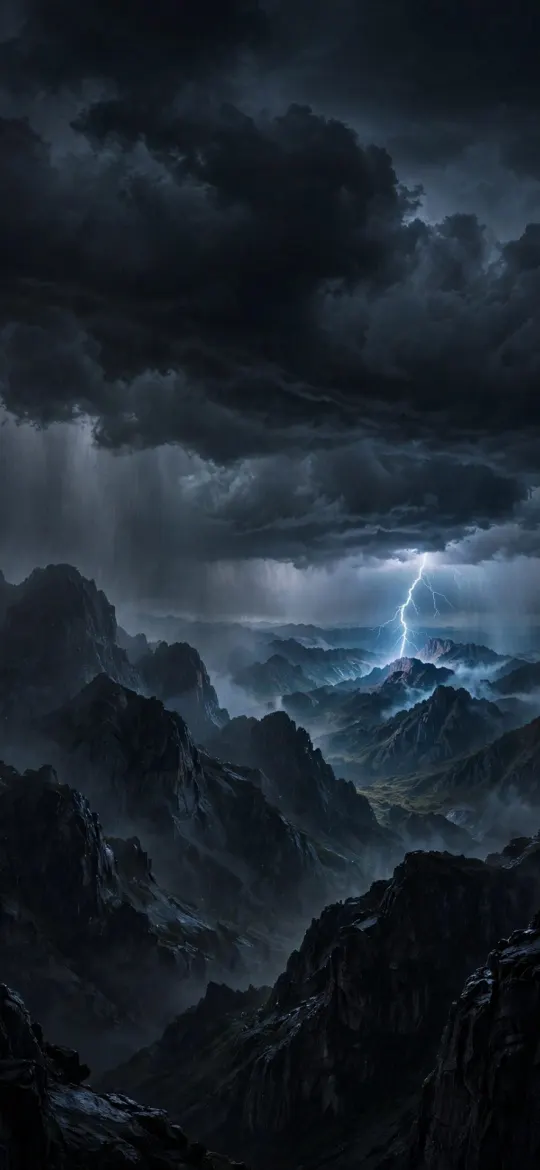 Night Thunderstorm Mountain Lightning 4K Wallpaper
 Premium Aurora Night Sky 4K Wallpaper
 4K Mountain Lake Sunset iPhone Wallpaper
 Himalayan Snow Peaks Sunrise Valley 4K Wallpaper
Read next: Emoji Wallpaper on iPhone: How to Make One and Ideas and Space Wallpaper 4K: Earth From Orbit for Phone and PC.
Quick answers
How do I get the Astronomy wallpaper on iPhone?
Go to Settings → Wallpaper → Add New Wallpaper and tap Astronomy, then swipe to choose the Earth, Moon or Solar System view and tap Add.
Why is my Astronomy wallpaper not showing my location?
The Earth view needs location access from the Weather app. Turn on Settings → Privacy & Security → Location Services → Weather, then re-add the wallpaper.
Does the Weather wallpaper drain battery?
Slightly. It animates and refreshes the forecast, so it uses a little more than a still image, but most people won't notice a real difference.
Can I use the Weather wallpaper without location?
Not properly. Without location access the Weather wallpaper can't tell what conditions to show. A still sky or landscape wallpaper is the better choice if you keep location off.
Why can't I find the Weather wallpaper on my iPhone?
In iOS 27 it may not be shown at the top of the gallery. Go to Settings → Wallpaper → Add New Wallpaper, scroll down to the Weather & Astronomy options and tap Get below the one you want.
Sources
- Change the wallpaper on iPhone, Apple Support
- Change your iPhone wallpaper, Apple Support
- Control the location information you share on iPhone, Apple Support