
On iPhone, you can make an emoji wallpaper without any extra app. Long-press the Lock Screen, tap +, choose Emoji, type up to six emoji, then swipe left or right to pick a pattern layout. Tap the … button to change the background colour, and tap Add to set it on the Lock Screen and Home Screen.
In short
- The Emoji wallpaper is built into the Add New Wallpaper gallery, where Apple lists it as a button beside Photos and Colour.
- You can type up to six emoji, and iOS repeats them across the screen.
- Swiping sideways in the editor switches between a handful of layouts: small, medium and large grids, rings and a spiral.
- The background colour comes from the … menu, and the emoji sit on top of that solid colour.
- It is a still pattern. If you want artwork, texture or a photo behind the clock, use a picture wallpaper instead.
What is the Emoji wallpaper on iPhone?
The Emoji wallpaper is a built-in wallpaper type that repeats emoji you choose in a pattern over a solid background colour. It arrived with the customisable Lock Screen in iOS 16 and sits in the same gallery as Photos and Photo Shuffle.
Because the editor builds the pattern for you, it works as a simple emoji wallpaper maker. There is nothing to download, and the result always fits your screen exactly, since iOS draws it at the phone's own resolution.
How do I make an emoji wallpaper on iPhone?
Open the Add New Wallpaper gallery, choose Emoji, type your emoji and pick a layout. The whole process takes about a minute.
- Unlock the phone, then press and hold the Lock Screen until the gallery opens. Or go to Settings → Wallpaper → Add New Wallpaper.
- Tap + and choose Emoji from the row at the top.
- Type up to six emoji with the emoji keyboard, then close the keyboard.
- Swipe left or right to move through the pattern layouts.
- Tap … and choose a background colour; slide to adjust its shade.
- Tap Add, then Set as Wallpaper Pair, or Customise Home Screen if you want something calmer behind your apps.
To edit it later, long-press the Lock Screen, tap Customise, and tap the emoji to change them.
Which emoji pattern layout should you pick?
Choose a small grid for texture, a large grid for a bold look, and rings or the spiral when you want the clock framed. The layout matters more than the emoji themselves.

| Layout | How it looks | Best for |
|---|---|---|
| Small grid | Many tiny emoji, reads like a pattern from a distance | Busy Home Screens; acts as a texture |
| Medium grid | Balanced spacing, each emoji recognisable | Most people; a safe default |
| Large grid | Few big emoji, very playful | Lock Screen only, few widgets |
| Rings | Emoji arranged in circles around the centre | Framing the clock or a single emoji |
| Spiral | Emoji curling from the centre outwards | One or two emoji with a strong shape |
Emoji wallpaper ideas that actually look good
The emoji wallpapers that work use a limited colour range and a background that matches it. Pick emoji that share a colour, then set the background to a softer or darker shade of that same colour.
- Night sky: crescent moon and a star on navy. Calm and easy on the eyes in Dark Mode.
- Fruit: a single cherry or strawberry on soft pink, in the medium grid.
- Nature: a leaf and a seedling on sage green; the small grid looks like fabric.
- Weather: a sun on warm yellow, in rings around the clock.
- Hearts: one heart colour, not a mix, on a slightly deeper shade of the same colour.
- Seasonal: pumpkins on dark orange in autumn, snowflakes on icy blue in winter.
Keep the clock readable. Big, bright emoji directly behind the time make it hard to read, so the rings layout, which leaves the centre clearer, often helps. The post on keeping the Lock Screen clock readable explains contrast in more detail.
When is a still wallpaper the better choice?
A picture wallpaper is the better choice when you want depth, texture or real artwork, because the Emoji wallpaper is limited to flat emoji on a single colour. It also cannot use Depth Effect, since there is no photo subject to place in front of the clock.
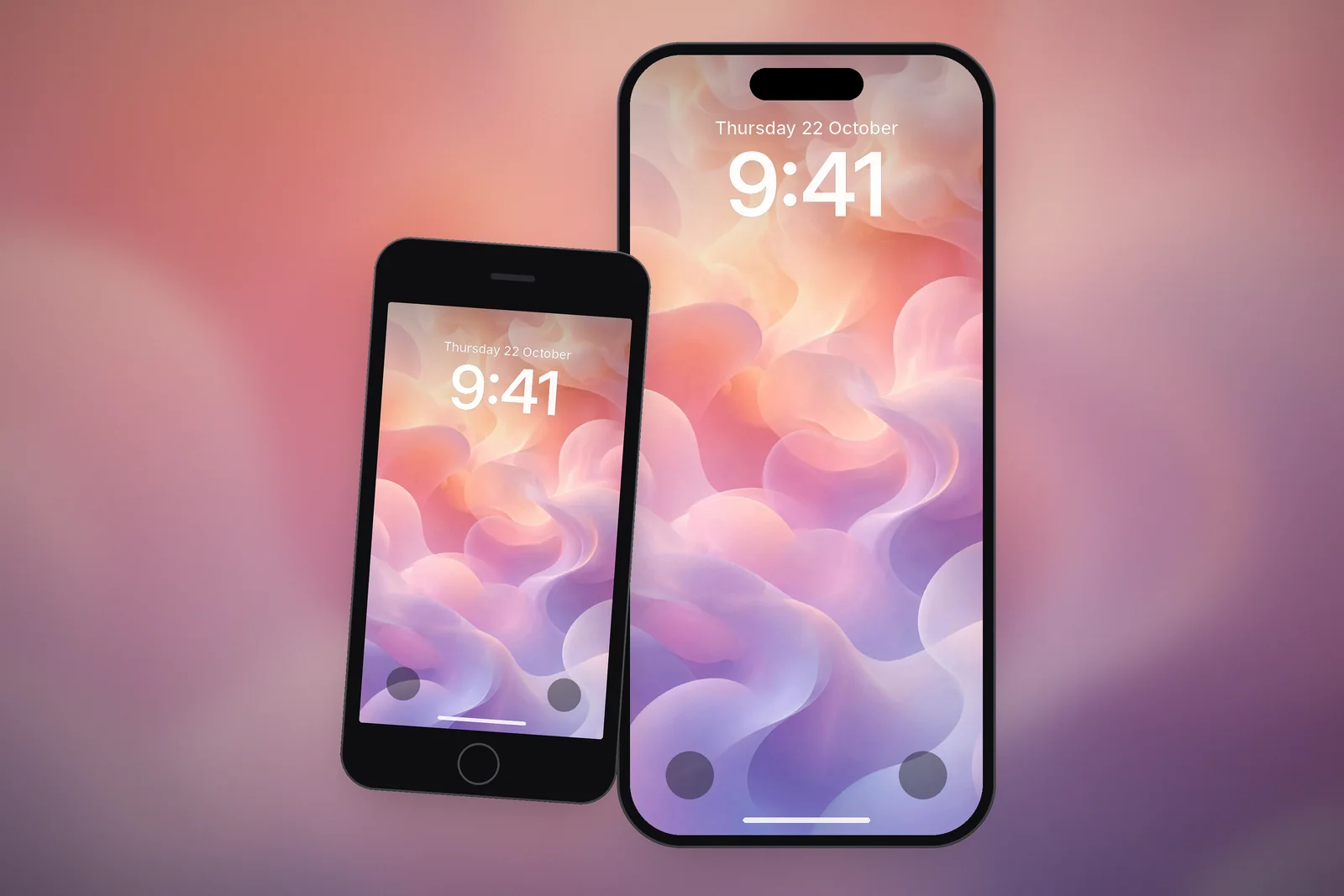
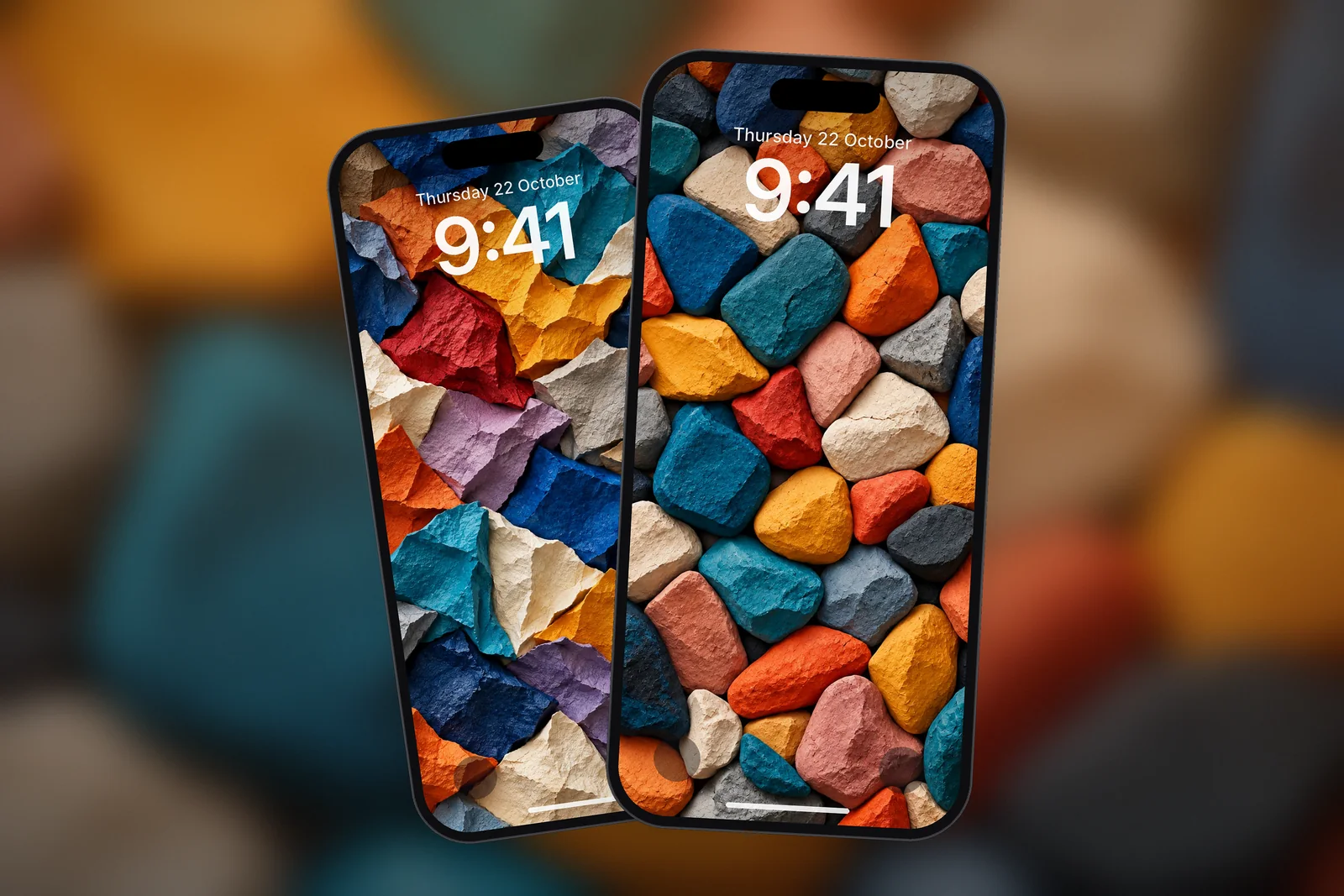
Playful abstract designs give the same cheerful mood with more polish: soft gradients, colourful clay and paper shapes, or glossy chrome swirls. They also pair well with an emoji Lock Screen as the calmer Home Screen half.
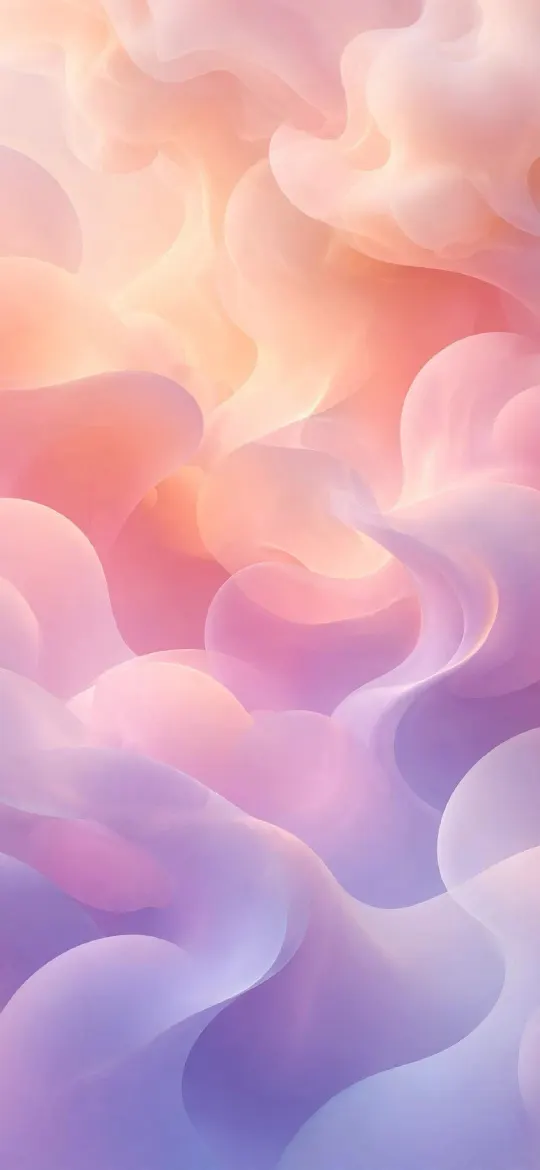 Pastel Gradient Blobs 4K Wallpaper
 Colorful Clay Pebbles Abstract Wallpaper 4K
 Colorful Folded Paper Mosaic Wallpaper 4K
 Neon Color Wave 4K Wallpaper
 Orange Pink Holographic Chrome Bubbles 4K Wallpaper
 Painted Wooden Shapes Abstract Wallpaper 4K
Browse the abstract category for colourful shapes and the gradient tag for soft colour fields. On iPhonesWallpaper, every iPhone wallpaper is cut to 15 exact iPhone screen sizes plus a universal 4K file, so it fills the screen without zooming. For more styles that suit a Lock Screen, see aesthetic iPhone wallpaper ideas.
Read next: Astronomy and Weather Wallpaper on iPhone: Setup and Fixes and 10 Aesthetic iPhone Wallpaper Ideas That Work on a Lock Screen.
Quick answers
How do you make an emoji wallpaper on iPhone?
Long-press the Lock Screen, tap +, choose Emoji, type up to six emoji and swipe to pick a layout. Tap … to change the background colour, then tap Add.
How many emoji can you put on an iPhone wallpaper?
The built-in Emoji wallpaper takes up to six emoji. iOS repeats them across the screen in the layout you choose.
Can you change the background colour of an emoji wallpaper?
Yes. In the wallpaper editor, tap the … button and choose a background colour, then adjust its shade with the slider.
Do I need an app to make an emoji wallpaper?
No. The Emoji option is built into the iPhone Lock Screen editor and Settings → Wallpaper → Add New Wallpaper, so no download or extra app is needed.
Why can't I find the Emoji wallpaper on my iPhone?
Go to Settings → Wallpaper → Add New Wallpaper and look at the row of buttons at the top of the gallery; Emoji sits there with Photos and Colour. It is part of iOS, so there is nothing to download.
Sources
- Change the wallpaper on iPhone, Apple Support
- Change your iPhone wallpaper, Apple Support
- Create a custom iPhone Lock Screen (iOS 16), Apple Support