To make a wallpaper for iPhone, start with a portrait canvas at your iPhone's exact screen resolution (or 2160 × 3840 if you want one file that fits any model), keep the important part of your design away from the clock at the top and the dock at the bottom, then export a high-quality PNG or JPG and set it from the Photos app. That is the whole job. The rest of this guide shows the exact numbers, the safe areas and a simple way to build a collage from several photos.
You can do this in Canva, in a desktop editor, or in any app that lets you set a custom canvas size in pixels. The method is the same everywhere.
In short
- Canvas: your model's exact pixels (1206 × 2622 for iPhone 17 or iPhone 18 Pro) or 2160 × 3840 for one file that suits any iPhone.
- Safe areas: keep text and faces out of the top 30 percent (clock and widgets) and the bottom 15 percent (dock and Lock Screen controls).
- Collage: a 2 × 3 grid with 12 to 20 pixel gaps under a plain top band reads better than a loose pile of photos.
- Export PNG for flat colour and gradients, JPG at 90 to 100 quality for photos, then set it from Photos → Share → Use as Wallpaper.
Step 1: pick the right canvas size
The canvas size matters more than anything else. A file at your screen's exact resolution is shown pixel for pixel, so nothing gets stretched or cropped by surprise. A file with a different shape gets cropped to fit, and a small file blown up to fill the screen looks soft.
You have two good choices:
- Your model's exact size. Best if the wallpaper is only for your own phone. For example, an iPhone 18 Pro Max is 1320 × 2868 pixels and an iPhone 17 is 1206 × 2622 pixels, according to Apple's specifications.
- 2160 × 3840 (4K portrait). Best if you want to share the design or switch phones later. It is larger than every iPhone screen, so it scales down cleanly; iOS trims a thin strip from the sides because iPhones are slightly taller than 9:16.
| Canvas | Size in pixels | Use it for |
|---|---|---|
| Universal 4K | 2160 × 3840 | Any iPhone, sharing with friends |
| iPhone 18 Pro Max / 17 Pro Max / 16 Pro Max | 1320 × 2868 | Largest current screens |
| iPhone 18 Pro / 17 Pro / 17 / 16 Pro | 1206 × 2622 | Current 6.3-inch models |
| iPhone Air | 1260 × 2736 | The 6.5-inch iPhone Air |
| iPhone 16 / 15 / 15 Pro / 14 Pro | 1179 × 2556 | Common 6.1-inch models |
| iPhone 17e / 16e / 14 / 13 | 1170 × 2532 | Older and budget 6.1-inch models |
For every other model, check the full chart in our iPhone wallpaper sizes guide. On the iPhone wallpaper size ratio: modern Face ID iPhones are close to 19.5:9 (about 0.46 wide for every 1 tall), while older Home-button models such as the iPhone SE are 16:9.
Step 2: set up the canvas in Canva or any editor
For the iPhone wallpaper size in Canva, start a new design with a custom size, switch the unit to px and type the width and height from the table above. Don't use a ready-made phone wallpaper template blindly: check its pixel size first, because it may not match your screen.
In a desktop editor, create a new document with the same pixel size, set the resolution to 72 or higher (only the pixel count matters on a phone) and use the sRGB colour profile so colours look the same on the iPhone as on your computer.
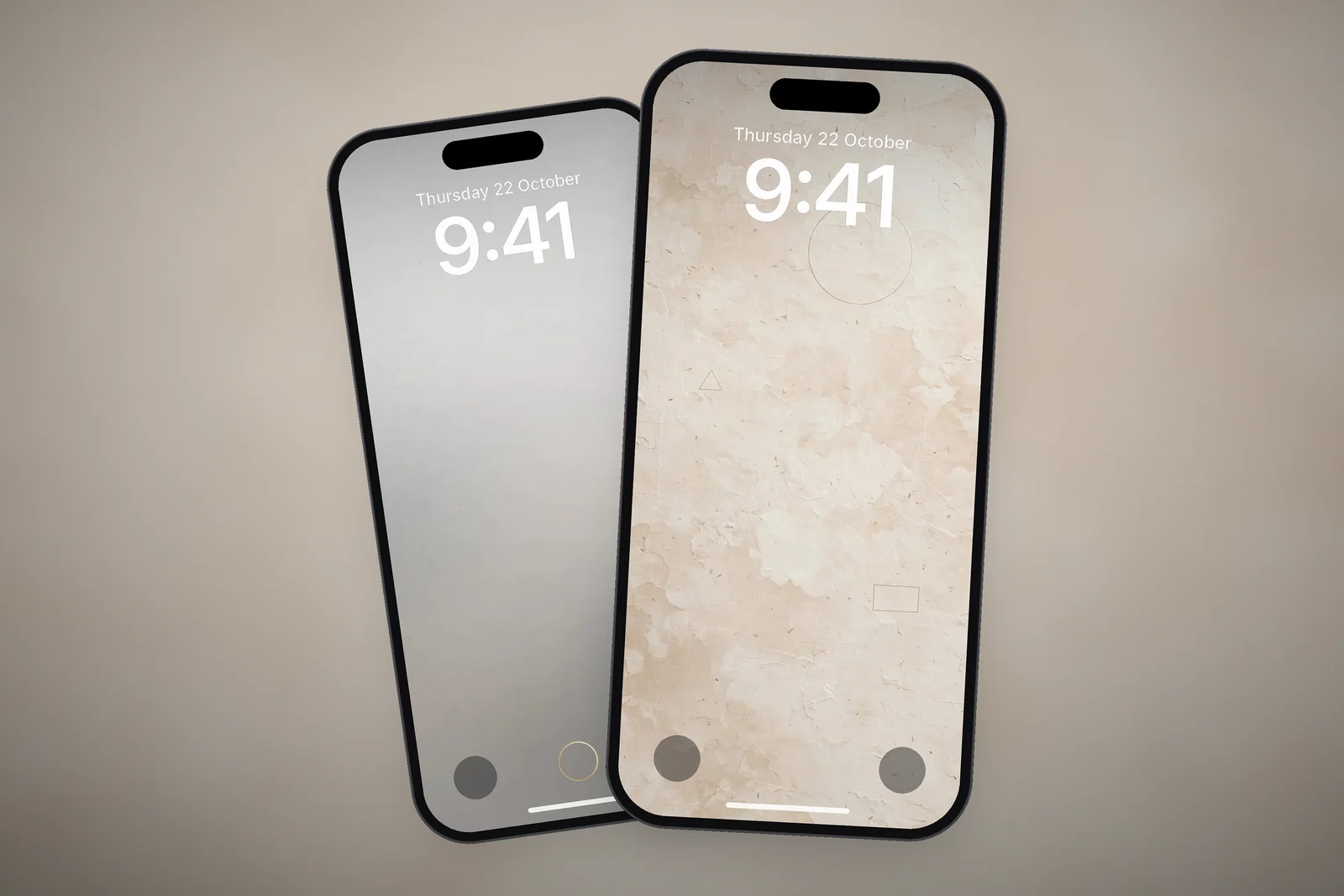
Step 3: respect the safe areas
Your iPhone draws things on top of the wallpaper, and that is where most home-made designs go wrong. Plan your layout around these zones:

- Top quarter (Lock Screen): the date, the large clock and any widgets sit roughly in the top 25 to 30 percent. On Face ID models the Dynamic Island or notch sits at the very top too. Keep faces, text and fine detail out of this band, or use it for a calm area of sky or colour.
- Bottom strip (Lock Screen): the torch and camera buttons and the swipe-up bar sit in roughly the bottom 10 percent.
- Dock (Home Screen): the dock covers about the bottom 15 percent, and app icons fill most of the space above it.
- Centre: the safest place for your main subject is the middle third of the canvas, slightly below centre.
If you want the clock to sit in front of your subject with Depth Effect, give the subject a clear outline and leave some plain background around it, and keep it clear of the widget row. On iPhone 12 and later with iOS 26 or later, eligible photos can also become a 3D Spatial Scene on the Lock Screen; Apple says clear separation between subject and background and good lighting help a picture qualify. Our post on keeping a Lock Screen clock readable covers this in more detail.
Step 4: how to make a wallpaper with multiple pictures
A collage is the most popular home-made wallpaper, and a simple grid looks far better than a random pile of photos. Here is a method that works in any editor:
- Create the canvas at your chosen size, for example 1179 × 2556.
- Leave the top 700 pixels or so as a plain colour or a single wide photo, so the clock has a quiet background.
- Split the rest into a grid: two columns by three rows is easy to read on a small screen. Use a gap of 12 to 20 pixels between frames.
- Drop one photo into each frame and let the editor crop it. Pick photos with similar light and colour so the grid feels like one picture.
- Keep the most important photo in the middle row, where the dock and icons will not hide it.
Three photos stacked vertically also works well, with the middle one as the hero shot. If you use more than six photos, each one becomes too small to see once app icons sit on top.
Step 5: export and set the wallpaper
Export settings decide how sharp the final result looks:

- PNG for designs with flat colour, text, line art or gradients. It avoids blocky banding in smooth colour fades.
- JPG at 90 to 100 quality for photos and collages. Files stay small and the difference from PNG is hard to see.
- Export at 1× of the canvas size you set. If the editor offers a size multiplier, don't scale the file down.
Send the file to your iPhone (AirDrop or a cloud folder works) and save it to Photos. Then open it in Photos, tap Share and choose Use as Wallpaper. Pinch to zoom and drag with two fingers to frame it; if the … menu offers Perspective Zoom, turn it off to keep the exact framing you designed. Tap Add, then Set as Wallpaper Pair or Customise Home Screen. Our guide to setting a wallpaper on iPhone walks through every screen.
If you would rather start from a finished picture and add your own touches, every wallpaper on the site comes in a 4K file you can bring into your editor. Clean, simple images like these make a good base for text or a small photo:
 Minimal Zen Gray Gradient 4K Wallpaper
 Wabi Sabi Beige Textured Minimal Wallpaper 4K
 Pastel Gradient Blobs 4K Wallpaper
 Minimalist Arch Curve on Beige Textured Paper 4K Wallpaper
You will find more plain backgrounds in the minimal wallpapers category. Wallpapers on the site are free for personal use, so keep your edited versions for your own phone.
Read next: iPhone Wallpaper Not Fitting the Screen? Why and How to Fix It and Wallpaper Resolution Guide: What Size Do You Need?.
Quick answers
What size should I make my iPhone wallpaper in Canva?
Use your model's exact resolution, such as 1206 × 2622 pixels for an iPhone 17 or 1179 × 2556 for an iPhone 16, or 2160 × 3840 pixels for a file that fits every iPhone. Set it as a custom size in px.
What is the iPhone wallpaper size ratio?
Face ID iPhones are close to 19.5:9. Home-button models such as the iPhone SE and iPhone 8 are 16:9. A 9:16 file fits both, with a small side crop on newer phones.
Why does my custom wallpaper look blurry?
The file is usually smaller than the screen, or it was compressed when sent through a messaging app. Export at full size, use PNG or high-quality JPG, and transfer it with AirDrop or a cloud folder.
Should I save my iPhone wallpaper as PNG or JPG?
PNG for flat colour, text and smooth gradients, because it avoids banding; JPG at 90 to 100 quality for photos and collages, where the smaller file looks the same on screen.
How many photos can I fit in a collage wallpaper?
Up to six works well, for example a 2 × 3 grid below a plain top band. With more, each photo becomes too small to see once app icons sit on top.
Sources
- iPhone 18 Pro and 18 Pro Max – Technical Specifications, Apple
- iPhone 17 – Technical Specifications, Apple
- Create a custom iPhone Lock Screen (iOS 27), Apple Support
- Change your iPhone wallpaper, Apple Support