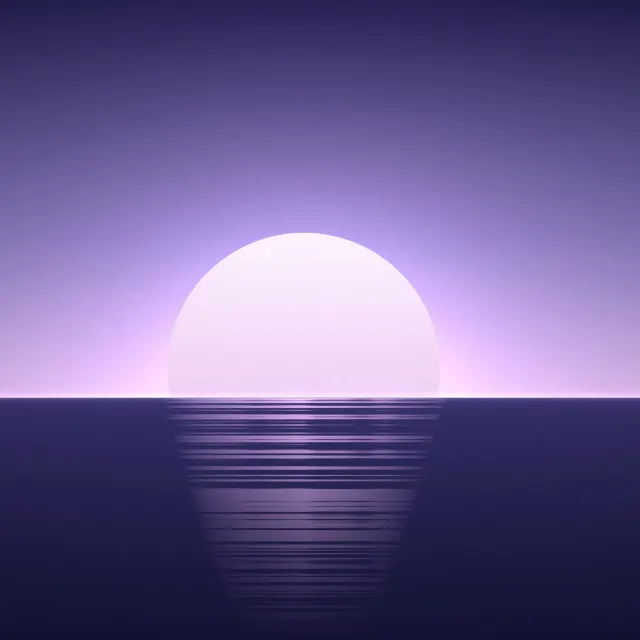
The winter wallpapers that work best on iPhone keep something dark behind the clock: snow at night, a moon over pines, ice on black or an aurora sky. Bright snow scenes look lovely but can swallow a white or clear clock, because the digits sit on nearly the same white as the picture. If you love a bright one, give the time a dark Solid color in the Lock Screen editor, or move the photo so a line of trees sits behind the digits. Below are winter picks for each kind of picture and the settings that fix the clock on iOS 27.
In short
- Night snow and dark icy pictures keep a white clock and widgets easy to read with no changes.
- Fog, pale skies and fresh snow hide a white or clear Glass clock; switch it to a dark Solid color.
- Each Lock Screen keeps its own clock: touch and hold the Lock Screen, tap Customize, then tap the time.
- Drag the photo with two fingers to put trees or mountains behind the time, or swipe to another color filter.
- Notifications are glass too; on iOS 27, Settings › Appearance › Liquid Glass makes them more tinted.
Snow at night: the easiest winter Lock Screen
Night scenes put a dark sky exactly where the date, time and widgets sit, and keep the light (a moon, lit windows, an aurora) lower down. A white clock reads on them as it is, and the subject stays clear of the digits.
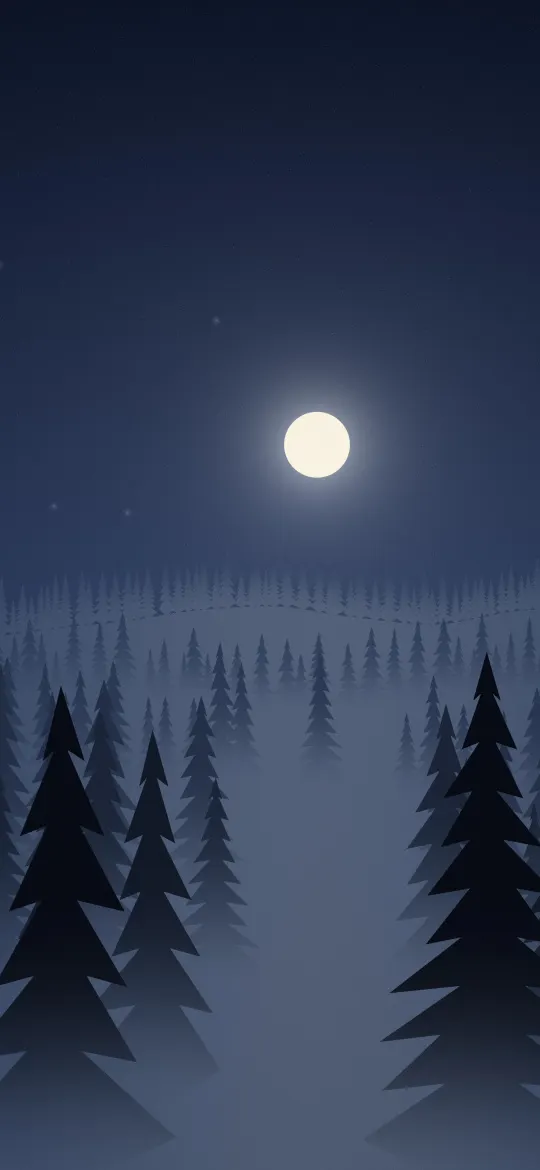
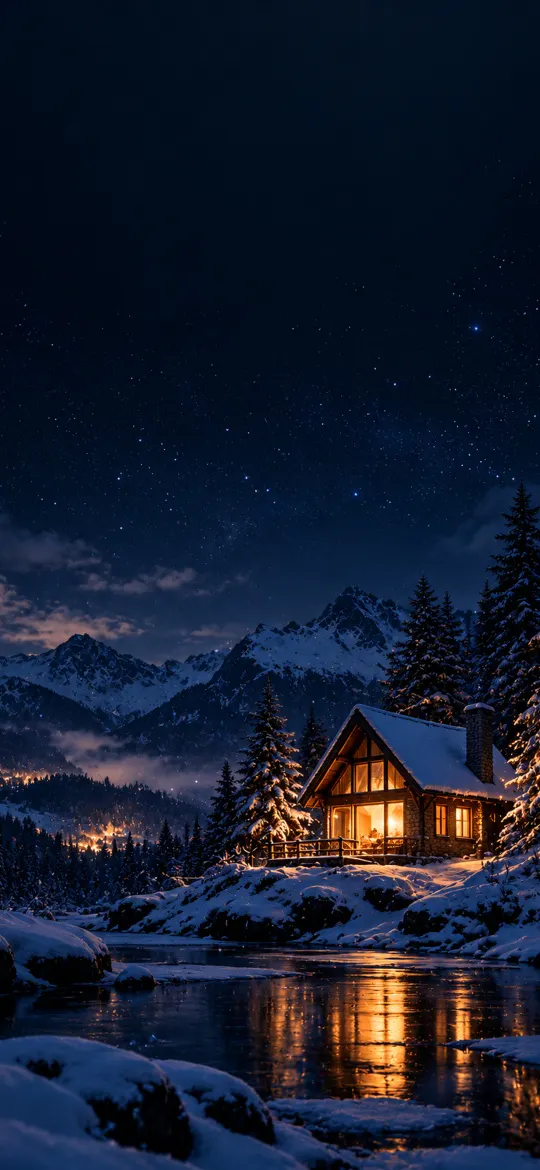
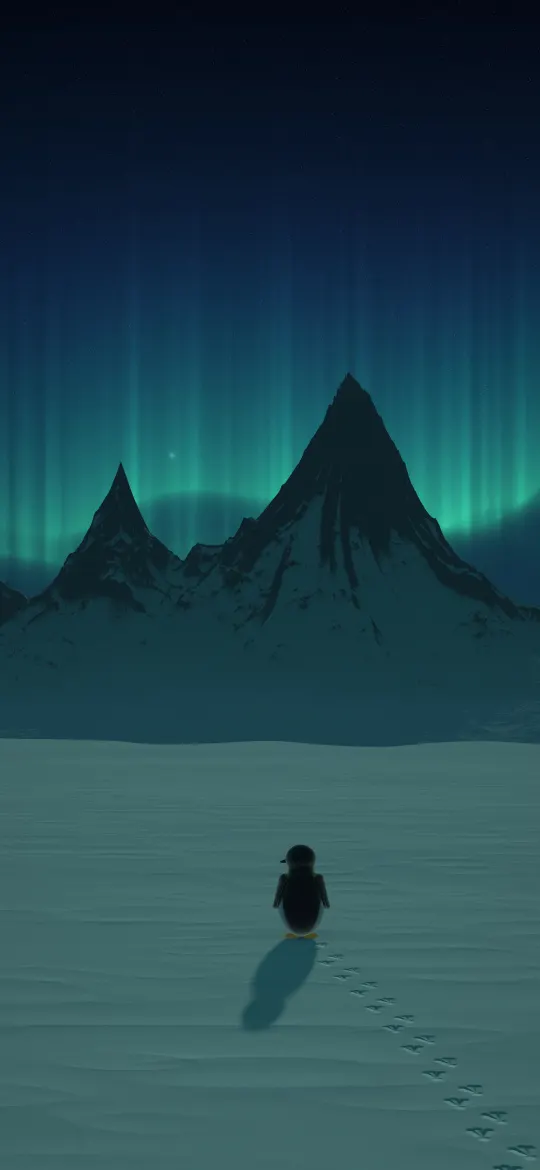
Empty night sky also gives the clock room to grow. Apple says the adaptive time in iOS 26 and later "fluidly resizes to the available space on your Lock Screen, complementing the subjects of your photos." If yours keeps changing size, our clock size guide shows how to keep it steady.
Frost, ice and polar light on black
Icy subjects on a black background give the same easy contrast with a cooler look. Keep the moon or planet in the middle of the screen, where it meets neither the clock nor a widget row at the bottom.
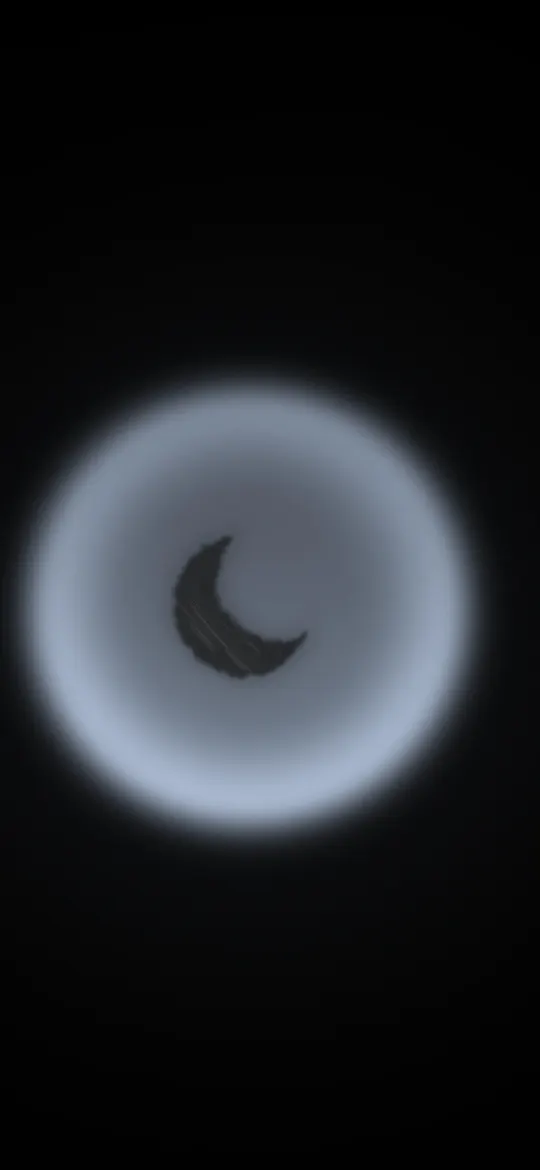
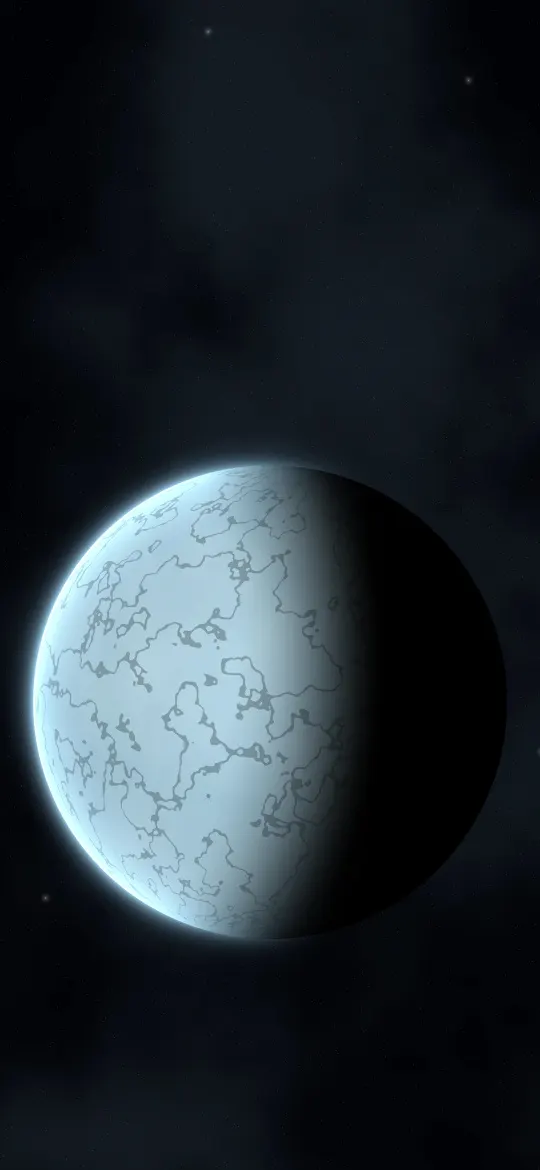
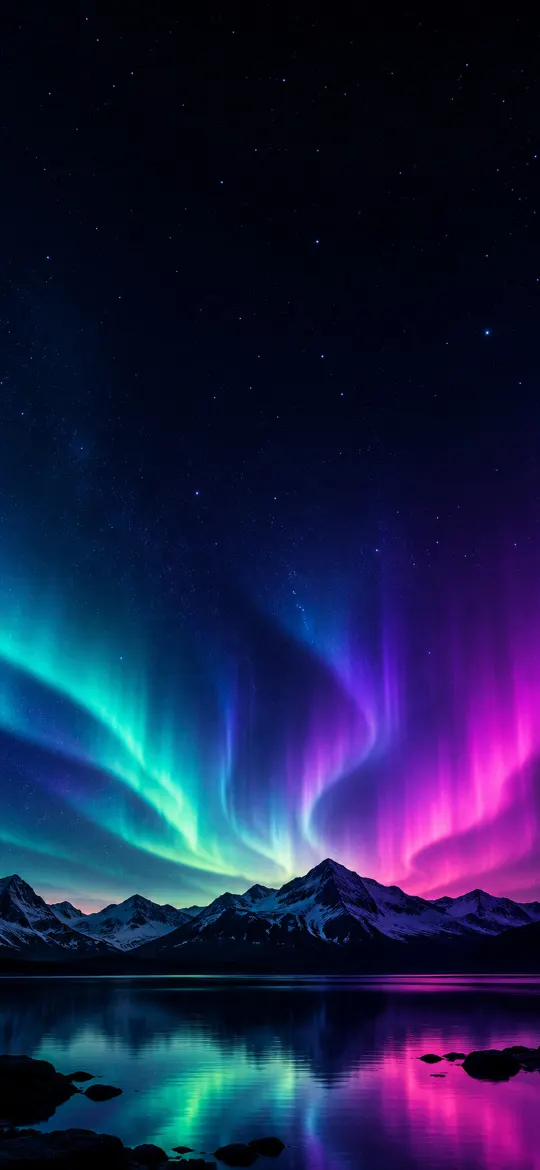
If you'd like the real weather on the Lock Screen instead, Apple's Weather wallpaper shows "live weather conditions as they change throughout the day," as Apple put it when it launched the feature. In the Lock Screen gallery, scroll down and tap Get if it isn't there yet; our Weather wallpaper guide has the full steps.
Why a bright snow scene hides a white clock
The clock is drawn on top of the picture. White digits need a darker area behind them to stand out, and fresh snow, fog and a pale winter sky are all close to white. A Glass clock makes it harder: Apple's guide calls it "a more transparent look," so the bright picture shows through the numbers. Soft, pale scenes like these need one of the fixes below:


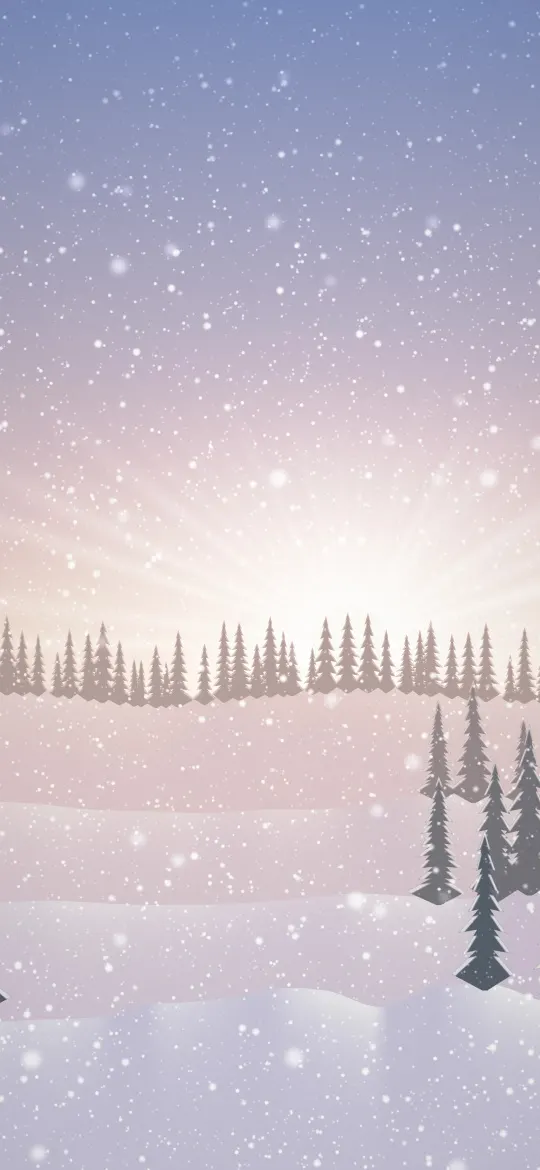
Bright snow along the bottom can do the same to light widgets. Since iOS 26 you can drag the widget row to the bottom of the screen, MacRumors reports; on a night scene with white snow below, leave it under the clock where the sky is dark.
How to make the clock readable on snow
Start with the clock's color, which fixes most bright pictures:
- Touch and hold the Lock Screen, then tap Customize.
- Tap the time to open the Font & Color panel, as MacRumors names it.
- Tap Solid for opaque digits, then choose a deep color such as navy, charcoal or pine green. MacRumors notes Apple offers preset colors and lets you pick your own.
- Tap the wallpaper outside the panel, then tap Done.
If you prefer the Glass look, keep it but make it frostier. On iOS 26.2 and later, a slider appears when Glass is selected; MacRumors says it runs from almost entirely clear to a more frosted, solid look.
You can also change the picture rather than the clock (Create a custom iPhone Lock Screen):
- In the editor, pinch open to zoom in and drag the image with two fingers until a darker band, such as a tree line, a mountain ridge or a red flower, sits behind the time.
- Swipe left or right to try Apple's color filters, and stop on the one where the digits stand out.
- Tap Done and lock the iPhone to check it at a glance.
Notifications use Liquid Glass as well, a frosted look that leaves the wallpaper visible behind them, MacRumors notes. Apple's iOS 26.1 notes say the tinted look raises the opacity of notifications on the Lock Screen. On iOS 27, go to Settings › Appearance › Liquid Glass and drag the slider to the right for more tint (Adjust iPhone display and text settings). Apple notes that Reduce Transparency and Increase Contrast in Accessibility settings must be off to change it.
For more contrast checks before you download, see our guide to keeping the Lock Screen clock readable.
Which winter picture needs which setting
| Winter picture | Behind the clock | What to do |
|---|---|---|
| Snow at night, moon over pines | Dark sky | Nothing; a white clock reads well |
| Ice, frost or aurora on black | Black | Keep the subject in the middle of the screen |
| Fog, pale sky, fresh snow | Near white | Solid clock in a dark color |
| Sunrise glow over snow | Bright glow | Move the glow below the time, or use a dark clock |
| Night sky over white snow | Dark top, white bottom | Keep widgets under the clock |
| Any bright picture with a Glass clock | Picture shows through | Slide toward frosted, or switch to Solid |
A matching winter Home Screen
Pale winter pictures make a calm Home Screen, and icons can pick up their color. Touch and hold the Home Screen background, tap the Edit button, choose Customize, tap Tinted and use the eyedropper to pick the blue of the snow or the green of the pines (Customize apps and widgets on the iPhone Home Screen). Our Christmas Lock Screen ideas go through the full Home Screen steps and a separate seasonal Lock Screen you can switch back from in spring.
Quick answers
What makes a good winter wallpaper for iPhone?
A winter picture with a dark or mid-tone area at the top, such as snow at night, a moon over pines or ice on black, keeps a white clock and widgets readable. Bright snow and fog work too if you give the clock a dark Solid color.
Why can't I see the clock on my snow wallpaper?
White or clear digits have almost no contrast against fresh snow, fog or a pale sky, and the Glass clock lets the bright picture show through. Tap the time in Customize, choose Solid and a dark color, or move the photo so trees sit behind the time.
How do I make the iPhone Lock Screen clock darker?
Touch and hold the Lock Screen, tap Customize, then tap the time to open the Font & Color panel. Tap Solid, choose a dark color such as navy or charcoal, and tap Done.
How do I make Lock Screen notifications easier to read on a white wallpaper?
On iOS 27, go to Settings › Appearance › Liquid Glass and drag the slider to the right for a more tinted look, which Apple says makes notifications on the Lock Screen more opaque. Reduce Transparency and Increase Contrast must be off for the slider to work.
Sources
- Create a custom iPhone Lock Screen, Apple
- Adjust iPhone display and text settings, Apple
- Customize apps and widgets on the iPhone Home Screen, Apple
- About iOS 26 Updates, Apple
- Apple unveils new ways to share and communicate in iOS 16, Apple Newsroom
- iOS 26: All the New iPhone Lock Screen Customizations, MacRumors
- iOS 26: New Lock Screen Features, MacRumors
- iOS 26.2 Lock Screen Gets Liquid Glass Slider, MacRumors
- iOS 27's New Compact Clock Gives Your Wallpaper Room to Breathe, MacRumors