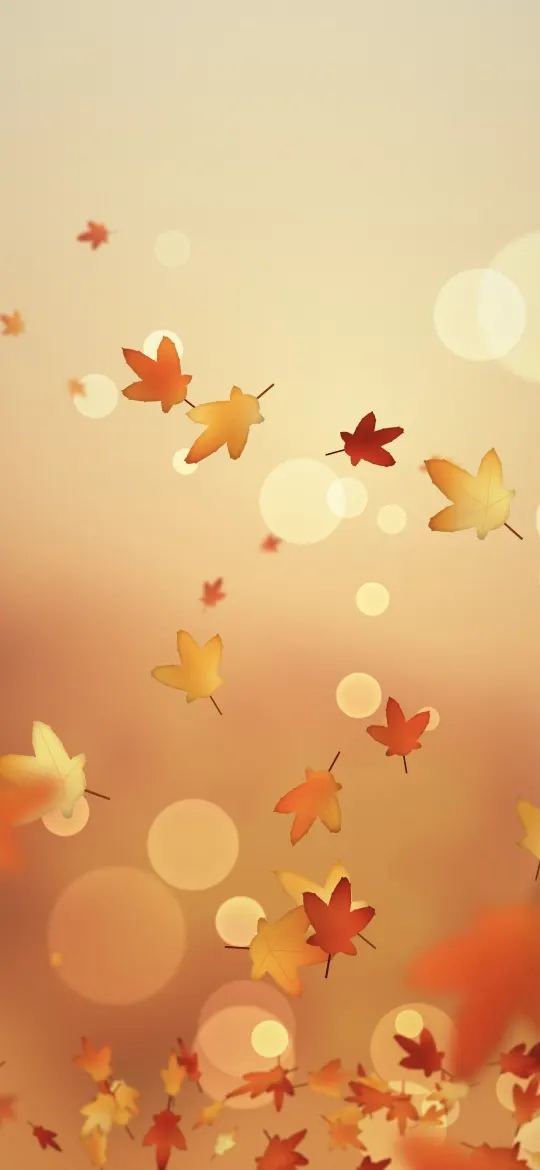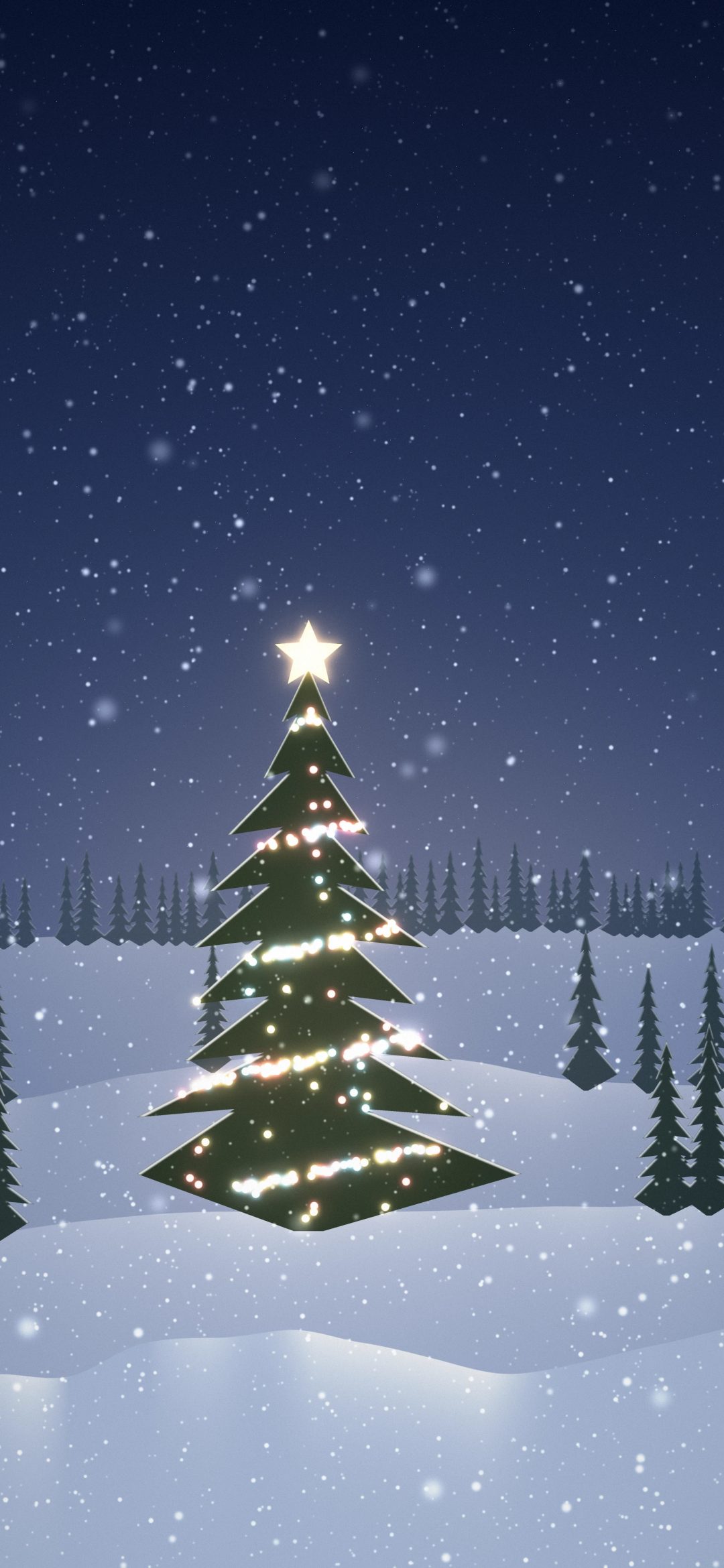
The easiest Christmas Lock Screen on iPhone is a new Lock Screen made just for the season: a festive picture with dark sky behind the clock, the time tinted gold or red, a Calendar widget for your plans and a Home Screen to match. You build it in the Lock Screen editor (touch and hold the Lock Screen, then tap Customize or the Add button), and your everyday Lock Screen stays one swipe away for January. The steps are for iOS 27.
In short
- Make a separate Lock Screen for Christmas, so your usual one is a swipe away.
- Pick a picture with a calm, dark top third and the tree, cabin or gifts in the middle or lower half.
- Tap the time to choose a font, a Glass or Solid look and a color such as gold, deep red or pine green.
- Add a Calendar widget for parties and travel; a days-until countdown needs an App Store app.
- Finish with Customize Home Screen and app icons tinted with a color picked from the wallpaper.
Start a Christmas Lock Screen you can switch off in January
Apple lets you keep several Lock Screens and switch between them (Create a custom iPhone Lock Screen). Save the wallpaper to Photos first, then:
- Touch and hold the Lock Screen, then tap the Add button (+). If it doesn't appear, touch and hold again and enter your passcode.
- Tap Photos and choose your Christmas picture.
- Make the changes below, then tap Add and choose Set as Wallpaper Pair or Customize Home Screen.
- After the holidays, touch and hold the Lock Screen, swipe to your usual one and tap it.
1. Put the tree or cabin below the clock
An aesthetic Christmas wallpaper on iPhone leaves the top third quiet, because the date, time and widgets sit there. Since iOS 26 the clock also adapts: Apple says it "fluidly resizes to the available space on your Lock Screen, complementing the subjects of your photos." A dark sky above a lit tree gives the time room and contrast.
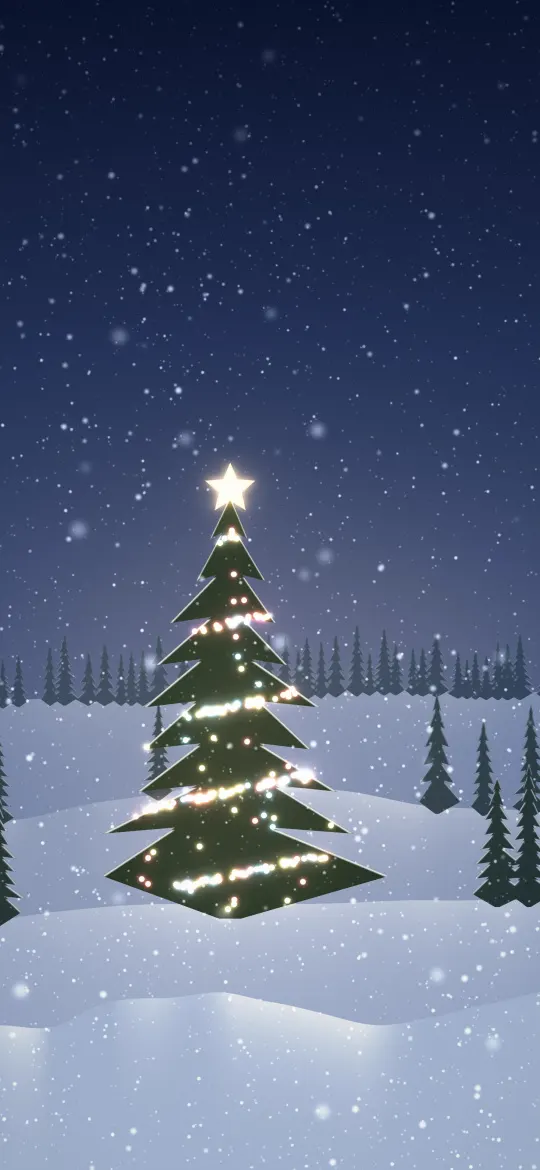
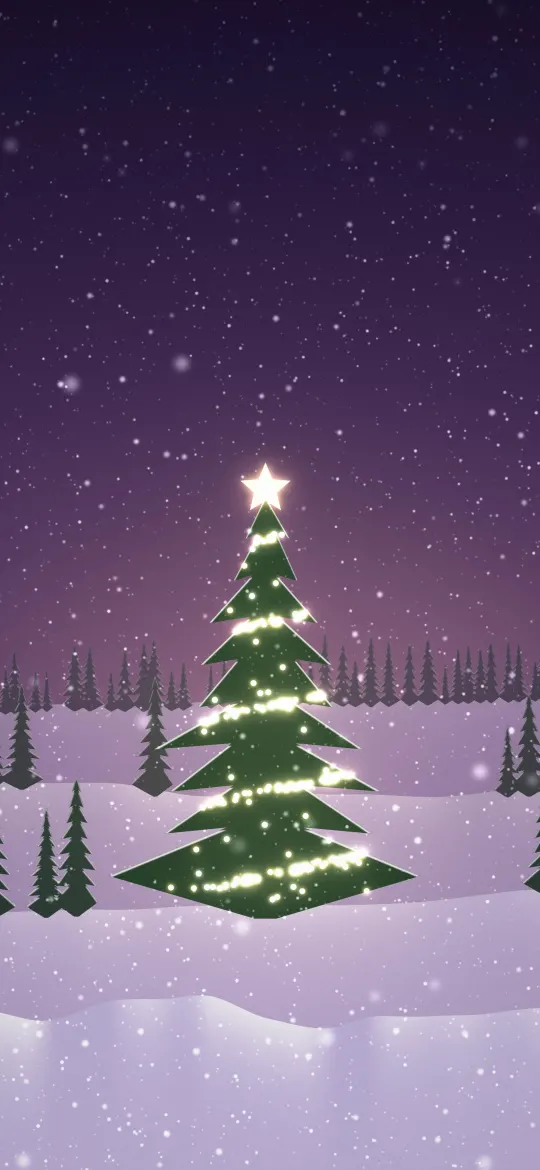
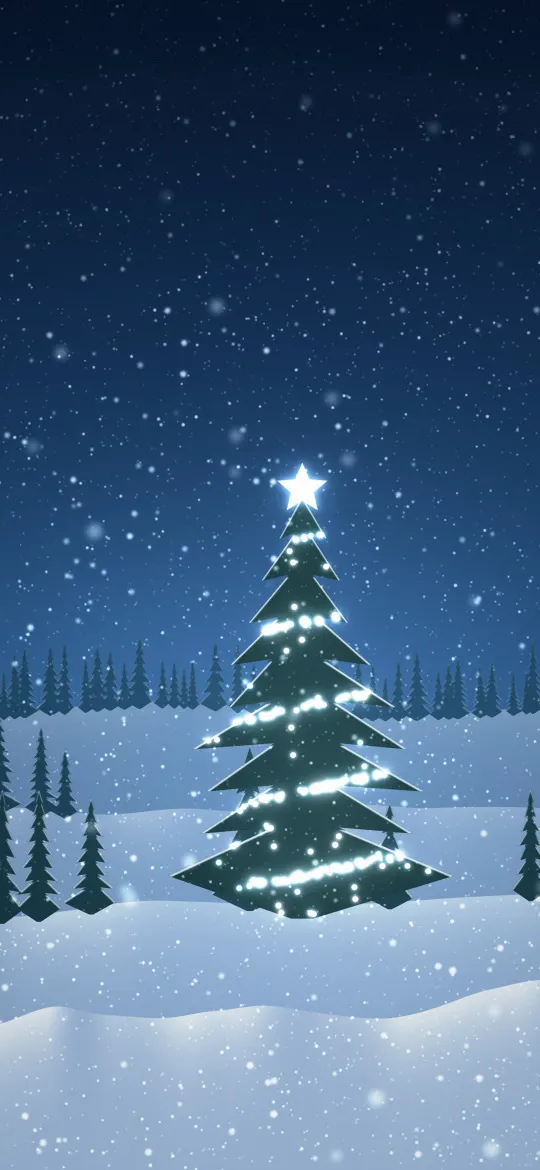
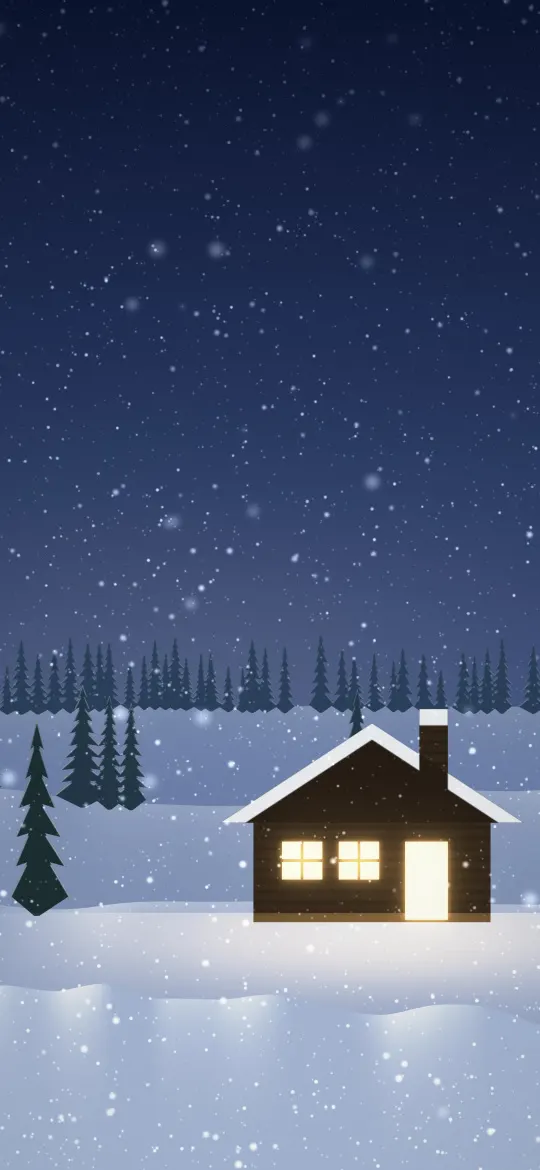
To line the picture up, pinch open to zoom in, drag the image with two fingers to move it, then pinch closed to zoom out. To show more of the scene, iOS 27 can also shrink the time into the top row beside the date: MacRumors says to tap the time, then the icon of two horizontal bars at the top right of the Font & Color panel.
2. Let a star or ornament rise in front of the time
Depth Effect places the subject of a photo in front of the clock, so the star on a tree or the top of a bauble overlaps the digits.
- In the editor, drag the picture with two fingers until the top of the tree or ornament just meets the bottom of the time.
- Tap the Depth Effect button, or tap the More button (…) and choose Depth Effect.
- Tap Done.
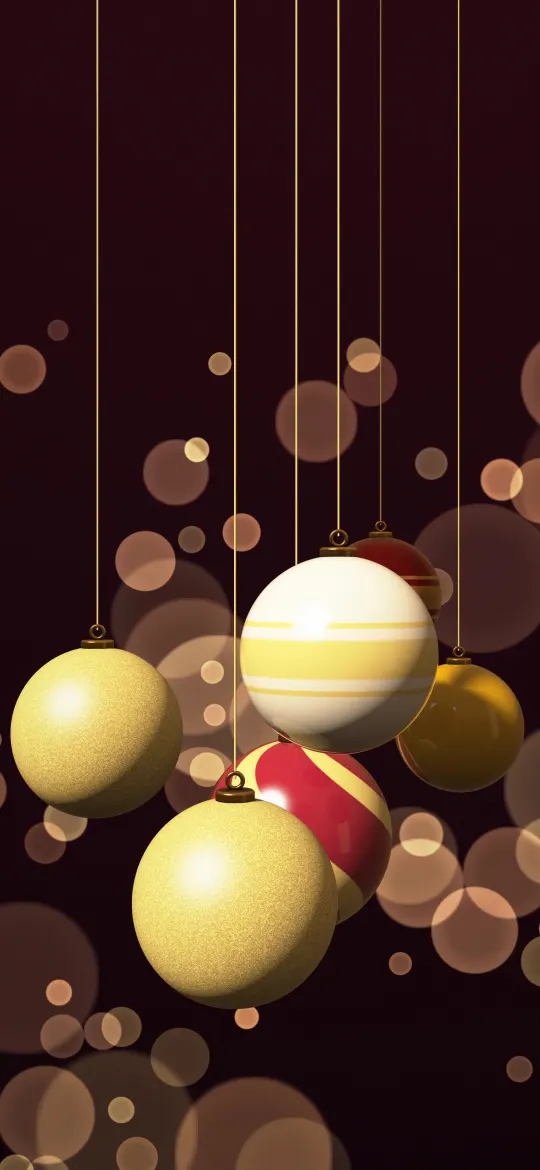
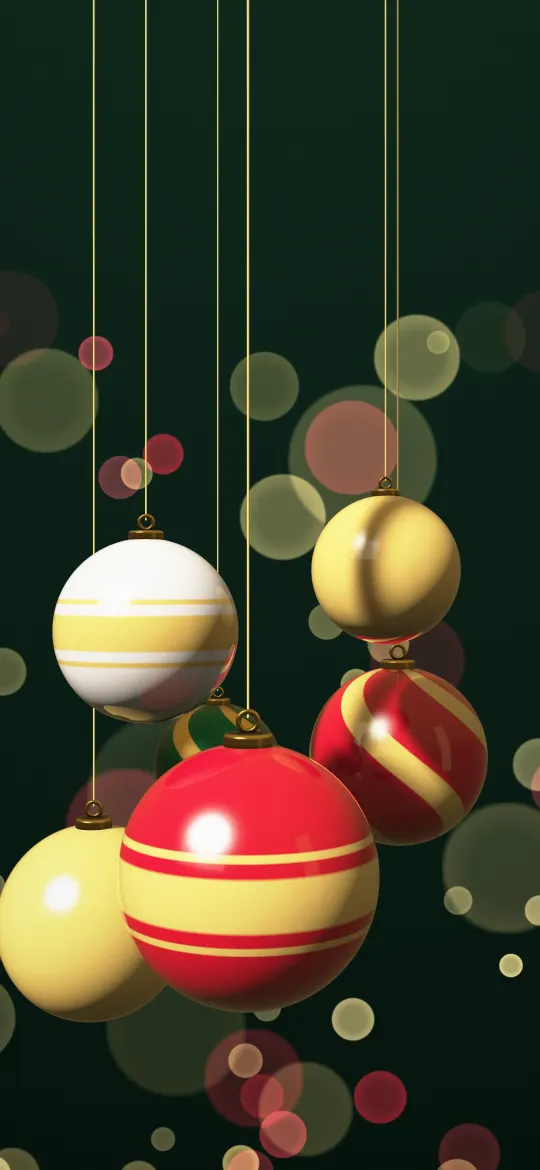
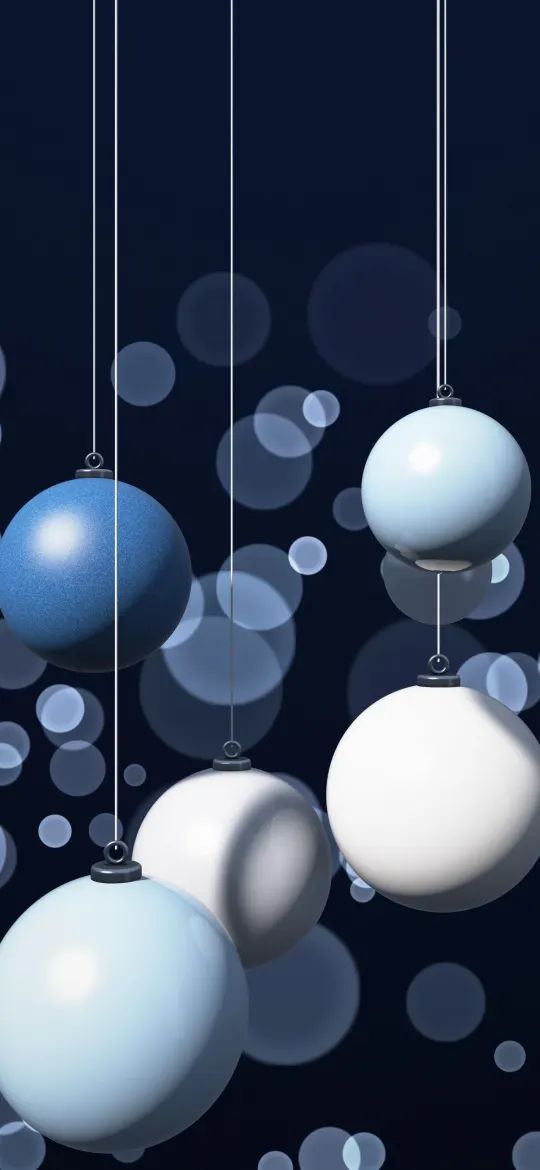
Apple's guide ties the option to photos that support layering, so not every picture offers it. With Depth Effect on, the time makes room for the subject as you crop, MacRumors adds. If the option is missing, our Depth Effect guide explains why. Large ornaments on a dark background are worth a try:
3. Tint the clock gold, red or pine green
Apple says you tap the time "to change the font, switch to a more transparent look, and more." The options, as MacRumors describes them:
- Touch and hold the Lock Screen, tap Customize, then tap the time to open the Font & Color panel.
- Choose a font. Only the first font can be stretched taller, according to MacRumors; our guide to resizing the Lock Screen clock covers the drag handle.
- Choose Glass for the frosted Liquid Glass clock or Solid for opaque digits, then pick one of the preset colors or your own.
- With Glass selected on iOS 26.2 or later, drag the slider between almost clear and more frosted.
- Tap the wallpaper outside the panel, then tap Done.
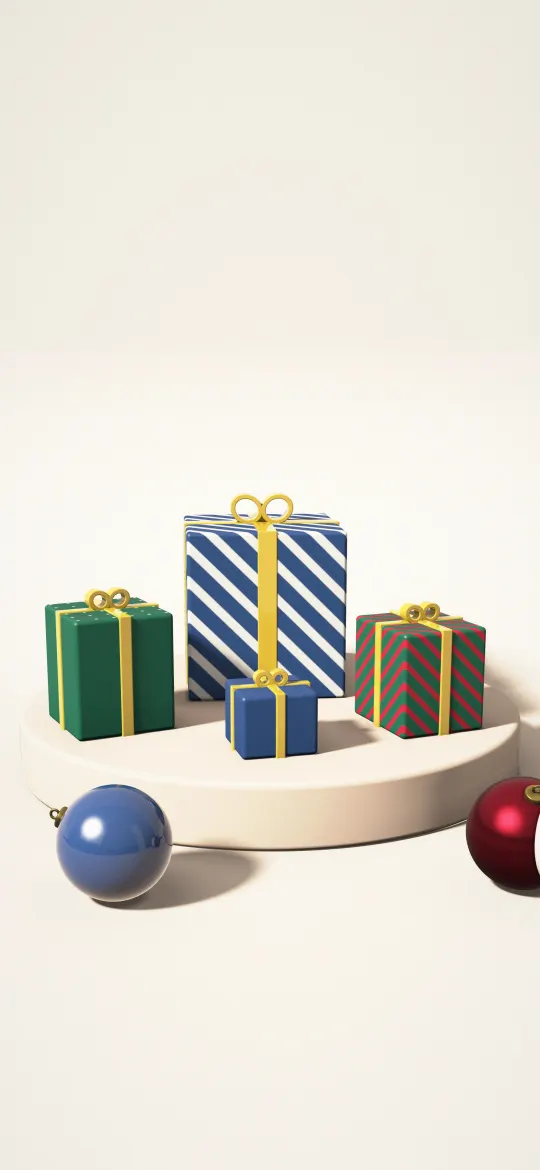
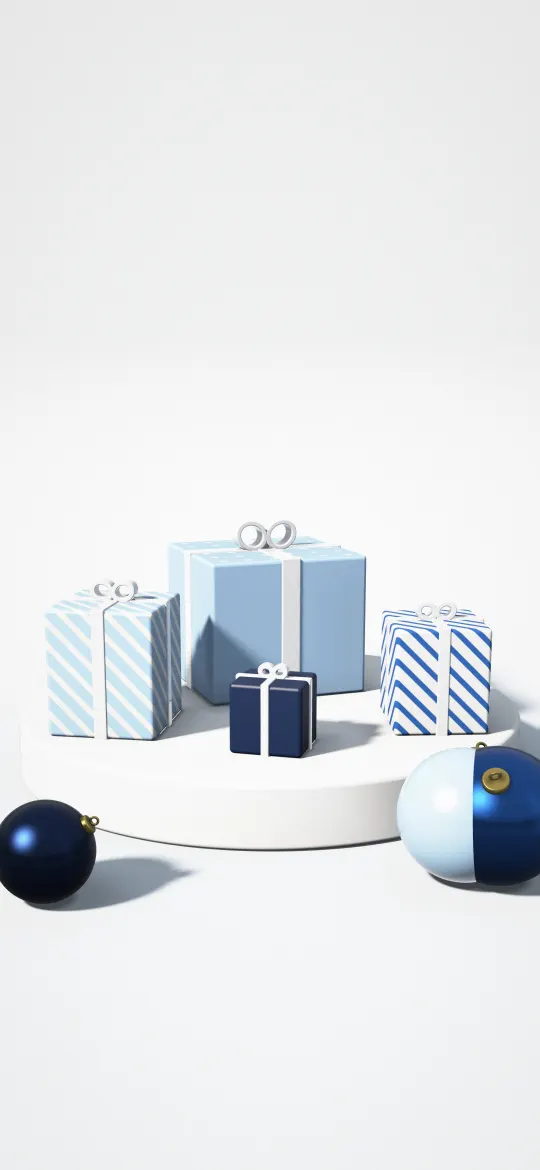
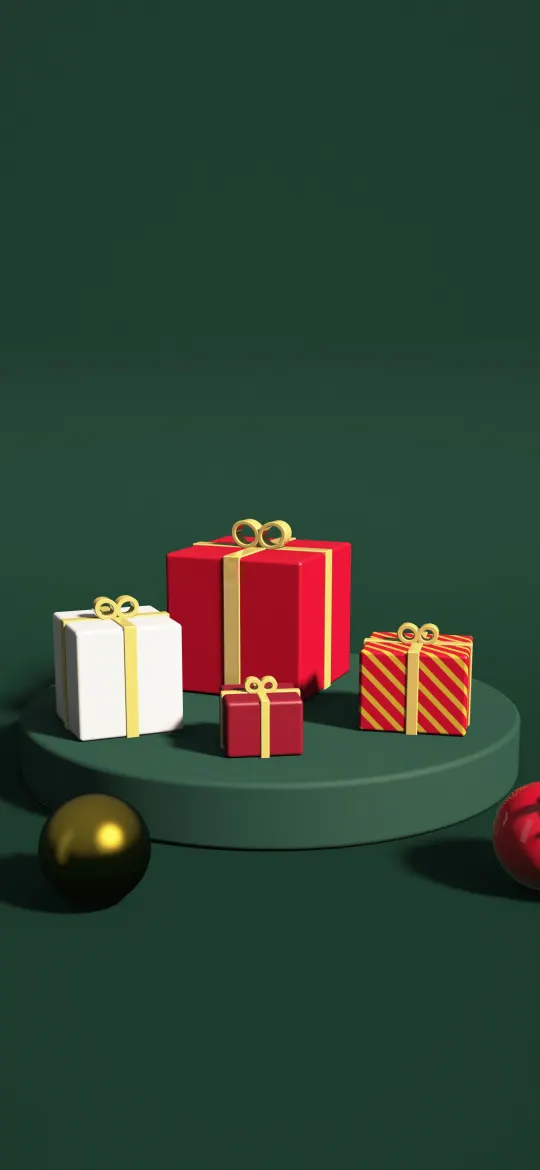
Light pictures need a dark clock. On cream or white gift scenes a white or clear clock almost disappears; a deep red or green Solid clock reads at a glance, and gold suits the dark green one:
4. Put your holiday plans in a widget
MacRumors describes two Calendar widgets for the Lock Screen: one shows when your next event starts, a larger one adds its name.
- In the Calendar app, tap the Add button (+) in Day view, enter a title such as "Holiday party", set the times and tap Done.
- Touch and hold the Lock Screen, tap Customize, tap Add Widgets and choose Calendar.
- On iOS 26 and later you can drag the widget row from under the clock to the bottom of the screen, MacRumors reports.
On pictures with bright snow along the bottom, keep the widgets under the clock. Apple's iPhone User Guide doesn't describe a countdown widget, so a days-until-Christmas counter needs an App Store app with its own Lock Screen widget. Our Lock Screen widgets guide covers sizes and fixes.
5. Shuffle your own holiday photos
Photo Shuffle rotates a set of photos on the Lock Screen. Put this year's pictures in one album, then point Photo Shuffle at it (Change your iPhone wallpaper):
- In Photos, tap Collections, tap Albums, tap the Add button (+), then tap New Album. Name it, add photos and tap Create.
- Go to Settings › Wallpaper › Add New Wallpaper and tap Photo Shuffle.
- Choose your album, pick a frequency (On Tap, On Lock, Hourly or Daily) and tap Use Album.
Photos with people low in the frame keep the clock clear on every change. For stylized family and pet shots, Photos also offers Wallpaper Suggestions: tap Collections, then swipe up. Our Photo Shuffle guide explains each frequency.
6. Match the Home Screen
When you save, Customize Home Screen lets you tap a color, choose another photo or select Blur so the apps stand out (Change the wallpaper on iPhone). Then give the icons a festive tint:
- Touch and hold the Home Screen background until the icons jiggle.
- Tap the Edit button, then choose Customize.
- Tap Tinted and set the color with the sliders, or use the eyedropper to pick one from your wallpaper, such as the gold of a star. Then choose Light, Dark or Auto.
For a different picture behind your apps, see different Lock Screen and Home Screen wallpapers. Every picture here is in our Christmas collection, cut to each iPhone's exact size.
Which idea suits which picture
| Idea | Where to find it | Works best with |
|---|---|---|
| Tree or cabin under the clock | Pinch and drag in the editor | Night scenes with a dark sky |
| Depth Effect | Depth Effect button or More (…) | One tree or ornament with a clear outline |
| Tinted clock | Tap the time › Font & Color | Gold on dark green, deep red on white |
| Calendar widget | Customize › Add Widgets | Parties, travel and school dates |
| Photo Shuffle | Settings › Wallpaper › Add New Wallpaper | An album of this year's photos |
| Matching Home Screen | Edit › Customize › Tinted | A color taken from the wallpaper |
Quick answers
How do I make a Christmas Lock Screen on iPhone?
Touch and hold the Lock Screen, tap the Add button (+), tap Photos and pick a Christmas picture with a dark, calm top. Tap the time to set the font and color, add widgets, then tap Add, then Set as Wallpaper Pair.
Can I put a Christmas countdown on my iPhone Lock Screen?
Apple's iPhone User Guide doesn't describe a countdown widget. You can add holiday events in Calendar and show the next one with the Calendar widget (Customize › Add Widgets), or install an App Store countdown app that has its own Lock Screen widget.
How do I change the clock color on the iPhone Lock Screen?
Touch and hold the Lock Screen, tap Customize, then tap the time to open the Font & Color panel. Choose Glass or Solid, pick a color and tap Done; on iOS 26.2 and later a slider sets how clear the Glass clock looks.
How do I go back to my normal Lock Screen after Christmas?
Touch and hold the Lock Screen, swipe to your usual Lock Screen and tap it. To delete the Christmas one, swipe up on it, tap the trash button, then tap Delete This Wallpaper.
Sources
- Create a custom iPhone Lock Screen, Apple
- Change your iPhone wallpaper, Apple
- Change the wallpaper on iPhone, Apple
- Customize apps and widgets on the iPhone Home Screen, Apple
- Create and edit events in Calendar on iPhone, Apple
- Create and work with photo albums on iPhone, Apple
- Get wallpaper suggestions in Photos on iPhone, Apple
- About iOS 26 Updates, Apple
- iOS 26: All the New iPhone Lock Screen Customizations, MacRumors
- iOS 26: New Lock Screen Features, MacRumors
- iOS 26.2 Lock Screen Gets Liquid Glass Slider, MacRumors
- iOS 27's New Compact Clock Gives Your Wallpaper Room to Breathe, MacRumors
- Get Upcoming Calendar Events on Your iPhone Lock Screen, MacRumors