A Lock Screen clock that sits off-center or slides to one side isn't something Apple documents. Apple's guide describes a clock whose height, font and look you can change, not one that moves sideways, yet Apple Community threads from the iOS 26 releases report exactly that: the time misaligned, shifting position, or creeping sideways a little at a time. Apple hasn't explained it, and its release notes up to iOS 27.2.1 don't mention a fix. The steps that follow from Apple's own settings are to switch Lock Screens and back, save the clock again, force restart, update iOS and, if it keeps happening, build a new Lock Screen.
In short
- Since iOS 26, Apple documents a clock that changes size to fit your photo, notifications and Live Activities. It doesn't describe a clock that moves sideways.
- An off-center, shifting or creeping clock is reported by users in Apple Community threads about iOS 26. Apple hasn't said what causes it.
- None of Apple's release notes for iOS 26 and iOS 27, up to iOS 27.2.1, mention the clock's position.
- Try these in order: switch to another Lock Screen and back, save the clock again, force restart, update iOS, then build a new Lock Screen.
- A clock that only shrinks when music plays or notifications arrive is working as designed.
First, check whether it's really off-center
Three things can make a centered clock look wrong:
- Depth Effect. With Depth Effect, which Apple calls a multilayered effect, the subject of your photo can overlap the time, as MacRumors notes. If it covers one side of the digits, the part you can see looks pushed to the other side. Our Depth Effect guide explains how framing changes the overlap.
- Adaptive time. Since iOS 26 the clock resizes to the free space in your photo and around notifications and Live Activities. A clock that's suddenly shorter or taller can look as if it has moved.
- Music. 9to5Mac describes iOS 26 showing a minimized clock while full-screen album art plays. Our post on why the clock keeps changing size covers this and the other size triggers.
A symmetrical wallpaper with one centered shape makes any real shift easy to spot. Set one of these for a day and compare the clock with the shape below it:
 Minimal Zen Sun
 Minimalist Glowing Light Orb on Pitch Black
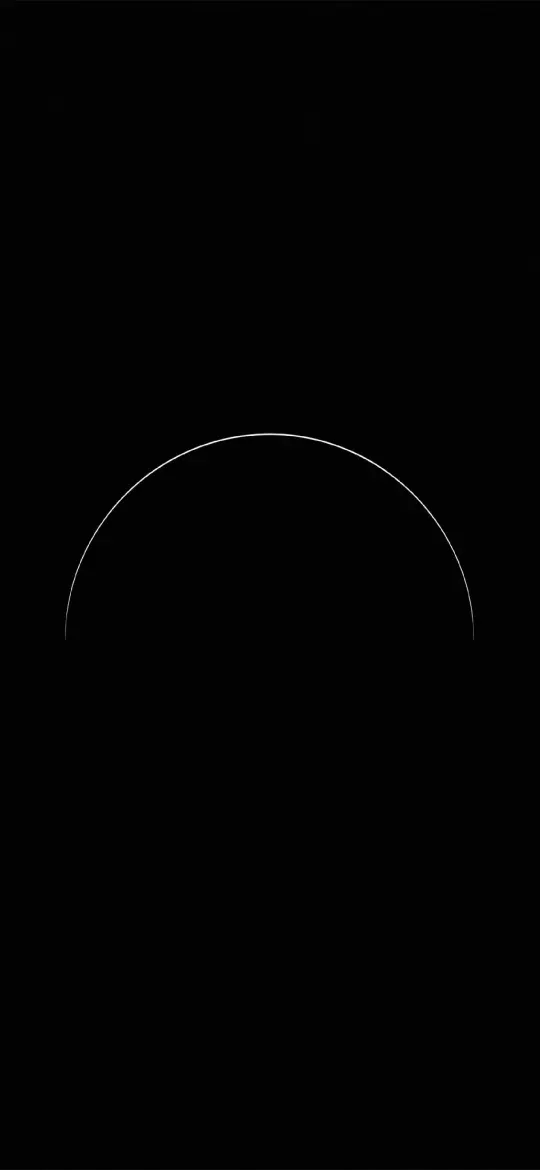 Pure Black OLED Minimal Arch
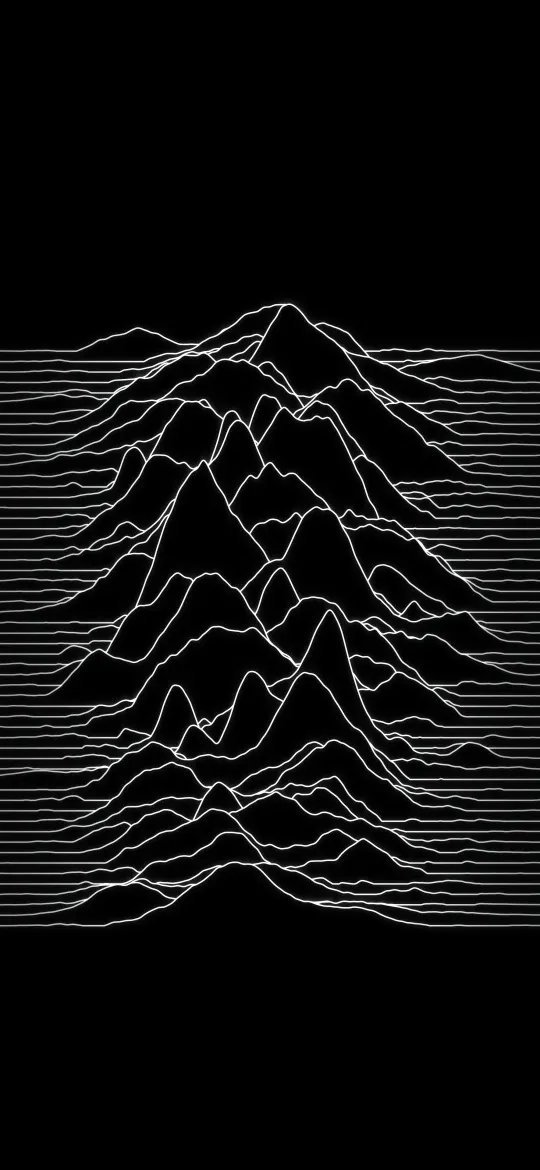 Silent Peak Lines
If you use Depth Effect, turn it off for the test: touch and hold the Lock Screen, tap Customize, tap the Depth Effect button (or the More button, then Depth Effect) so it's off, then tap Done.
What Apple documents and what users report
| What you see | Status | Where it's described |
|---|---|---|
| The clock grows or shrinks to fit your photo | Documented by Apple | About iOS 26 Updates |
| The clock adapts as notifications or Live Activities appear | Documented by Apple | About iOS 26 Updates |
| The photo's subject sits over part of the time | Documented by Apple (Depth Effect) | Create a custom iPhone Lock Screen |
| The clock shrinks while music plays | Reported by users, described by 9to5Mac | Apple Community, 9to5Mac |
| The clock sits off-center, shifts or slides sideways | Reported by users only | Apple Community threads |
The sideways reports have titles such as "Lock Screen time misalignment on iOS 26.0.1," "iPhone lock screen time automatically shifts position," "Misaligned lock screen clock on Iphone IOS 26" and "Lock Screen time display moving incrementally." Apple has stopped new posts in its Support Community and is closing it on 20 November 2026, so these threads may not stay online. Apple hasn't addressed the problem in its iPhone User Guide or its release notes. Apple's notes for several updates, iOS 27.2.1 among them, only say they include bug fixes, so a fix could arrive without being named.
Fixes to try, quickest first
1. Switch to another Lock Screen and back
Apple's steps for switching Lock Screens:
- Press the side button.
- Touch and hold the Lock Screen until Customize appears at the bottom.
- Swipe to another Lock Screen and tap it.
- Repeat, and swipe back to your usual Lock Screen.
If you only have one Lock Screen, make a second: touch and hold the Lock Screen, tap the Add New button and pick any wallpaper. Apple notes that if a Lock Screen is linked to a Focus, switching away from it also switches your Focus.
2. Save the clock again
- Touch and hold the Lock Screen, then tap Customize.
- Tap the time, choose a different font, then choose your original font again.
- Check the corner of the time and drag it back to the height you want. Our guide to resizing the clock explains the handle.
- Tap Done.
3. Force restart
Apple's force restart steps:
- Press and quickly release the volume up button.
- Press and quickly release the volume down button.
- Press and hold the side button.
- When the Apple logo appears, release the side button.
On iPhone Duo, Apple says to use the volume button nearest the side button first, then the other one.
4. Update iOS
Go to Settings › General › Software Update. The screen shows the version you have and whether an update is ready. If one is, tap Download and Install. Write the version down before you update, so you can tell whether the clock changed after it.
5. Build a new Lock Screen and delete the old one
- Touch and hold the Lock Screen, tap the Add New button and choose the same photo.
- Set the clock, then tap Add and choose Set as Wallpaper Pair.
- Touch and hold the Lock Screen again, swipe to the old Lock Screen, swipe up on it, tap the Trash button, then tap Delete This Wallpaper.
Deleting a Lock Screen doesn't delete the photo itself, as our guide to deleting wallpapers on iPhone explains. If a brand-new Lock Screen drifts too, the problem isn't tied to one saved Lock Screen, so keep it as it is and report it.
6. Tell Apple
Use Apple's iPhone feedback page and describe what you see: which way the clock moves, when it happens, your iOS version, your iPhone model, and whether Depth Effect or Photo Shuffle is on.
Quick answers
Why is the clock on my iPhone Lock Screen off-center?
Apple doesn't document any setting that moves the clock sideways, so check first for Depth Effect covering part of the digits or a clock that has just changed size. If it is truly shifted, it matches what users report in Apple Community threads about iOS 26, which Apple hasn't explained.
Is the Lock Screen clock supposed to move in iOS 26?
It's supposed to change size. Apple's iOS 26 notes say adaptive time resizes to the available space in your photo and adapts as notifications and Live Activities appear, but Apple doesn't describe the clock moving to one side.
How do I fix a Lock Screen clock that slides to the left?
Touch and hold the Lock Screen, swipe to another Lock Screen, tap it, then switch back. If it returns, force restart, check Settings › General › Software Update, and build a new Lock Screen with the same photo.
Did iOS 27 fix the off-center Lock Screen clock?
Apple's release notes for iOS 27 through iOS 27.2.1 don't mention the clock's position, so there's no confirmed fix. Apple describes iOS 27.2.1 only as bug fixes and security updates, so updating is still worth doing.
Sources
- Create a custom iPhone Lock Screen, Apple
- Force restart iPhone, Apple
- Update iOS on iPhone, Apple
- iOS 26: New Lock Screen Features, MacRumors
- About iOS 26 Updates, Apple
- About iOS 27 Updates, Apple
- iOS 27 adds unique new setting to personalize your iPhone's Lock Screen, 9to5Mac