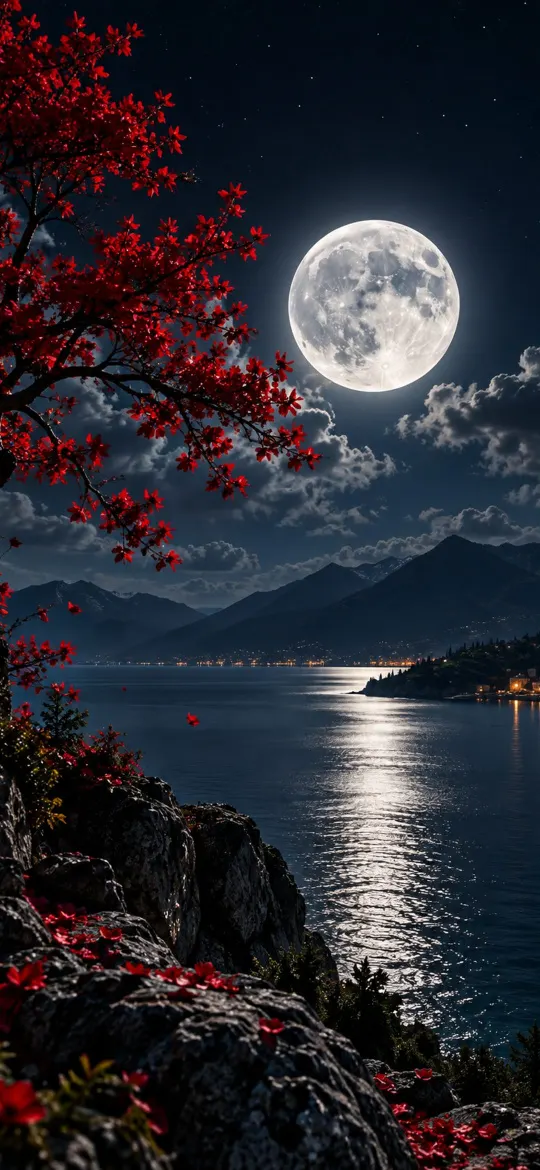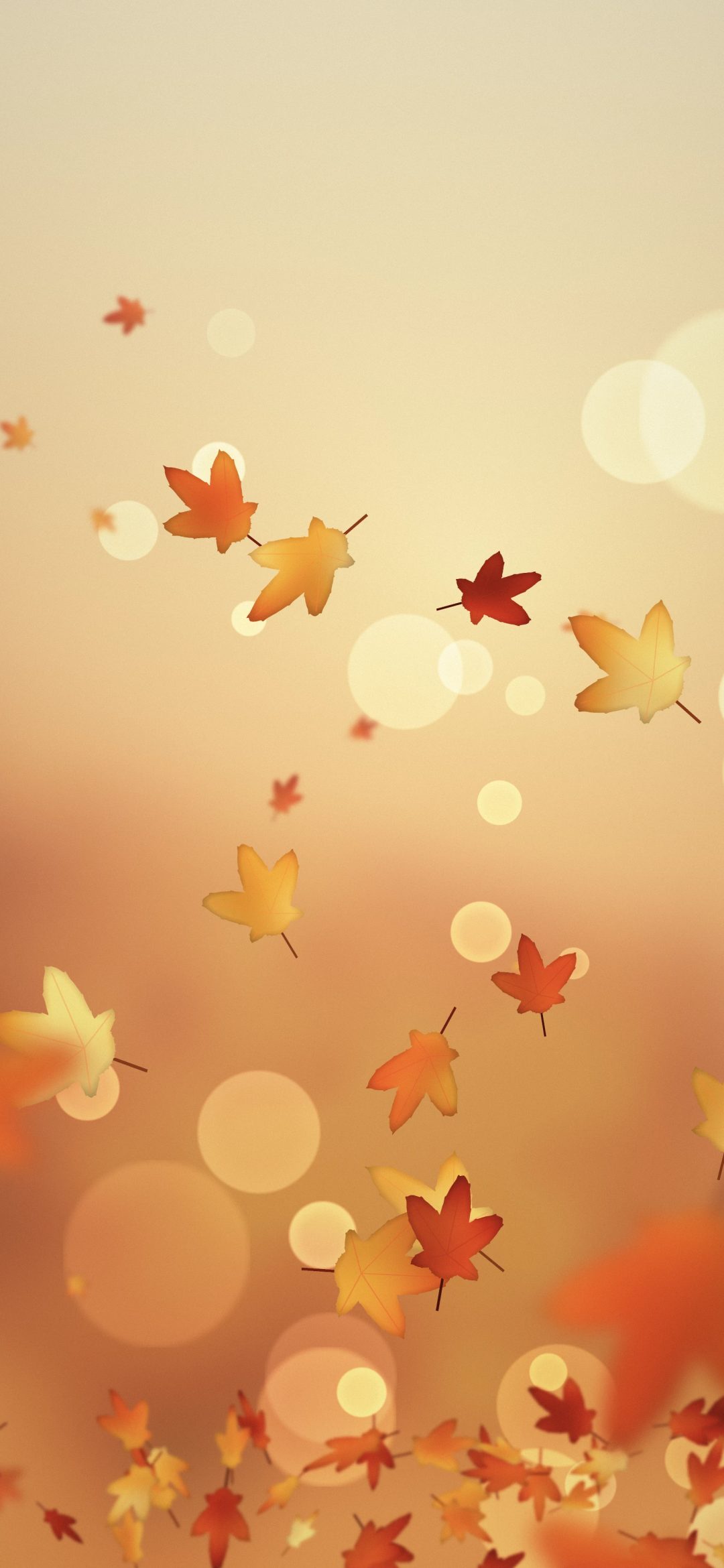
The simplest Thanksgiving Lock Screen on iPhone is a separate Lock Screen for the holiday: a warm fall picture with a calm top, the clock tinted rust, amber or cream, and a Focus that brings it up by itself on Thursday, November 26, 2026. You make it in the Lock Screen editor (touch and hold the Lock Screen, then tap the Add button), so your everyday Lock Screen stays one swipe away for the rest of the year. The steps are for iOS 27.
In short
- Make a new Lock Screen just for Thanksgiving instead of changing your usual one.
- Choose a fall picture whose leaves, candles or hills sit in the middle or lower half, under the clock.
- Tap the time to pick a warm color: rust or brown on light pictures, cream or amber on dark ones.
- Create a Thanksgiving Focus and link it to that Lock Screen, so it appears when the Focus turns on.
- Schedule the Focus for the holiday, or for when you arrive at the house where dinner is.
Make a Thanksgiving Lock Screen you can put away on Friday
Apple lets you create more than one Lock Screen and switch between them (Create a custom iPhone Lock Screen). Save the wallpaper to Photos first, then:
- Touch and hold the Lock Screen, then tap the Add button (+). If you don't see it, touch and hold again and enter your passcode.
- Tap Photos and choose your fall picture.
- Pinch and drag with two fingers to place it, tap the time to change its look, and add widgets if you like.
- Tap Add, then choose Set as Wallpaper Pair or Customize Home Screen.
When the holiday is over, touch and hold the Lock Screen, swipe back to your usual one and tap it.
1. Put the fall leaves below the clock
Thanksgiving wallpapers work best when the top third is quiet, because the date, the time and any widgets sit there. Pictures with leaves drifting through the lower half leave the clock a clean patch of sky or shadow:
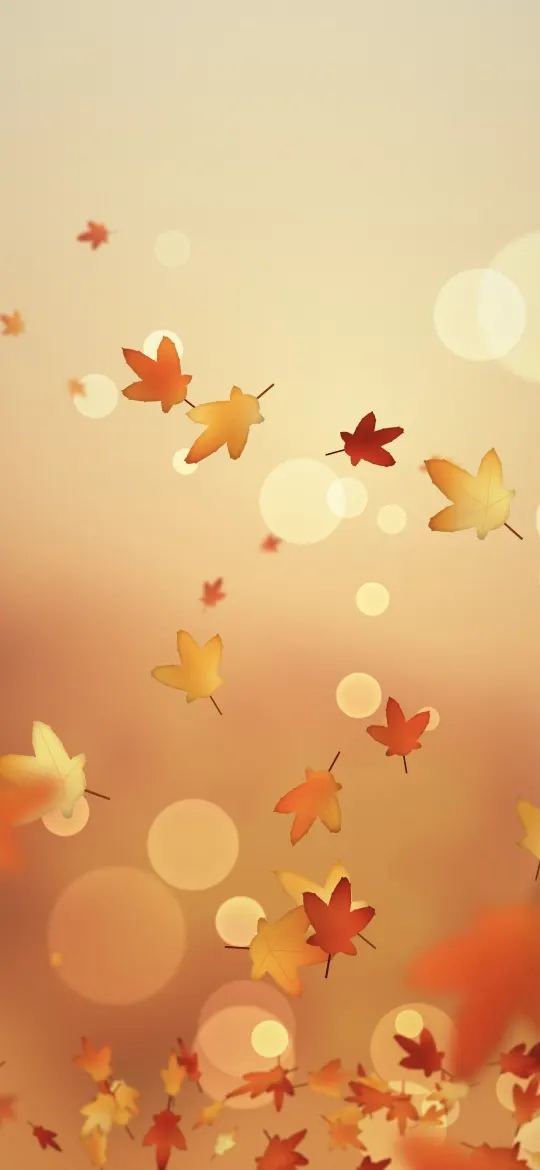
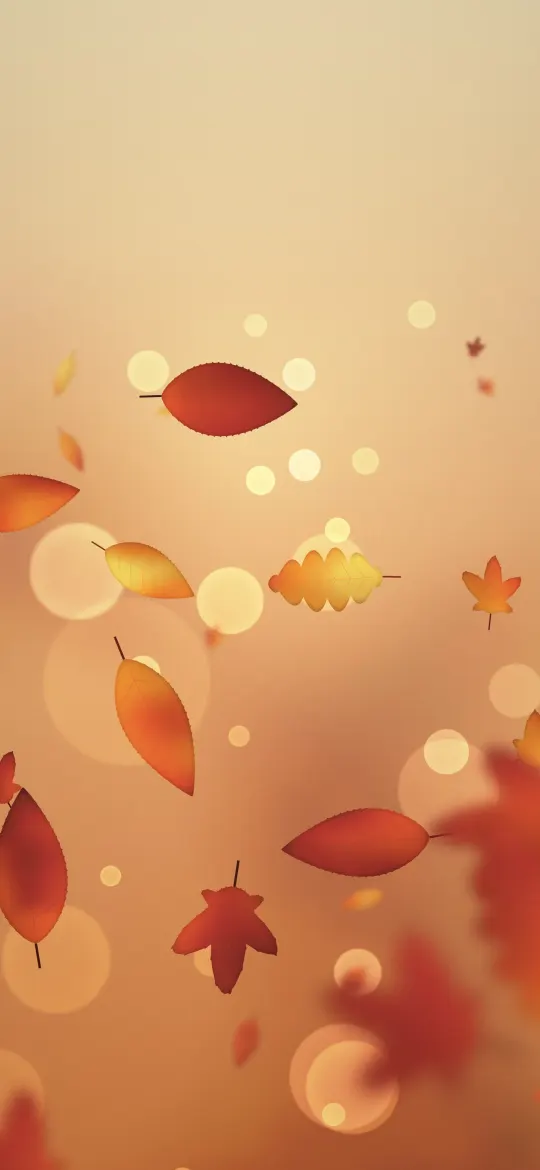
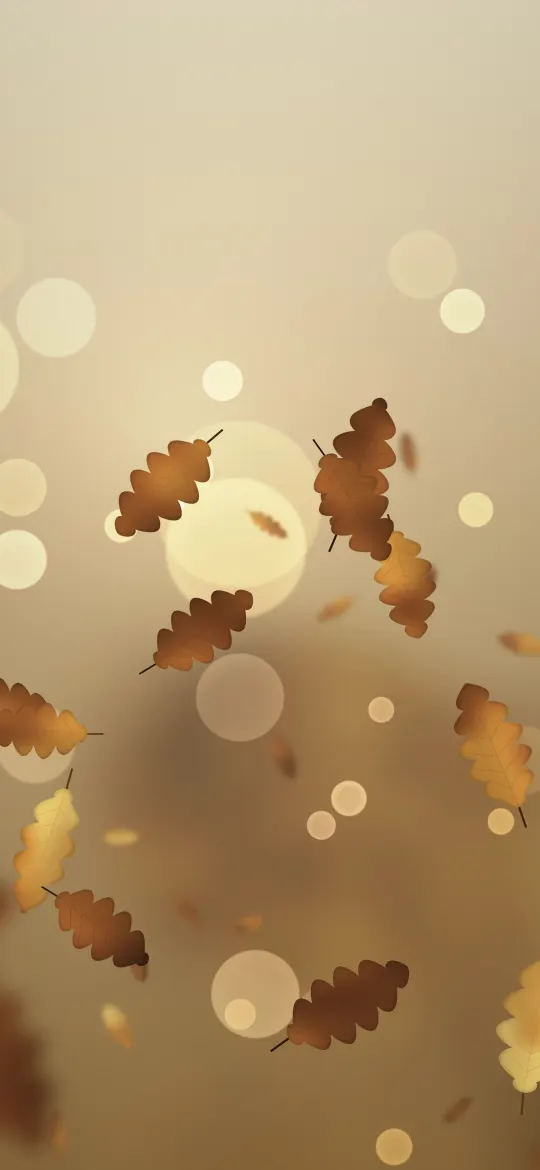
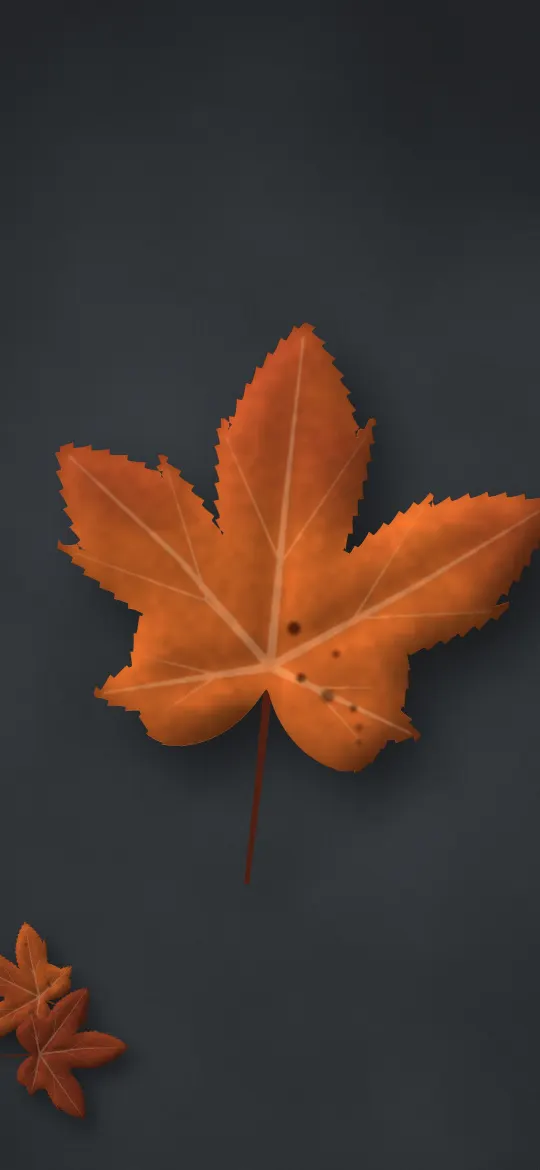
Match the clock to the background, not to the leaves. On the light peach and cream pictures, a white clock fades into the glow, so tap the time and choose a deep rust or brown Solid clock. On a dark picture such as the single maple leaf on slate, cream or soft amber reads best. Apple's guide says you can also drag the clock's bottom-right corner to make it taller; our guide to resizing the Lock Screen clock shows where the handle is.
2. Candlelight for Thanksgiving evening
For the hours around dinner, a dark picture with candles low in the frame feels like the table after sunset. The black upper half suits a Glass clock, which lets a little of the warm glow show through the digits:
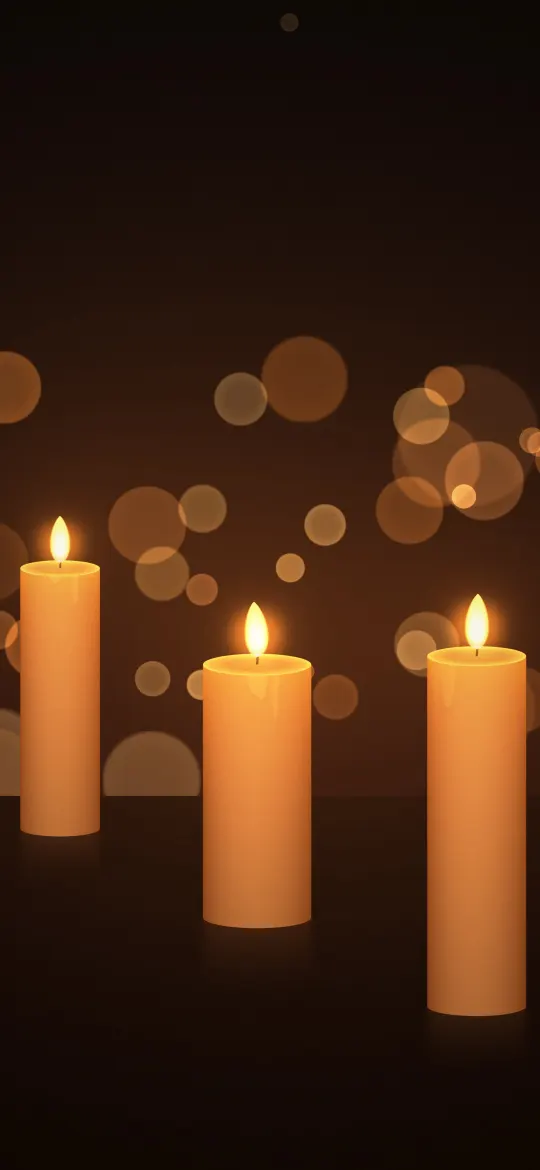
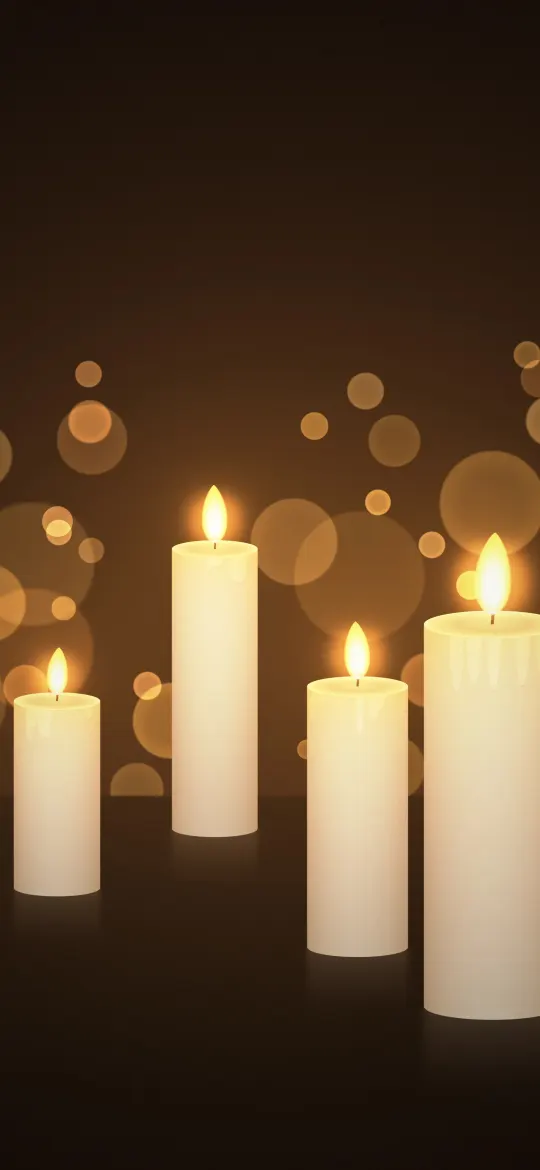
On an iPhone with an Always On display, the dimmed Lock Screen keeps showing the wallpaper; to hide it, go to Settings › Display & Brightness › Always On Display and turn off Show Wallpaper. If the candles come out too dark, swipe left or right in the editor: Apple says this tries different color filters on your photo.
3. Warm, calm scenes for the whole week
Not every Thanksgiving Lock Screen needs leaves everywhere. Soft paper-cut hills, a few ginkgo leaves on a stone path or golden leaves on wood carry the season without crowding your notifications:
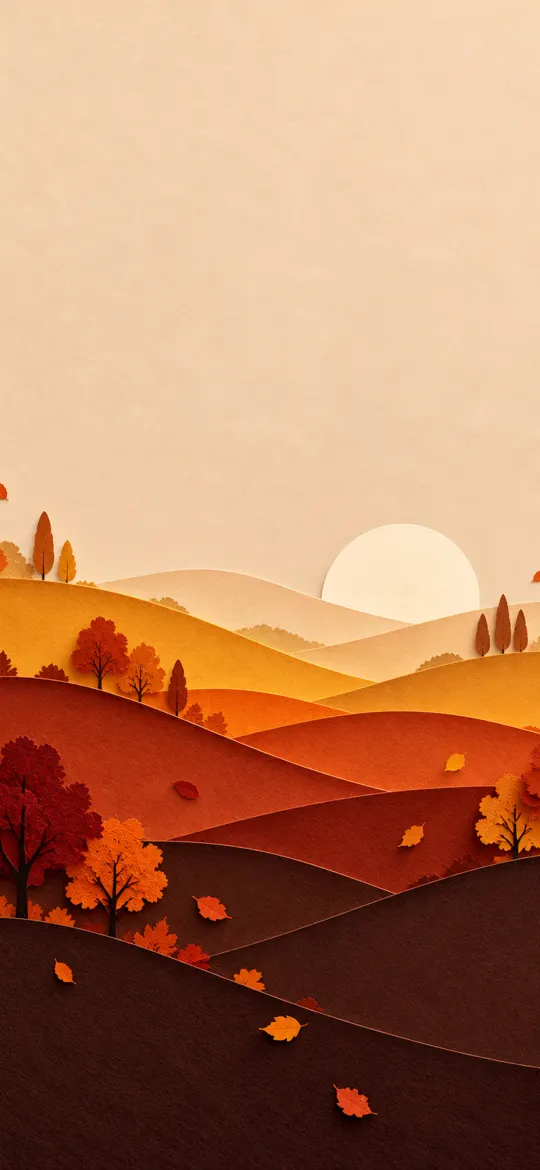

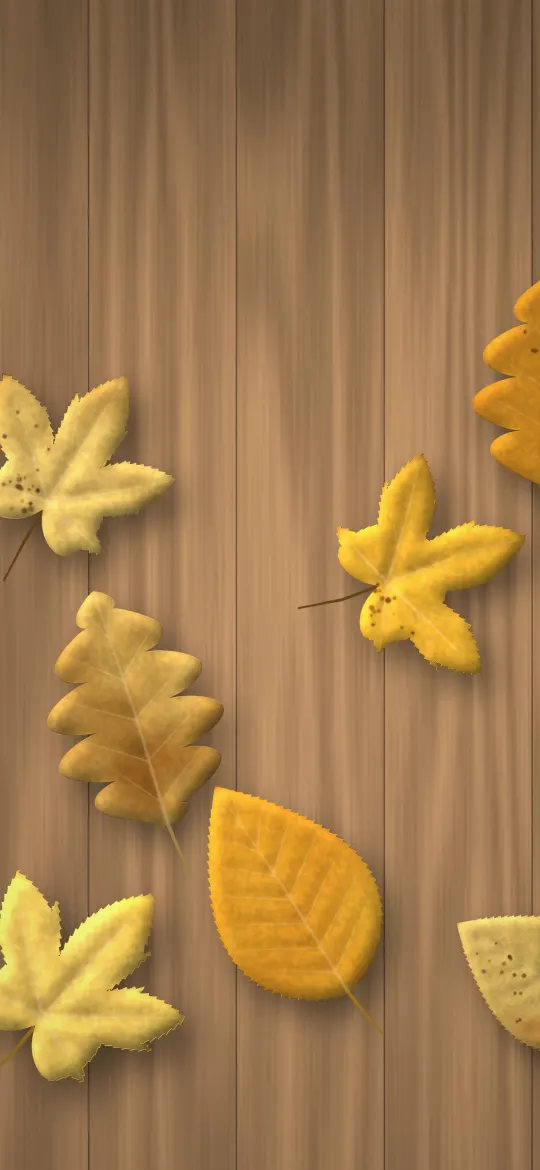
The paper hills leave a wide cream sky for the clock, so a dark brown or deep orange time looks crisp there. If you want the hills to rise in front of the digits, tap Depth Effect in the editor when your photo supports layering; our Depth Effect guide explains when the option appears and when it doesn't.
4. A heart of leaves for a thankful mood
A heart made of fall leaves says thanks without a single word on the screen. It sits in the middle of a light linen background, so the clock has plenty of room above it:
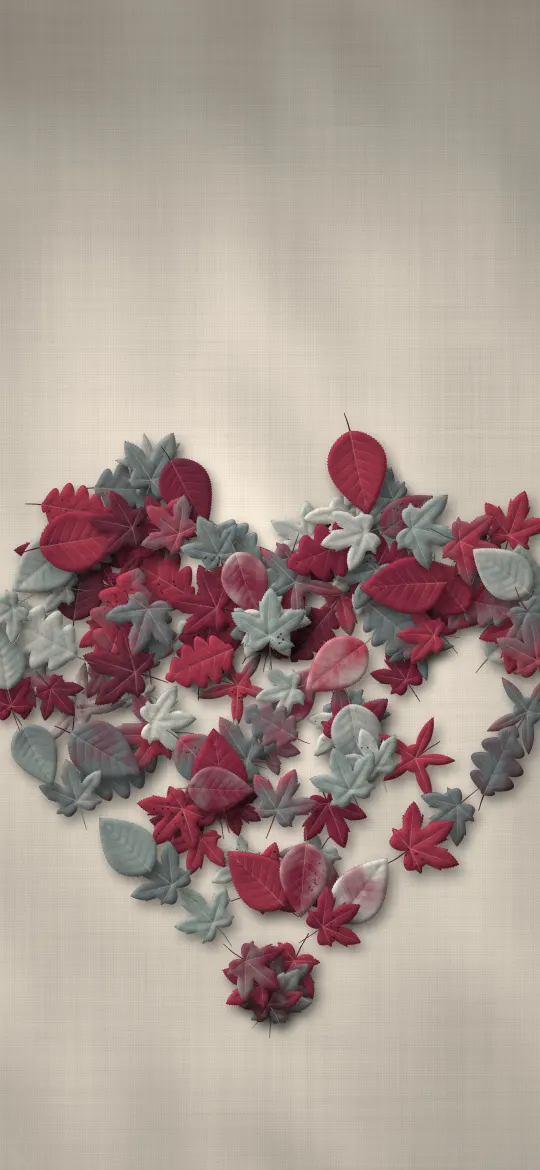
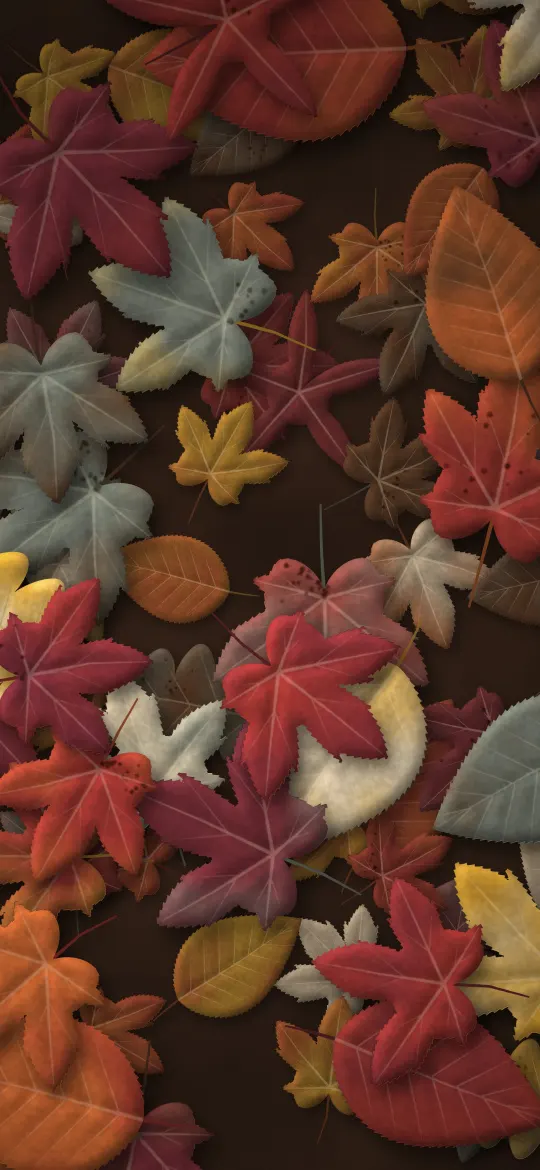
Pair it with a deep red Solid clock taken from the leaves. The busier flat lay of red, gold and sage leaves is better behind your apps than behind the clock; set it as the Home Screen with Customize Home Screen when you save.
5. Let a Focus switch it on for the holiday
A Focus can bring up your Thanksgiving Lock Screen by itself. Apple says that once you link a Focus to a Lock Screen, "your Focus settings apply whenever you use that particular Lock Screen and that Lock Screen appears whenever that Focus is on" (Create a custom iPhone Lock Screen).
- Create the Focus: go to Settings › Focus, tap the Add button (+), then tap Custom. Name it "Thanksgiving", pick a color and an icon, tap Next, then tap Customize Focus (Set up a Focus on iPhone).
- Choose who can still reach you: under the Focus, tap People and Apps to allow or silence notifications during dinner.
- Link it: press the side button, touch and hold the Lock Screen until Customize appears, swipe to your Thanksgiving Lock Screen, tap Focus near the bottom of the wallpaper and select Thanksgiving.
- Schedule it: in Settings › Focus, tap Thanksgiving, then tap Add Schedule. Apple says a Focus can turn on at certain times, when you're at a particular location, or when you open a specific app (Turn on or schedule a Focus on iPhone). A location schedule set to the address where dinner is means the holiday Lock Screen appears when you arrive.
You can also turn it on by hand: open Control Center, tap Focus, then tap Thanksgiving. Apple notes that switching away from a Lock Screen linked to a Focus switches the Focus too. After the holiday, delete the Focus in Settings › Focus (scroll down and tap Delete Focus), or keep it for next year.
6. Match the Home Screen
When you save the Lock Screen, Customize Home Screen lets you tap a color, choose another photo or select Blur (Change the wallpaper on iPhone), so you can put the busy leaf flat lay behind your apps and keep the calm picture on the Lock Screen. Our guide to different Lock Screen and Home Screen wallpapers covers each option, and our article on tinted app icons explains how to tint the icons with a color picked from the wallpaper. Every picture here, and more as the season goes on, is in our Autumn & Fall collection, cut to each iPhone's exact screen size. For December, see our Christmas Lock Screen ideas.
Which picture suits which clock
| Picture | Clock color | Clock look |
|---|---|---|
| Red Maple Fall, Maple Leaf Drift | Deep rust or brown | Solid |
| Single Rust Maple Leaf | Cream or soft amber | Solid or Glass |
| Pumpkin Orange Candles, Amber Candle Glow | White or warm amber | Glass |
| Paper Cut Autumn Hills | Dark brown or deep orange | Solid |
| Autumn Leaf Heart | Deep red | Solid |
Quick answers
How do I make a Thanksgiving Lock Screen on iPhone?
Save a fall wallpaper to Photos, touch and hold the Lock Screen, tap the Add button (+), tap Photos and choose it. Place it with two fingers, tap the time to set a warm color, then tap Add and choose Set as Wallpaper Pair.
When is Thanksgiving in 2026?
Thanksgiving in the United States falls on the fourth Thursday of November, which in 2026 is Thursday, November 26.
Can my iPhone change to a holiday Lock Screen automatically?
Yes, with a Focus. Create a custom Focus in Settings › Focus, link it to your holiday Lock Screen by tapping Focus near the bottom of the wallpaper in the Lock Screen editor, then use Add Schedule to turn the Focus on at a time or a location.
What clock color works on a fall wallpaper?
Match the clock to the background behind it. Use a deep rust, brown or red Solid clock on light peach and cream pictures, and cream or soft amber on dark ones. Tap the time in the Lock Screen editor to change it.