The best mountain wallpaper for iPhone puts the peaks in the middle or lower half of the frame, with open sky above them for the clock. Sunrise and golden-hour scenes give warm, bright screens; night and storm scenes suit dark mode and OLED iPhones. Download the file at your exact screen size, or 2160 × 3840, so ridges and snow stay sharp.
In short
- The iPhone Lock Screen clock sits in the top part of the screen, so sky should fill roughly the top third of a mountain wallpaper.
- Depth Effect can place a summit in front of the clock when the peak overlaps the bottom of the time; it works best with a sharp ridge against plain sky and nothing covering the subject.
- Dark mountain wallpapers, such as moonlit or storm scenes, keep a white clock readable and look deep on OLED iPhones.
- Black and white mountain looks: choose line-art peaks on black, or swipe through the Lock Screen editor's colour filters until you reach a black-and-white style.
- Exact-size files matter for landscapes: fine details like pine trees and snow lines turn soft when a small image is stretched.
Why do mountain wallpapers suit a Lock Screen?
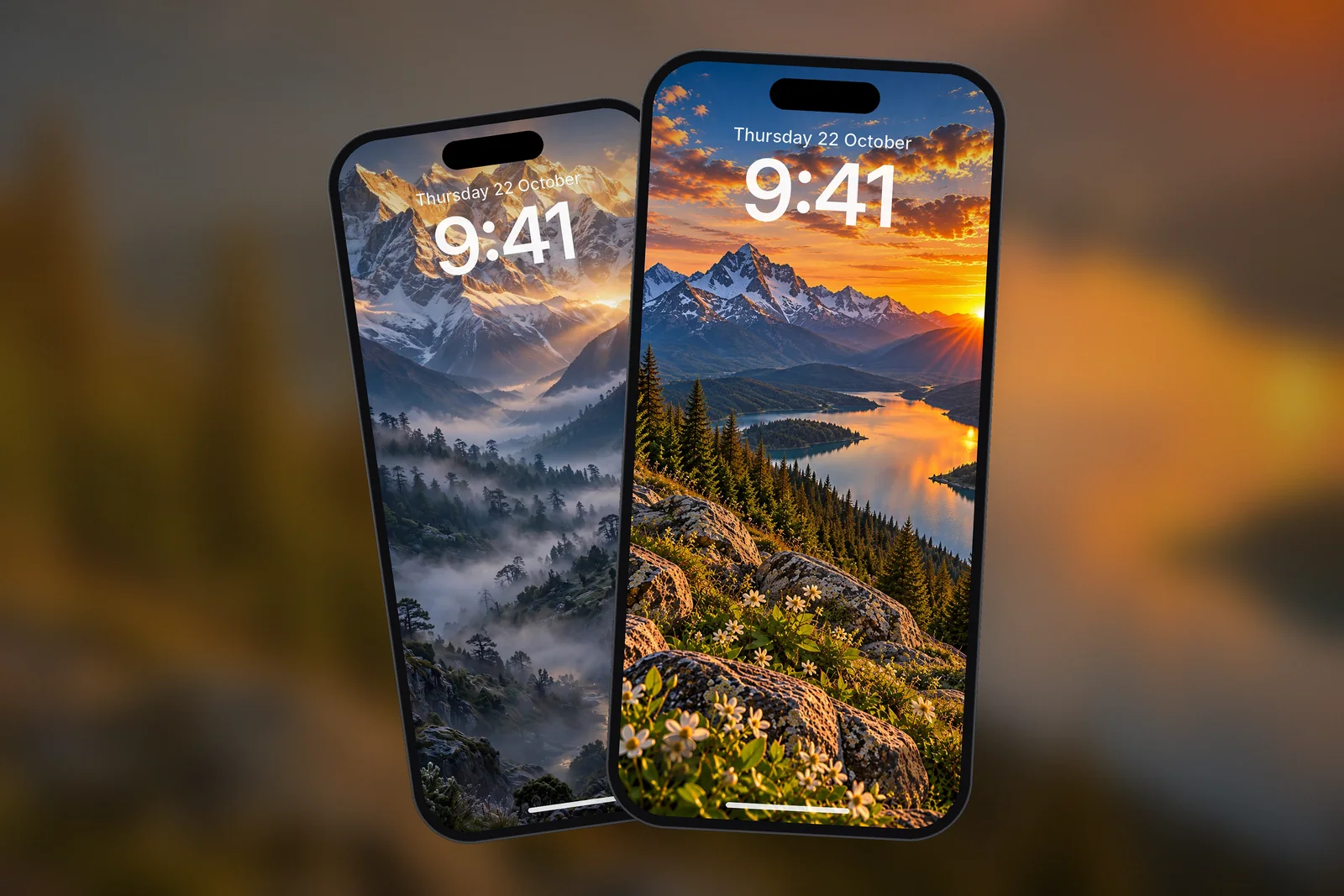
Mountains suit a Lock Screen because they are naturally composed in layers: sky at the top, peaks in the middle and valley, lake or forest at the bottom. That matches the iPhone layout almost exactly, with the clock in the sky, the subject in the centre and the flashlight and camera buttons over the quiet foreground.
They also age well. A mountain photo does not feel tied to a trend, and the same scene looks right with a white clock, a coloured clock or a bold font. On the Home Screen, the soft sky and valley areas keep app labels readable.
Where should the peak sit relative to the clock?
The peak should sit below the clock, ideally with the summit somewhere between one-third and halfway down the screen. That gives the time a calm patch of sky and keeps the most interesting part of the photo visible instead of hidden behind digits.

- Open the wallpaper in the Lock Screen editor: touch and hold the Lock Screen → Customise → Lock Screen, or set it from Photos → Share → Use as Wallpaper.
- Pinch closed to zoom out as far as the image allows, then drag down with two fingers until the summit clears the bottom of the clock.
- If widgets sit under the clock, move the summit a little lower again so the widget row covers sky, not rock.
- Check the bottom corners: a bright snowfield behind the flashlight and camera buttons is fine, but a busy village can look cluttered.
Depth Effect is the feature that separates a subject from the background and layers it over the time. Peaks with a sharp outline against a plain sky work best; misty or cloudy summits are harder for iOS to cut out. Our Depth Effect guide explains the rules and common fixes.
Mountains are also good candidates for Apple's 3D Spatial Scene wallpapers on iPhone 12 and later. Apple says eligible photos typically have high-quality lighting, clear separation between subject and background, or a landscape orientation, which describes many summit shots. Go to Settings → Wallpaper → Add New Wallpaper → Photos, scroll the top bar to the Spatial Scene tab and pick a photo; the 3D effect shows only on the Lock Screen.
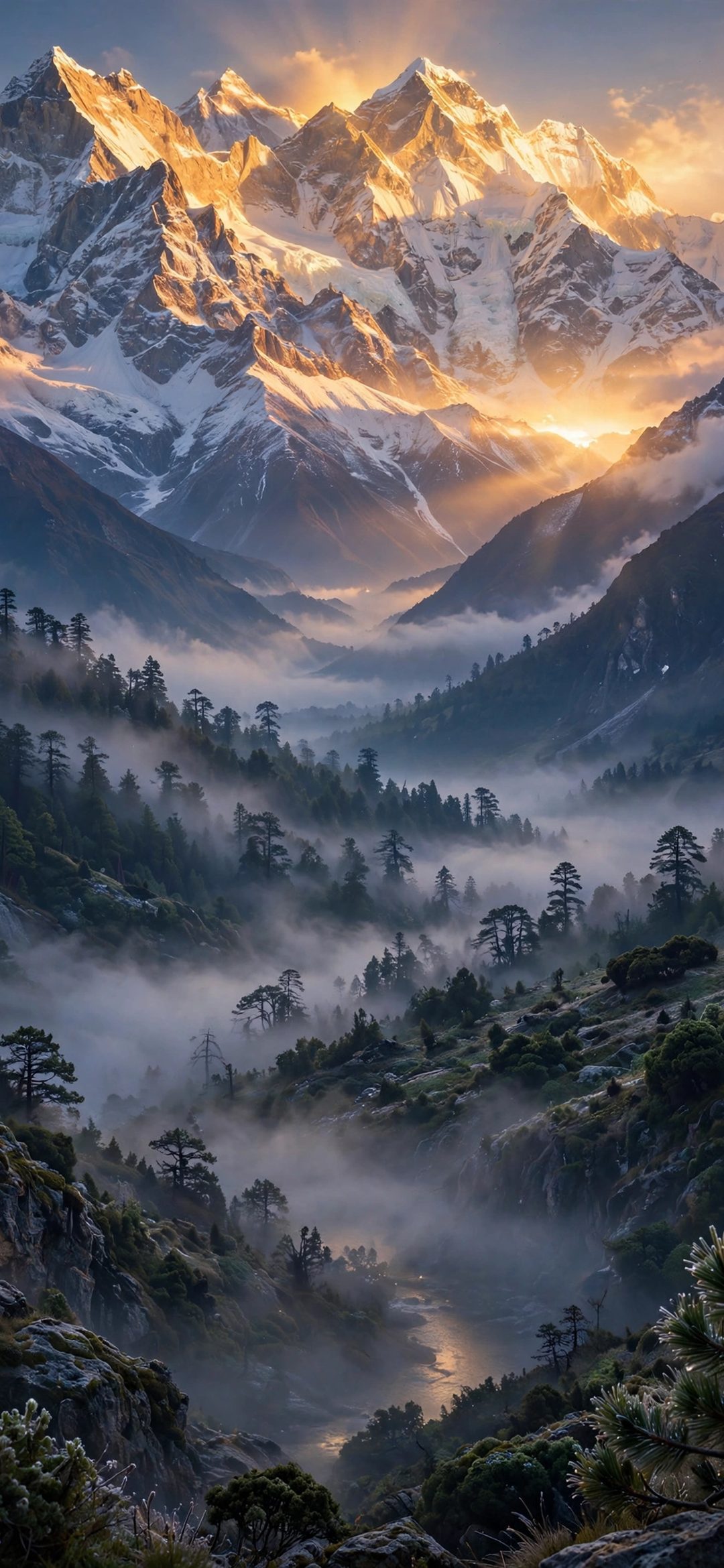
 Himalayan Snow Peaks Sunrise Valley 4K Wallpaper
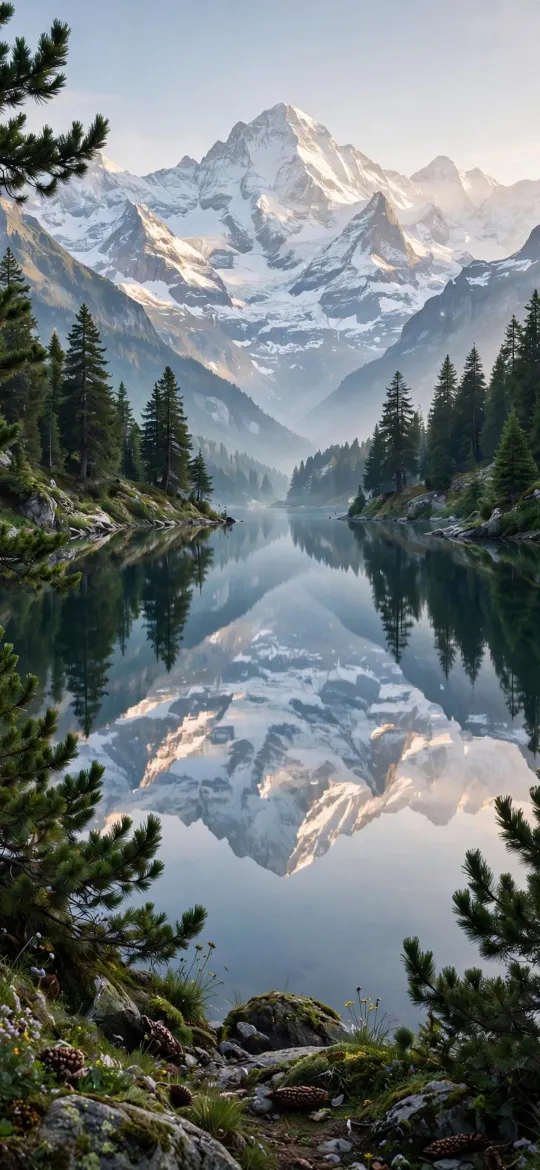 Alpine Mountain Lake Reflection & Pine Forest 4K Wallpaper
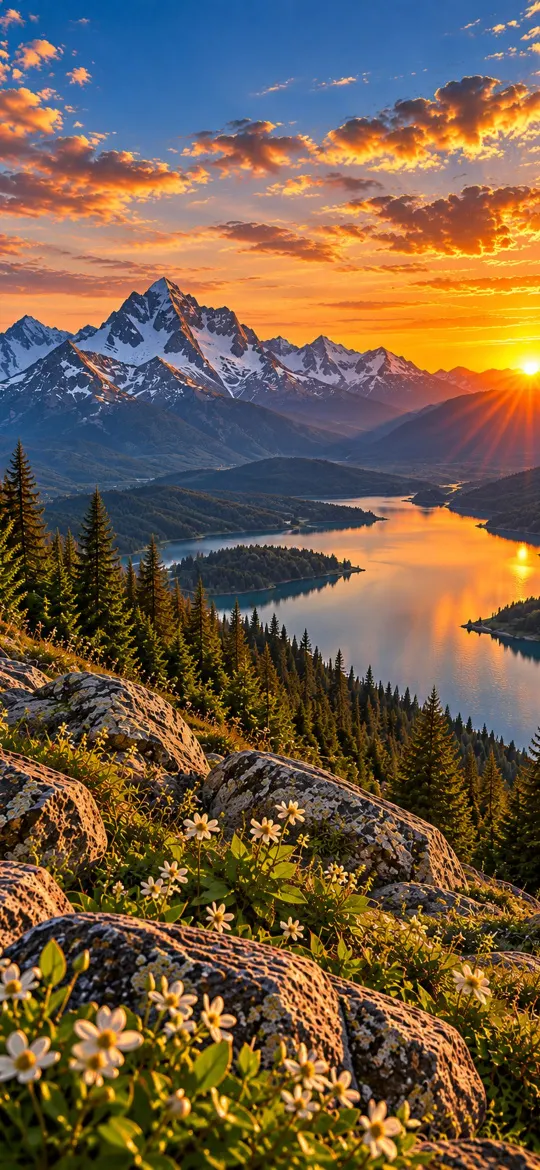 4K Mountain Lake Sunset iPhone Wallpaper
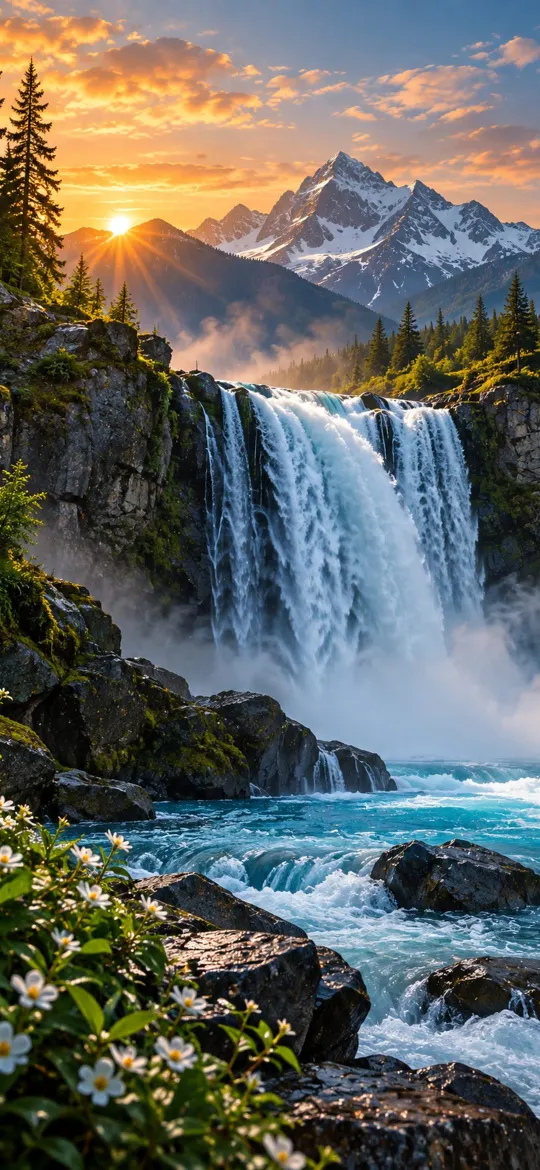 Waterfall Mountain 4K Wallpaper
 Northern Lights Aurora Over Norwegian Fjord Village 4K Wallpaper
Which time of day looks best: sunrise, golden hour or night?
Sunrise and golden hour look best for a warm, bright screen, while night and storm scenes look best for dark mode and Always-On display. The time of day changes both the mood and how readable the clock is.
| Time of day | Typical look | Clock colour | Best for |
|---|---|---|---|
| Sunrise | Pink or gold light on snow, pale sky | White or deep navy | Light, fresh Lock Screens |
| Daytime | Blue sky, crisp detail, green valleys | White | Home Screens with many apps |
| Golden hour / sunset | Orange sky, warm reflections on lakes | White or warm cream | Cosy, colourful setups |
| Night / moonlight | Dark sky, silhouetted ridges, moon glow | White or soft blue | Dark mode, OLED, Always-On |
| Storm | Dark clouds, lightning, high contrast | White | Bold, moody screens |
Reflections deserve a mention too. An alpine lake that mirrors the peaks doubles the subject, so the image feels balanced even when the summit sits low in the frame. That makes lake scenes a good choice when you use a lot of widgets.
Dark mountain wallpapers and black and white options
A dark mountain wallpaper is a mountain scene where the sky and most of the frame are near-black, such as a moonlit ridge, a storm at night or white line art on black. On OLED iPhones, black pixels are switched off, so these wallpapers look deep and stay calm in the dimmed Always-On view on models that have it.

For a black and white mountain wallpaper, there are two routes. Pick a monochrome design such as wireframe peaks on pure black, or set a colour mountain photo and swipe left or right in the Lock Screen editor, which steps through Apple's colour filters, until you reach a black-and-white style. The second route turns any peak into a monochrome screen in seconds, and the original photo stays in colour.
 Minimalist Wireframe Mountain Peaks Black 4K Wallpaper
 Full Moon Over Misty Pine Forest Mountain 4K Wallpaper
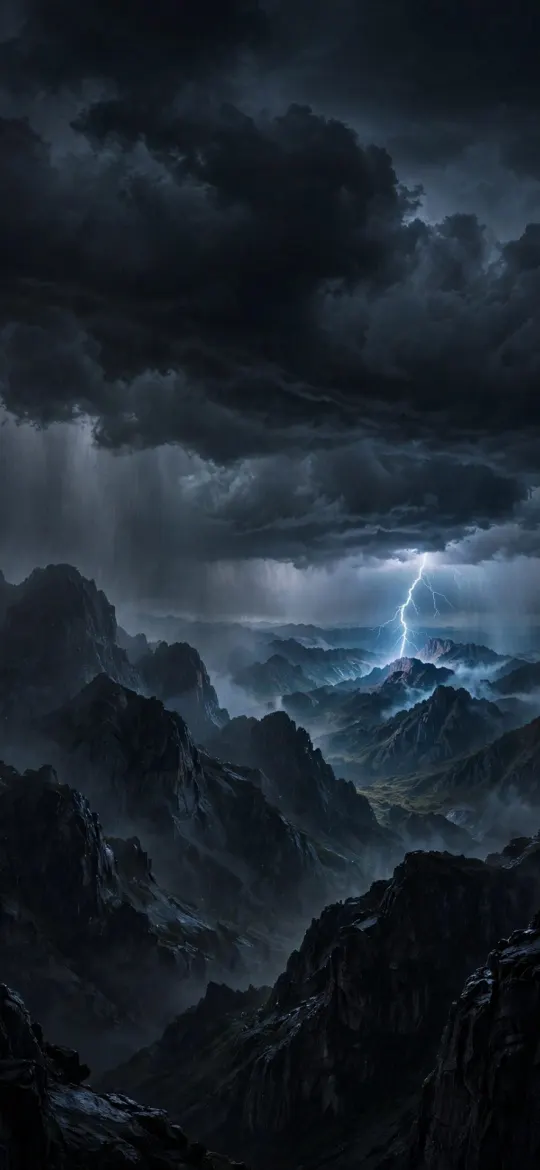 Night Thunderstorm Mountain Lightning 4K Wallpaper
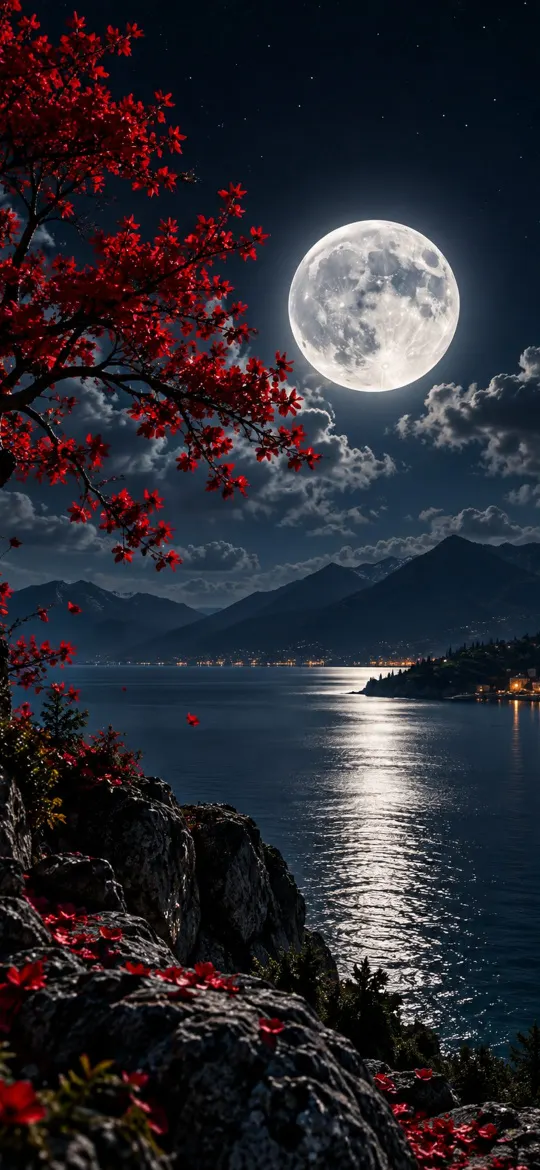 Moonlit Lake 4K Wallpaper – Full Moon Night Landscape
You can browse every peak under the mountains tag, and more landscapes in the nature category. For black-heavy screens, see the best true-black iPhone wallpapers.
Which size mountain wallpaper should I download?
Download the size made for your iPhone model; if you are unsure, the 2160 × 3840 universal 4K file works on any phone. On iPhonesWallpaper, every wallpaper is cut to the exact screen size of every iPhone model, so a landscape is shown pixel for pixel instead of being stretched. For example, iPhone 16 Pro Max, 17 Pro Max and 18 Pro Max use 1320 × 2868, and iPhone 16, 15, 15 Pro and 14 Pro use 1179 × 2556. The iPhone wallpaper sizes guide lists every model.
Read next: Forest Wallpaper for iPhone: Light Rays, Mist and Dark Greens and Depth Effect Wallpaper on iPhone: How It Works and How to Fix It.
Quick answers
How do I make a mountain go over the clock on iPhone?
Frame the photo so the summit overlaps the bottom of the clock, then tap the Depth Effect button in the Lock Screen editor (or choose Depth Effect from the … menu). The peak needs a clear outline against the sky for iOS to separate it.
What is the best dark mountain wallpaper for iPhone?
The best dark mountain wallpapers have a near-black sky and a bright accent such as the moon, lightning or thin white line art. They keep a white clock readable and look deep on OLED iPhones.
How do I make a mountain wallpaper black and white?
Set the photo as your Lock Screen, then swipe left or right in the Lock Screen editor through the colour filters until a black-and-white style appears, and tap Add. The original photo in your library stays in colour.
Why is my mountain wallpaper cut off at the top?
iOS zooms and crops a wallpaper when the image shape does not match your screen. Use the exact size for your model or the 2160 × 3840 file, then pinch out in the Lock Screen editor so the full peak fits.
Can a mountain photo be a 3D wallpaper on iPhone?
Yes, on iPhone 12 and later. Go to Settings → Wallpaper → Add New Wallpaper → Photos and open the Spatial Scene tab. Landscape shots with good light and a clear subject are the most likely to qualify.
Sources
- Change your iPhone wallpaper, Apple Support
- Create a custom iPhone Lock Screen (iOS 27), Apple Support
- iPhone 18 Pro and 18 Pro Max – Technical Specifications, Apple