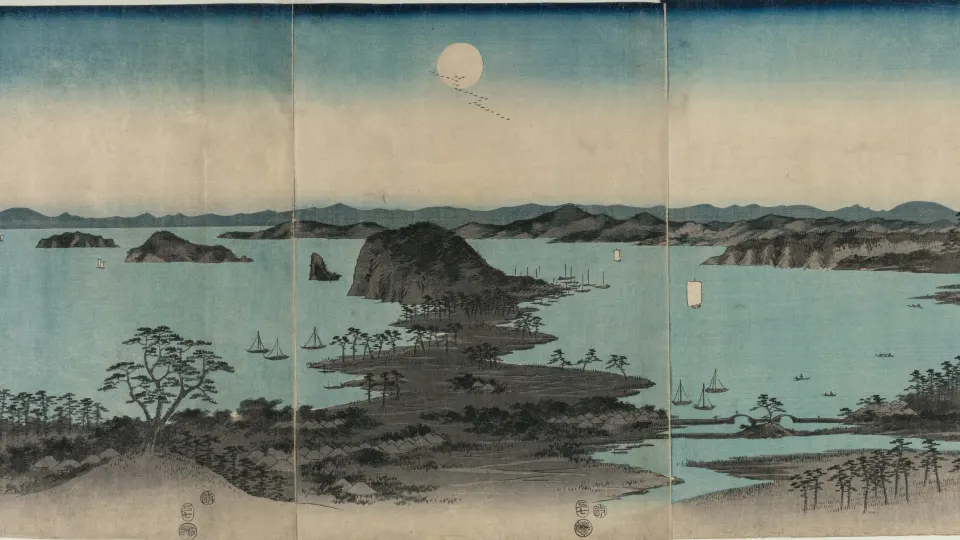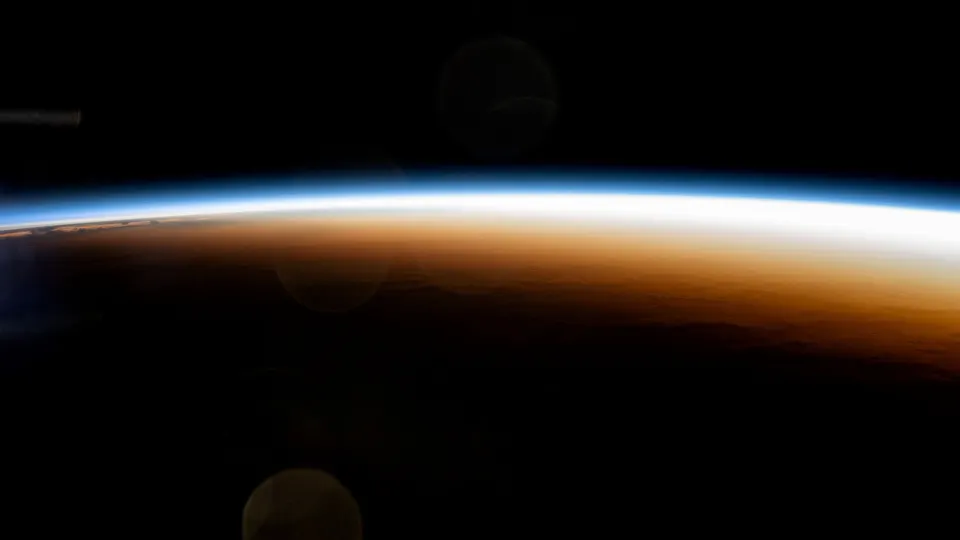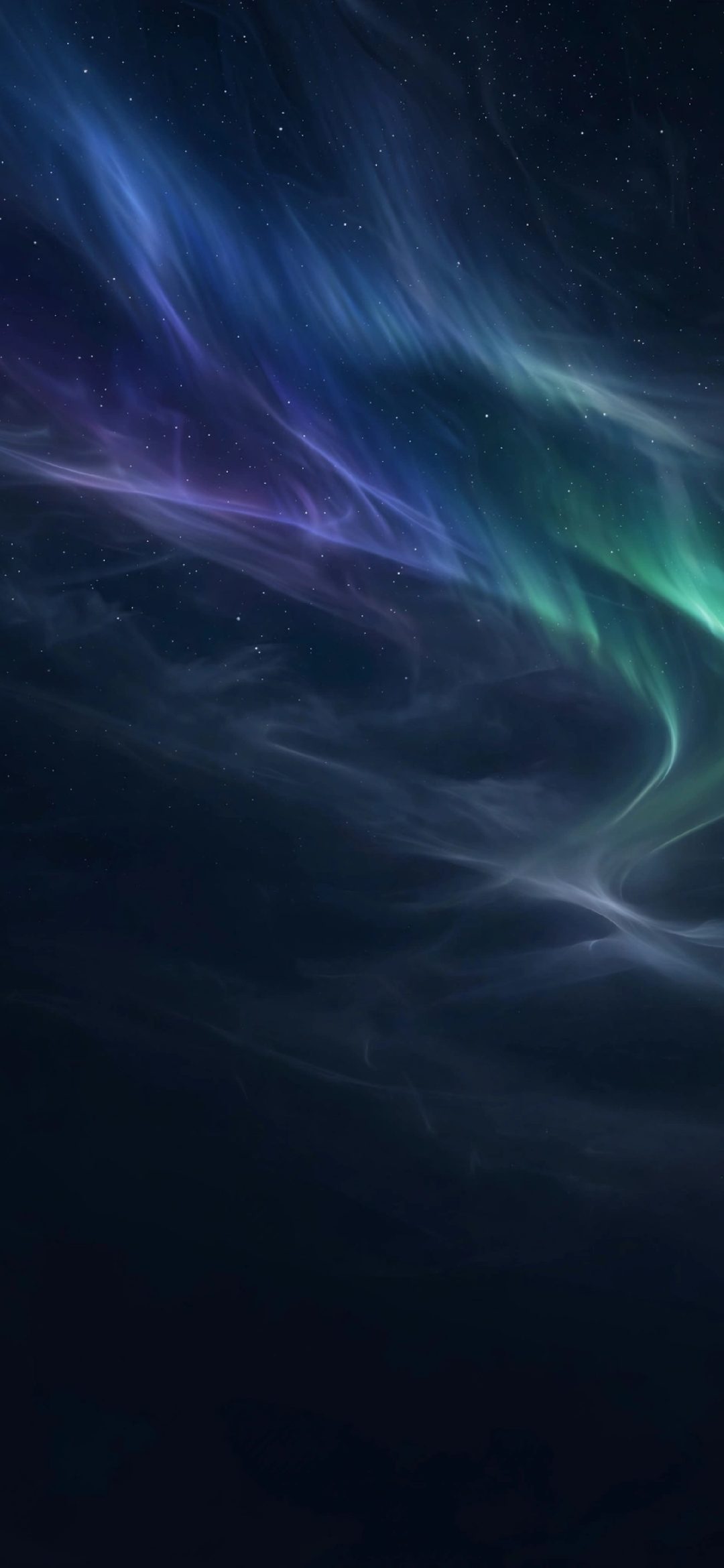
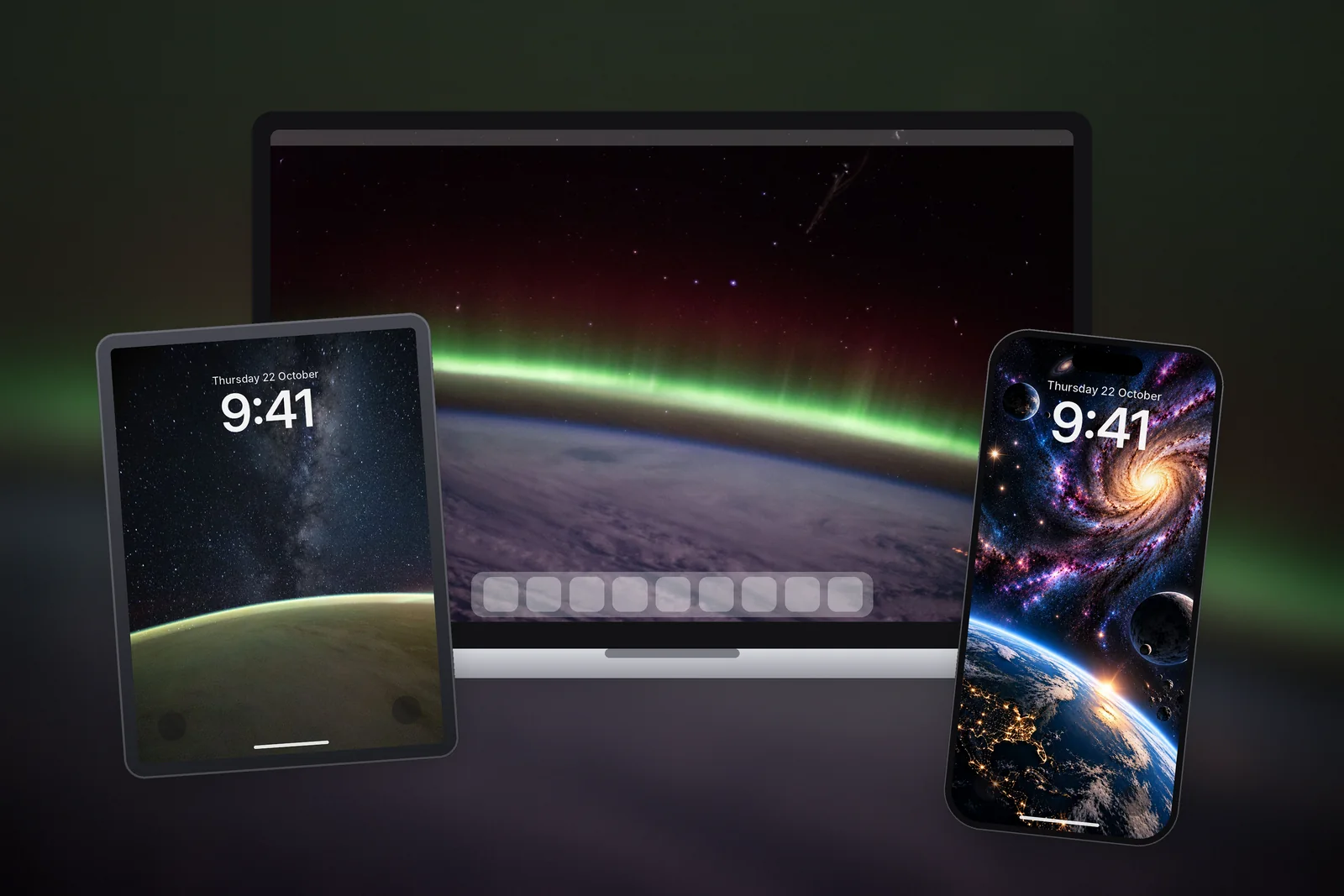
To get a matching wallpaper on iPhone, iPad and Mac, choose one subject or one colour palette and download a separate file for each screen: a tall portrait file for iPhone (such as 1206 × 2622 for an iPhone 17), a square file for iPad (such as 2360 × 2360) and a wide file for Mac (such as 2560 × 1664). One single image cannot fit all three shapes without heavy cropping.
In short
- The three screens have very different shapes: iPhone is about 9:19.5 portrait, iPad wallpapers are square because they rotate, and MacBooks are landscape at roughly 3:2 to 16:10.
- Matching by palette (same two or three colours) is easier and looks better than forcing one photo onto every screen.
- Matching by subject works well with themes like auroras, Earth from orbit, calm water or sunsets.
- Download from three sections: iPhone wallpapers on the home page, the iPad section and the Mac section, each cut to exact screen sizes.
- Set the clock tint on iPhone and iPad and the accent colour on Mac to the same shade to tie the set together.
Why can't I use the same file on every device?
Aspect ratio is the width of a screen divided by its height, and it is the reason one file will not fit everywhere. A recent iPhone screen is more than twice as tall as it is wide. A MacBook screen is about one and a half times as wide as it is tall. Squeezing one picture into both means cutting away most of it on one of them.
The iPad adds a third shape. Its wallpaper rotates with the device, so the best file is a square that covers portrait and landscape. That gives you three crops to plan for: tall, square and wide.
| Device | Shape | Example size | Where it is on the site |
|---|---|---|---|
| iPhone 17 / 18 Pro | Tall portrait | 1206 × 2622 | iPhone wallpapers (home page) |
| iPhone 18 Pro Max / 17 Pro Max / 16 Pro Max | Tall portrait | 1320 × 2868 | iPhone wallpapers (home page) |
| iPhone 16 / 15 / 15 Pro / 14 Pro | Tall portrait | 1179 × 2556 | iPhone wallpapers (home page) |
| iPad Air 11-inch / iPad (A16) | Square | 2360 × 2360 | iPad section |
| iPad Pro 13-inch (M4 and later) | Square | 2752 × 2752 | iPad section |
| MacBook Air 13-inch (M2 and later) | Wide landscape | 2560 × 1664 | Mac section |
| MacBook Pro 14-inch | Wide landscape | 3024 × 1964 | Mac section |
Option 1: match by palette
Palette matching means each device has a different picture, but all of them share the same few colours. It is the most forgiving approach, because you can choose the best composition for each screen shape instead of compromising.
- Pick two main colours and one accent, for example black, deep green and a touch of violet.
- Choose a tall iPhone wallpaper in those colours, ideally with the subject in the lower half so the clock stays clear.
- Choose a square iPad wallpaper and a wide Mac wallpaper with the same colours and a similar mood.
- Finish with the small details: on iPhone and iPad, touch and hold the Lock Screen, tap Customise and tap the time to pick a clock colour from your palette; on the Mac, set the accent colour under System Settings → Appearance.
Option 2: match by subject
Subject matching uses the same theme on every screen: auroras, Earth from orbit, still lakes or a sunset coast. It feels more deliberate than palette matching and works well when the subject is simple, such as a band of light across a dark sky.
Here is an aurora and night-sky set that shares the same dark greens and blues. These are the tall iPhone versions, each cut to 15 exact iPhone sizes plus a universal 4K file at 2160 × 3840:
 Premium Aurora Night Sky 4K Wallpaper
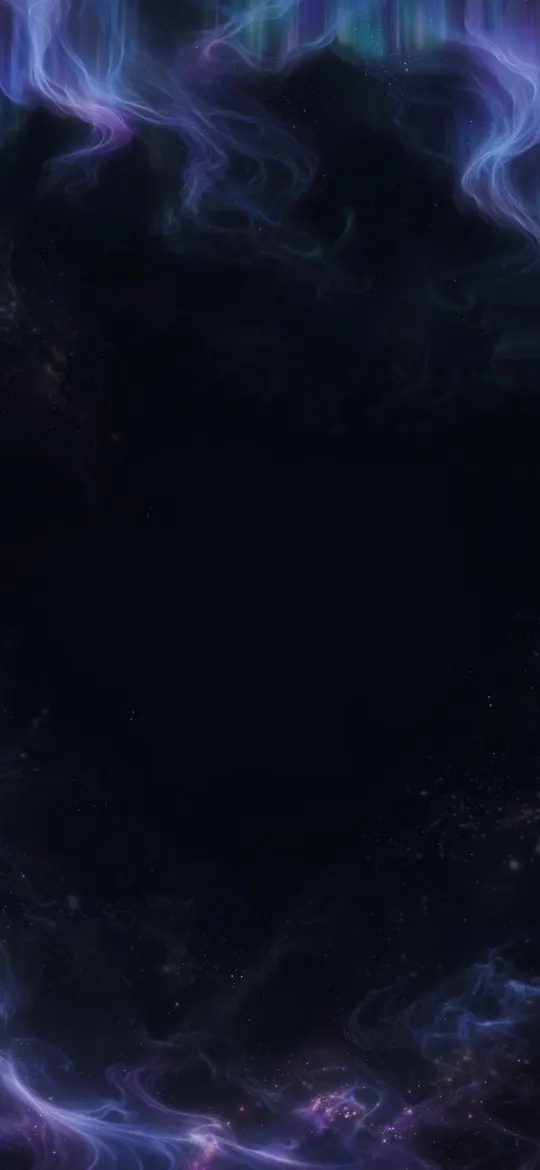 Ethereal Aurora Borealis Night Sky OLED 4K Wallpaper
 Northern Lights Aurora Over Norwegian Fjord Village 4K Wallpaper
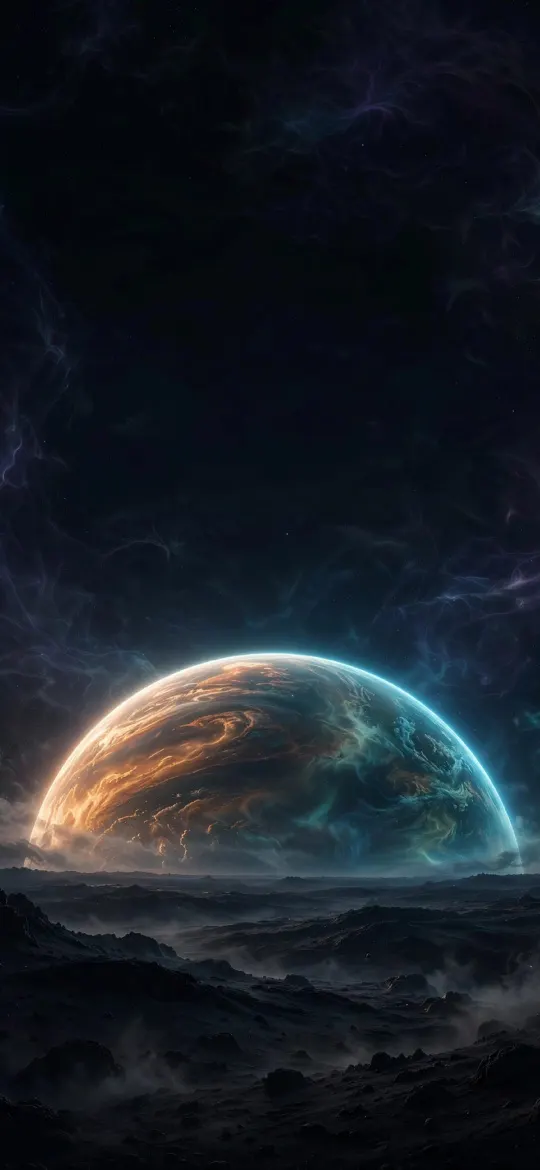 Massive Planet Rising Cosmic Horizon 4K Wallpaper
 4K Space Galaxy iPhone Wallpaper
And these are the wide Mac and square iPad pictures that share the same palette, with green auroras and the night side of the Earth:
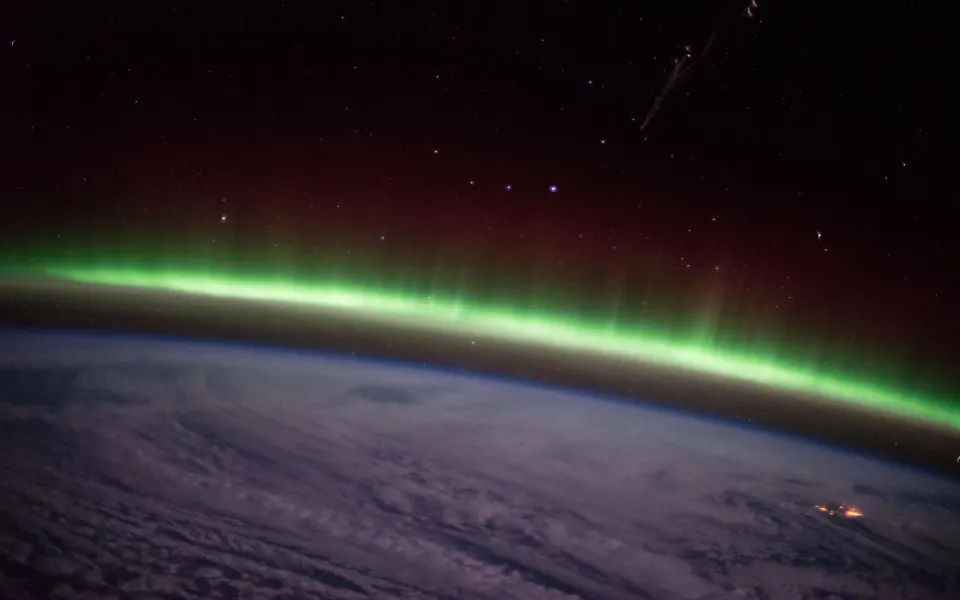 Green Aurora Arc
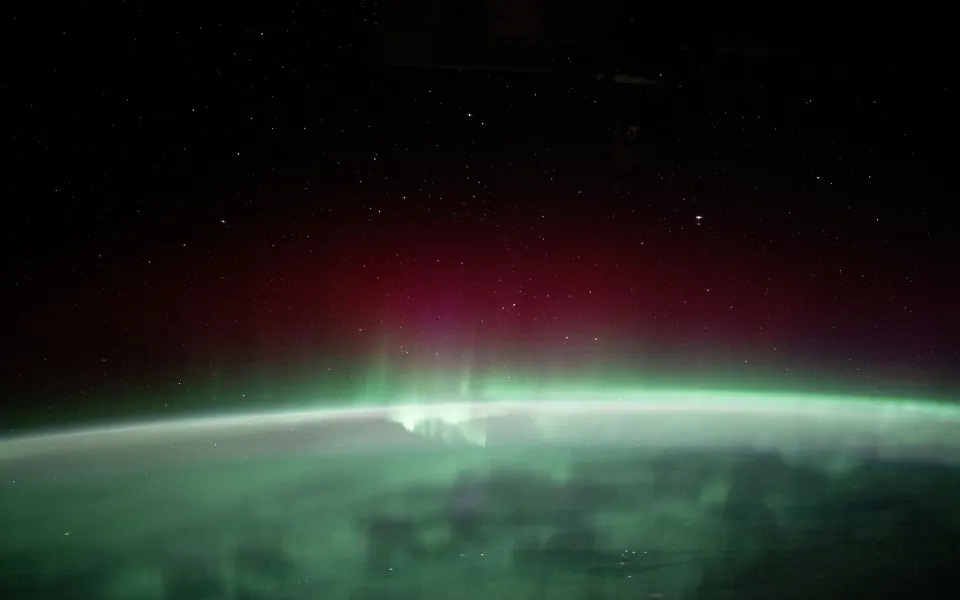 Northern Lights From Orbit
 Green Aurora Ribbon
 Milky Way Above Earth
 Earthset Over the Moon
 Blue Marble Earth
You can find more by browsing the aurora tag for iPhone and pairing it with the Mac section and the iPad section.
How do I crop one picture for tall, square and wide screens?
If you want literally the same image everywhere, start from a large file and plan each crop around the subject.

- Wide (Mac): use the full scene; keep the top strip calm for the menu bar and avoid placing the subject behind the Dock.
- Square (iPad): take the centre of the scene; the very middle shows in both portrait and landscape.
- Tall (iPhone): take a narrow vertical slice through the subject and leave the top third clear for the clock and widgets.
Ideas for a matching Apple setup
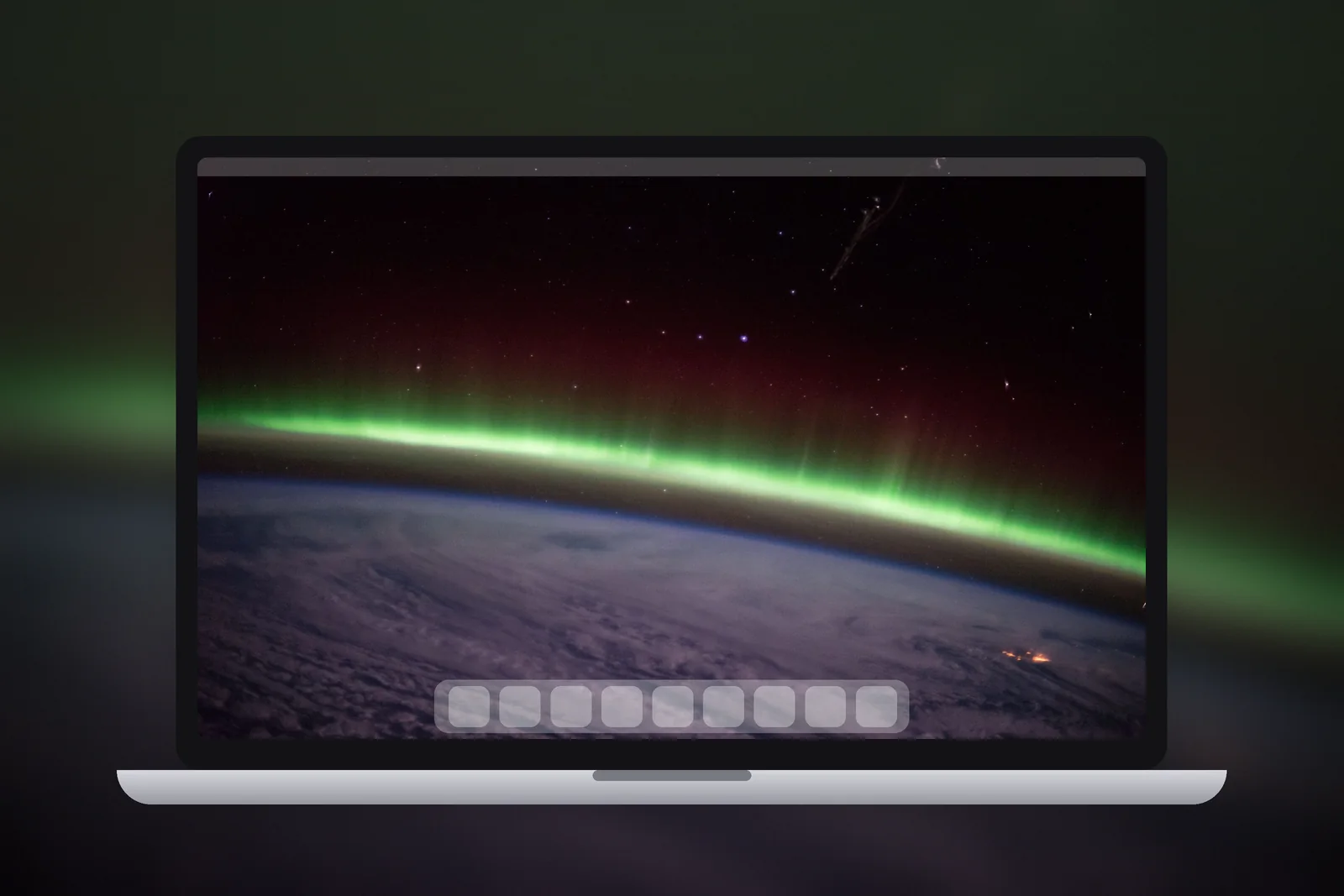
- Night sky set: aurora on iPhone, the Milky Way above Earth on iPad, northern lights from orbit on Mac.
- Calm coast set: blue water and soft grey sky on all three, with a white clock.
- Warm evening set: sunset and amber landscapes, which also suit the season; see our autumn picks for every screen.
- True black set: dark wallpapers everywhere, which look best on OLED iPhones and the Tandem OLED iPad Pro (M4 and later).
On iPhonesWallpaper, start on the iPhone wallpapers home page for the tall file, then pick the square and wide partners from the iPad and Mac sections.
Read next: Matching Wallpapers for Couples: 5 iPhone Pairing Ideas and iPad Wallpaper Aesthetic: Styles That Suit a Big Screen.
Quick answers
Can I use the same wallpaper on iPhone and Mac?
You can use the same subject, but not the same file without cropping. Download a tall version for the iPhone and a wide version for the Mac so each fills its screen sharply.
Do wallpapers sync between iPhone, iPad and Mac?
No, there is no wallpaper sync between them. Set each one separately: on iPhone and iPad through Settings → Wallpaper, and on Mac through System Settings → Wallpaper.
What size wallpaper fits iPhone, iPad and Mac?
No single size fits all three. A 1206 × 2622 file suits an iPhone 17, a 2360 × 2360 square suits an iPad Air 11-inch, and 2560 × 1664 suits a 13-inch MacBook Air (M2 and later).
What are good matching wallpapers for Apple devices?
Simple subjects with a dark background match best: auroras, Earth from orbit and night skies. Calm sea and sunset scenes also work if they share the same two or three colours.
How do I make my iPhone and iPad Lock Screens match?
Use the same picture in each device's own size, then in the Lock Screen editor tap the time and choose the same font and colour on both. Set each as a Wallpaper Pair so the Home Screens match too.
Sources
- iPhone 17 – Technical Specifications, Apple
- iPad Air – Technical Specifications, Apple
- MacBook Air – Tech Specs, Apple
- Create a custom iPad Lock Screen (iPadOS 27), Apple Support