You can have a live wallpaper on iPhone by setting a Live Photo as your Lock Screen wallpaper. Choose the photo in the Lock Screen editor and, if the Live Photo can be turned into slow motion, tap the Live Photo button: the clip then plays each time the iPhone wakes up, before settling on the still frame.

It is a smaller feature than the old press-and-hold live wallpapers some people remember, and it has a few limits. Here is how it works, why it sometimes stays still, and how to get a good result.
In short
A Live Photo is the only moving wallpaper iOS 27 supports. It plays its clip in slow motion on the Lock Screen when the iPhone wakes, then shows the key photo. If the Live Photo button doesn't appear in the editor, that clip can't be used for motion, or it has lost its Live part; try a steadier Live Photo taken with the Camera app.
How live wallpaper works on iPhone today
A Live Photo is a normal photo plus the moments around it: Apple says the iPhone records what happens 1.5 seconds before and after you take the picture. When one is used as a Lock Screen wallpaper and the Live Photo button is on, iOS plays that motion in slow motion as the screen wakes, so the picture briefly moves before freezing on the key frame.
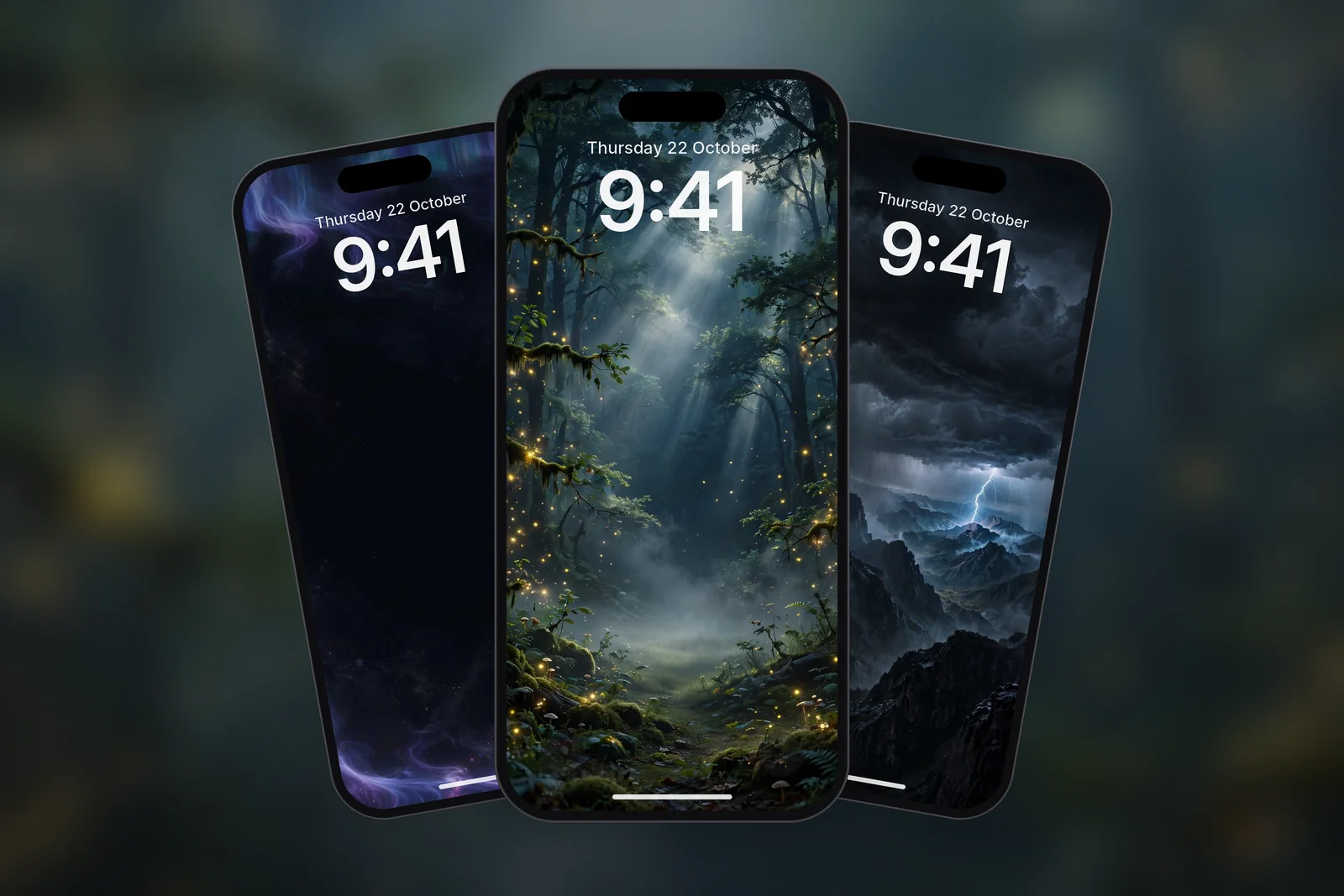
- It plays on the Lock Screen, when the iPhone wakes up.
- The Home Screen shows the still image, not the motion.
- It plays once per wake. It does not loop continuously.
- Only Live Photos that iOS can turn into slow motion offer the option.
Ordinary video files, GIFs and screen recordings can't be set as wallpaper directly. Only Live Photos work in the editor. To find yours, open Photos, tap Collections, then Live Photos under Media Types.
How to set a Live Photo as wallpaper
- Take a Live Photo with the Camera app: in Photo mode, tap the Camera Controls button and make sure the Live Photo button is on (it is on by default). Hold the iPhone still while you shoot.
- Press the side button, touch and hold the Lock Screen and tap +, or go to Settings → Wallpaper → Add New Wallpaper.
- Tap Photos and choose your Live Photo. Alternatively open it in Photos and use Share → Use as Wallpaper.
- Tap the Live Photo button in the editor so the motion plays when the iPhone wakes.
- Pinch to zoom and drag with two fingers to frame the picture, then tap Add.
- Lock the phone and wake it to watch the motion play.
Why your live wallpaper is not working
If the wallpaper stays still, one of these is usually the reason:
- The Live Photo button is off. Open the Lock Screen editor (touch and hold the Lock Screen, tap Customise) and tap the Live Photo button.
- The clip can't be turned into slow motion. Apple only offers the motion effect for Live Photos that can be translated into slow motion, so the button may not appear. Shaky clips or ones where nothing clearly moves are the usual suspects. Try another Live Photo.
- Low Power Mode is on. Low Power Mode cuts back on non-essential work to save battery. If the motion stops while it is on, turn it off (Settings → Battery → Power Mode on iPhone 15 and later) and test again.
- It was saved as a still. A Live Photo sent by Mail arrives as a still image, tapping Live in the editor turns it into a still, and editing it in a third-party app can drop its Live effects. Check that it still appears under Collections → Live Photos.
- You are looking at the Home Screen. The motion only plays on the Lock Screen.
If none of those helps, delete the Lock Screen from the gallery and add it again. That clears most stuck wallpapers after an update.
Tips for Live Photos that look good as wallpaper
The best live wallpapers have small, smooth movement and a steady frame. A huge camera pan looks jumpy when it plays back in a couple of seconds.
- Hold the phone still. Rest your elbows or lean on something, and let the subject do the moving.
- Choose gentle motion. Waves rolling in, leaves moving, a candle flame, clouds drifting or a pet turning its head all work well.
- Shoot in portrait. Vertical framing fits the screen without losing the edges.
- Pick a strong key frame. In Photos, open the Live Photo, tap Edit, tap the Live Photo button, move the white frame to the best moment, tap Make Key Photo, then Done.
- Keep the top quiet. Sky or shadow behind the clock keeps the time readable while the image moves.
Still wallpaper alternatives
Because Live Photos only move for a moment, a lot of people end up preferring a well-chosen still image. A sharp wallpaper at your exact screen size looks cleaner than a Live Photo, which is limited by the camera's video quality. If you want variety, combine stills with Photo Shuffle so the picture changes on tap, on lock, hourly or daily.

| Option | Moves? | Best for |
|---|---|---|
| Live Photo wallpaper | Briefly, on wake (Lock Screen only) | Your own moments with gentle motion |
| Photo Shuffle | Changes picture on a schedule | Variety without effort |
| Still wallpaper at exact size | No | Sharpest image and the cleanest clock |
| Dark wallpaper on an OLED iPhone | No | Battery-friendly look with true black |
Scenes that already suggest motion, such as lightning, aurora and flowing water, make great still alternatives. On iPhones with OLED screens, black pixels are switched off, so a dark picture looks especially deep. See our pick of AMOLED true black iPhone wallpapers or browse the dark category.
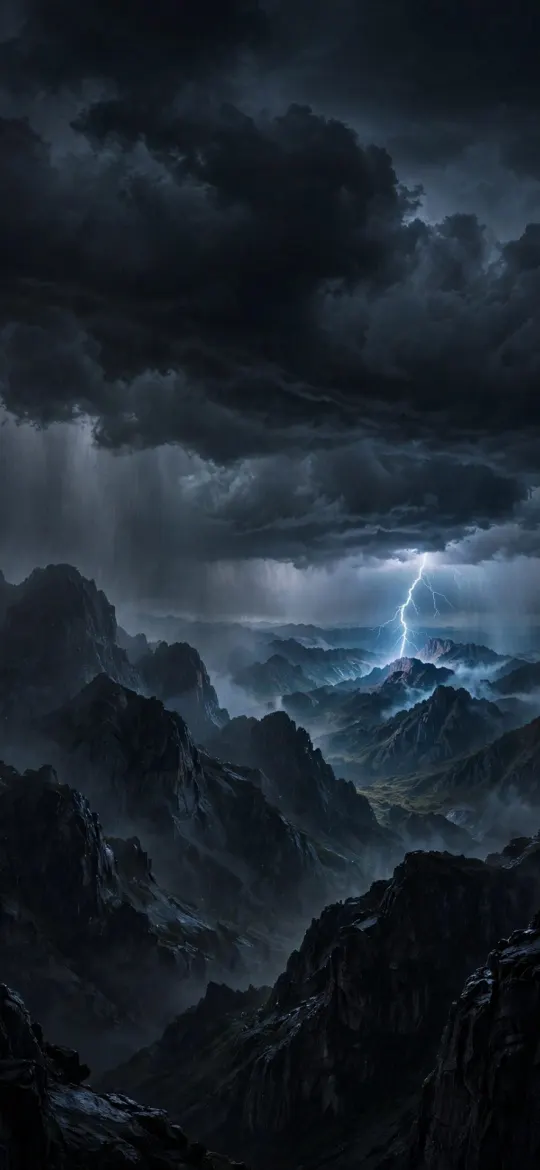 Night Thunderstorm Mountain Lightning 4K Wallpaper
 Ethereal Aurora Borealis Night Sky OLED 4K Wallpaper
 Waterfall Mountain 4K Wallpaper
 Enchanted Magical Forest Fireflies 4K Wallpaper
 Dynamic Liquid Glass Chrome Splash OLED 4K Wallpaper
Every wallpaper here is a still image, cut to 16 iPhone screen sizes. Check the iPhone wallpaper sizes guide to find the right file for your phone.
Read next: Photo Shuffle Wallpaper on iPhone: Setup, Frequency and Fixes and Depth Effect Wallpaper on iPhone: How It Works and How to Fix It.
Quick answers
Can you have a live wallpaper on iPhone?
Yes. Set a Live Photo as your Lock Screen wallpaper and turn on the Live Photo button in the editor. Its clip plays in slow motion each time the iPhone wakes; the Home Screen shows the still frame.
How do I set a video as my wallpaper on iPhone?
Video files can't be used directly. The supported route is a Live Photo, so capture the moment as a Live Photo and set that through the Lock Screen editor.
Why is my live wallpaper not moving?
Check that the Live Photo button in the editor is on and that you are looking at the Lock Screen. If the button is missing, iOS can't turn that clip into slow motion, so try a steadier Live Photo.
How long does a Live Photo wallpaper play?
A Live Photo covers 1.5 seconds before and after the shot. As a wallpaper it plays that moment in slow motion once each time the iPhone wakes, then rests on the key photo.
Why is the Live Photo button missing when I set a wallpaper?
Either the photo is no longer a Live Photo (check Photos → Collections → Live Photos) or iOS can't translate that clip into slow motion. A steady shot with one clearly moving subject works best.
Sources
- Create a custom iPhone Lock Screen (iOS 27), Apple Support
- Take and edit Live Photos, Apple Support
- Edit Live Photos on iPhone (iOS 27), Apple Support
- Save battery life with Power Modes on iPhone (iOS 27), Apple Support