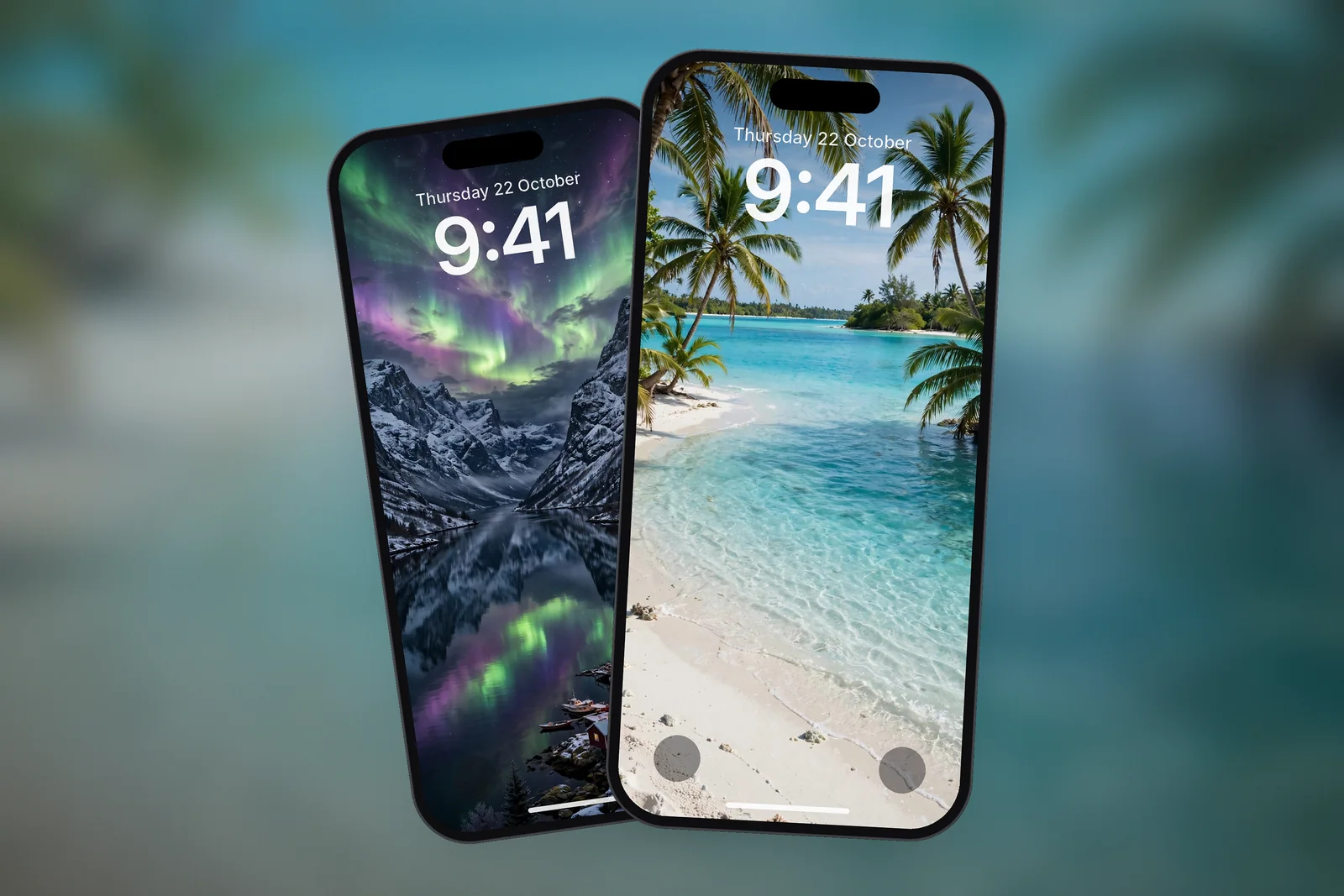
On iPhone, the best beach wallpaper has a calm, low-detail area of sky or water at the top, where the Lock Screen clock sits, and the horizon placed in the lower half or lower third of the frame. Download it at your phone's exact resolution (for example 1320 × 2868 for iPhone 17 Pro Max), then set it with Settings → Wallpaper → Add New Wallpaper.
In short
- The Lock Screen clock and widgets cover roughly the top third of the screen, so that area should be plain sky or flat water.
- A horizon in the lower third leaves room for the clock; a horizon across the middle often cuts through the widget row.
- Calm water (lagoons, still lakes) suits widgets; dramatic surf and waterfalls work better as a Home Screen backdrop or with no widgets.
- Turquoise and teal scenes keep a white clock readable; pale sand and bright sky may need a darker clock colour.
- On iPhonesWallpaper every iPhone wallpaper is cut to 15 exact iPhone screen sizes plus a universal 4K file (2160 × 3840).
What makes a beach wallpaper work on a Lock Screen?
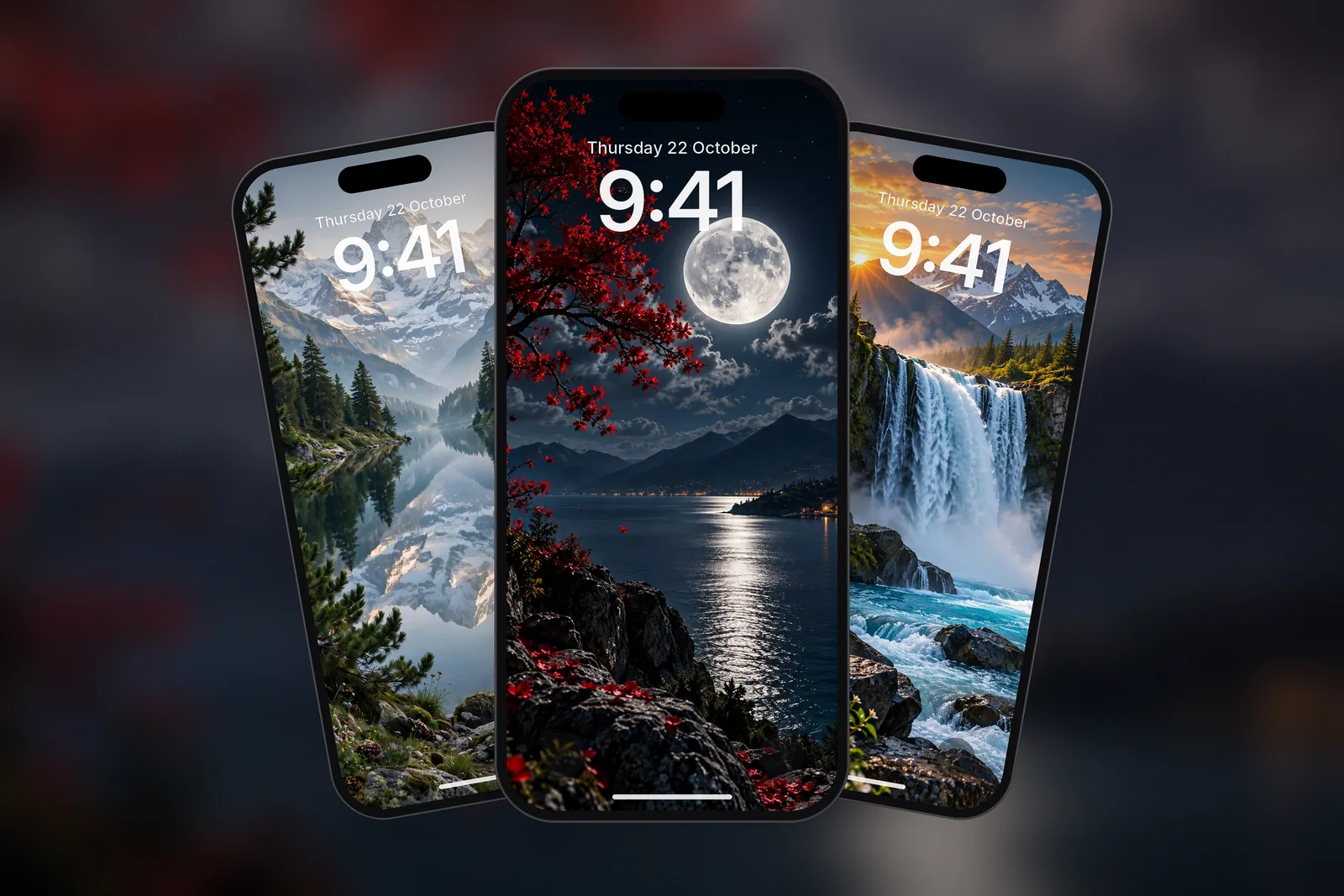
A beach wallpaper works when its quiet parts sit where iOS puts text. Since iOS 16, the Lock Screen shows a large clock near the top, an optional widget in the date line above it and a row of widgets underneath. Everything you see behind that block has to stay simple, or the time becomes hard to read.
Sea photos are naturally good at this. The sky is usually a smooth gradient and the water is a repeating texture without hard edges. The trouble starts with the horizon line: it is the strongest straight line in the picture, and if it runs right behind the clock digits it draws the eye away from them.
A horizon is the line where the sea meets the sky. In a portrait iPhone wallpaper, aim for it to sit somewhere between halfway and three quarters of the way down. That keeps sky behind the clock and puts the detail (waves, sand, palm trees) lower down, where the Home Screen dock and app icons hide less of it.
Beach and water wallpapers on the site
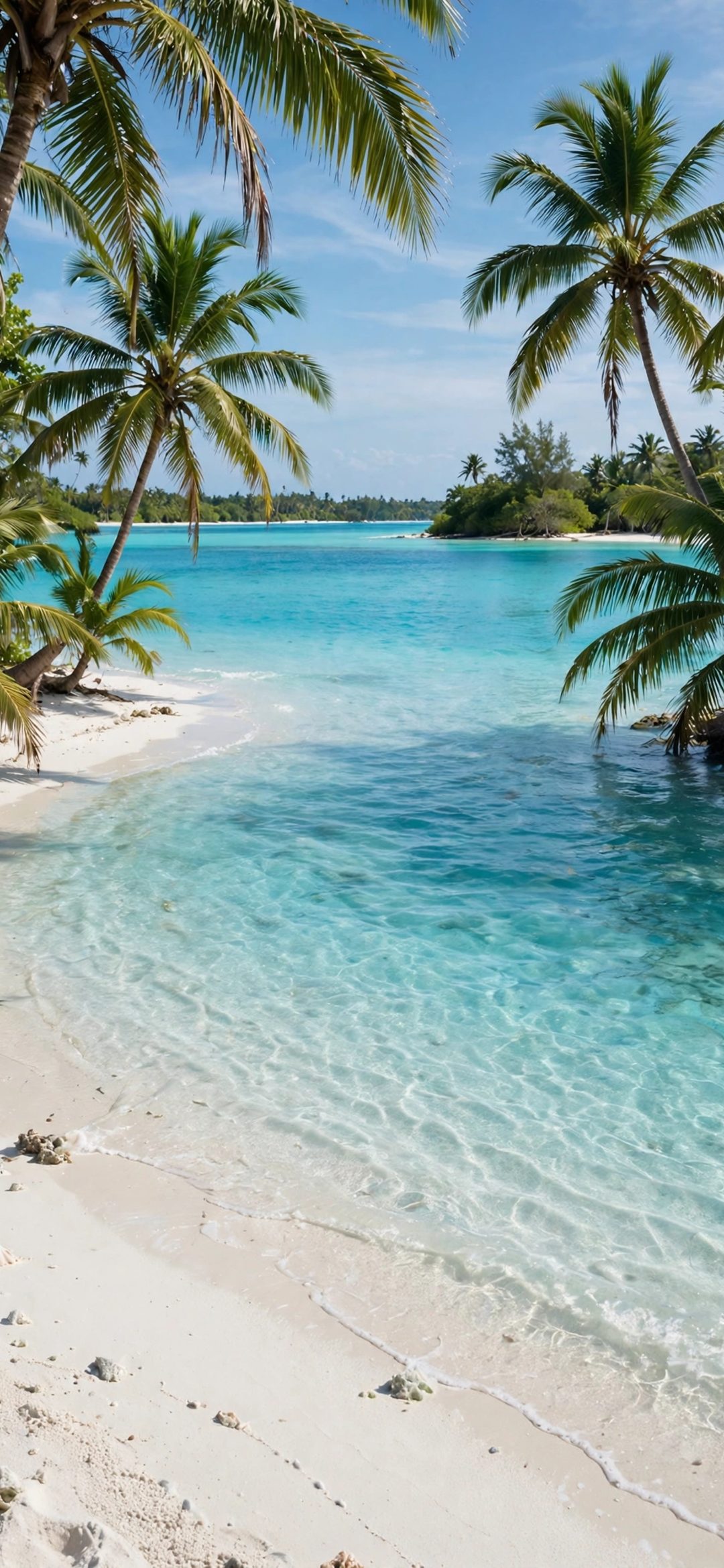
To be straight with you: the site has one true beach scene right now, a tropical lagoon with palm trees and clear turquoise water. The other picks below are coast and water scenes that follow the same rules, including a fjord village under the northern lights and two still lakes. You can browse more in the ocean wallpapers and water wallpapers tags.
 Tropical Beach Lagoon & Palm Trees 4K Wallpaper
 Northern Lights Aurora Over Norwegian Fjord Village 4K Wallpaper
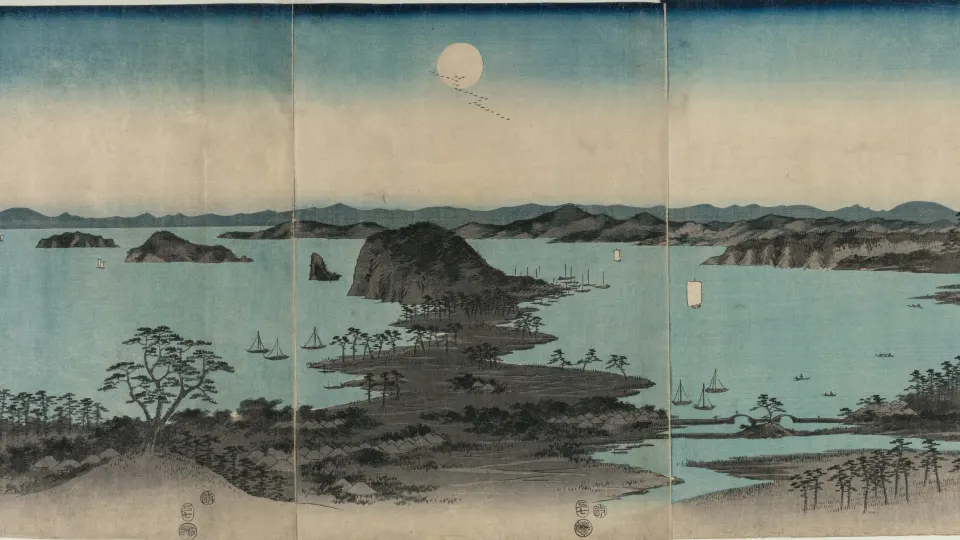
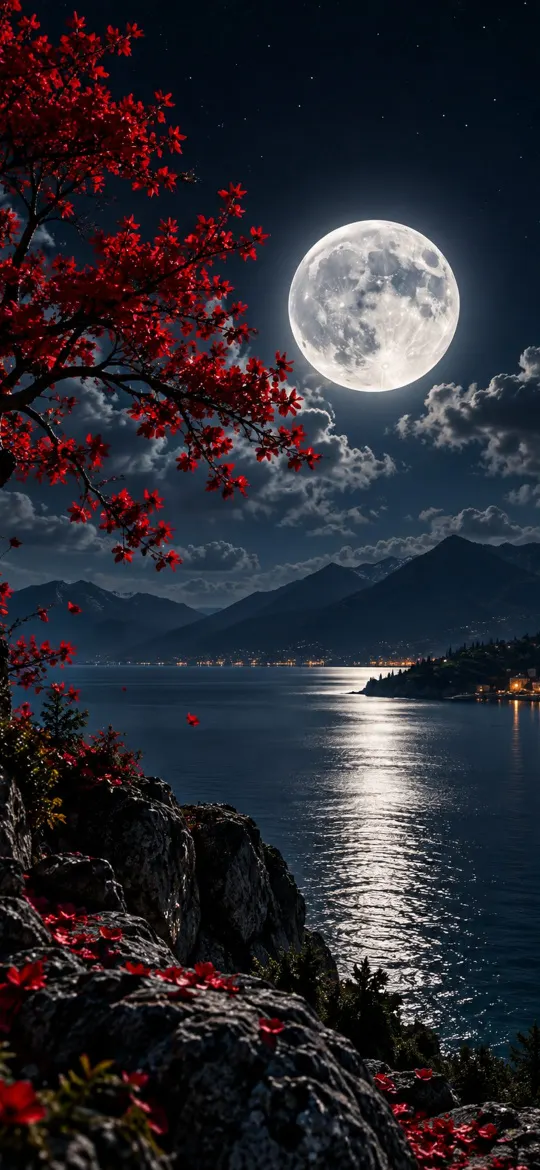 Moonlit Lake 4K Wallpaper – Full Moon Night Landscape
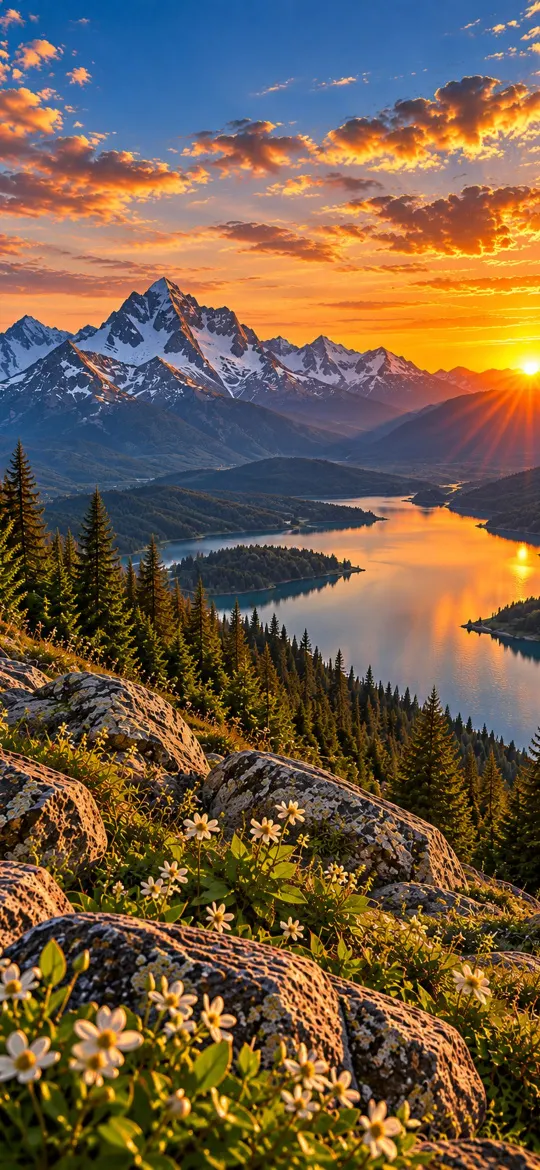 4K Mountain Lake Sunset iPhone Wallpaper
Calm water or dramatic water: which should you choose?
Choose calm water if you use Lock Screen widgets, and dramatic water if you want the picture itself to be the point. Calm scenes have large even areas that sit well behind text. Dramatic scenes, such as waterfalls and crashing surf, are full of white spray and contrast, which fights with a white clock.
| Water style | What it looks like | Best use on iPhone | Clock colour that reads well |
|---|---|---|---|
| Lagoon or shallow bay | Turquoise gradient, little texture | Lock Screen with a full row of widgets | White or very light |
| Still lake at dusk | Smooth reflection, dark edges | Lock Screen and Always-On display | White |
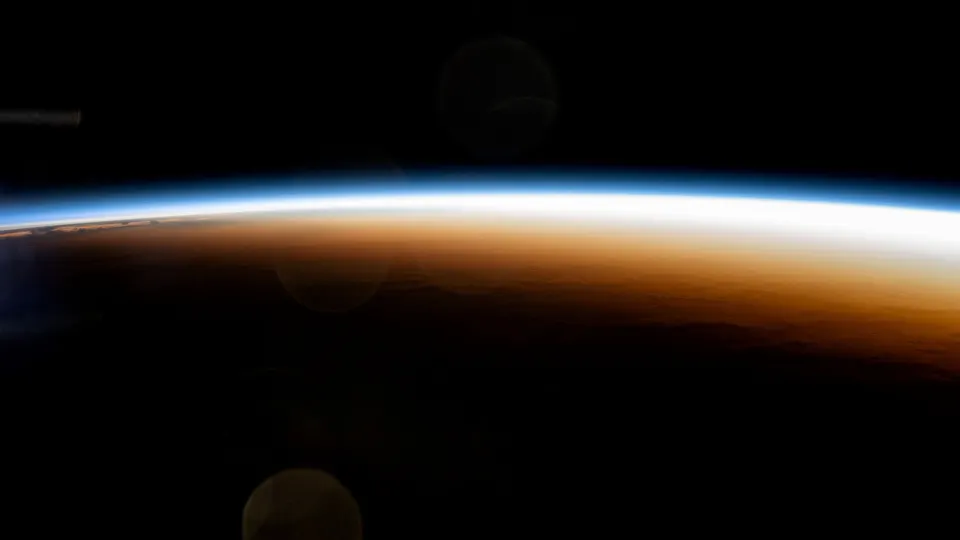
| Moonlit water | Mostly black with one bright path | OLED iPhones, Dark Mode | White or pale blue |
| Waterfall or surf | Bright spray, high contrast | Home Screen, or Lock Screen with no widgets | Dark, or turn on a tinted clock |
| Sunset over water | Warm sky, dark foreground | Lock Screen with clock in the sky area | White or dark navy |
A still lake counts here too. Mountain lakes give you the same calm surface and reflection as a quiet sea, with the bonus of a darker shoreline that frames the bottom of the screen.
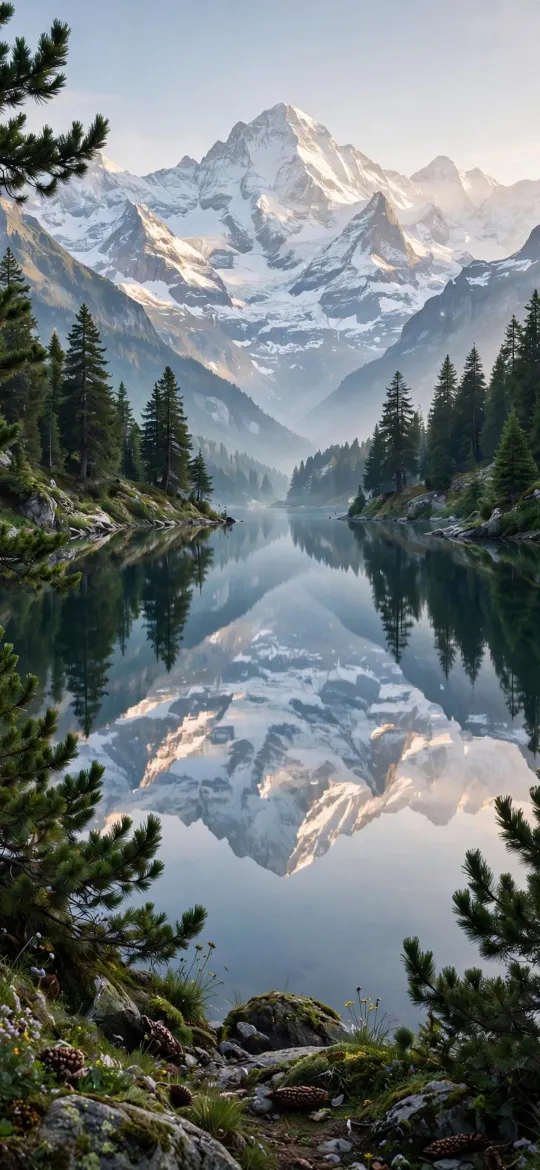 Alpine Mountain Lake Reflection & Pine Forest 4K Wallpaper
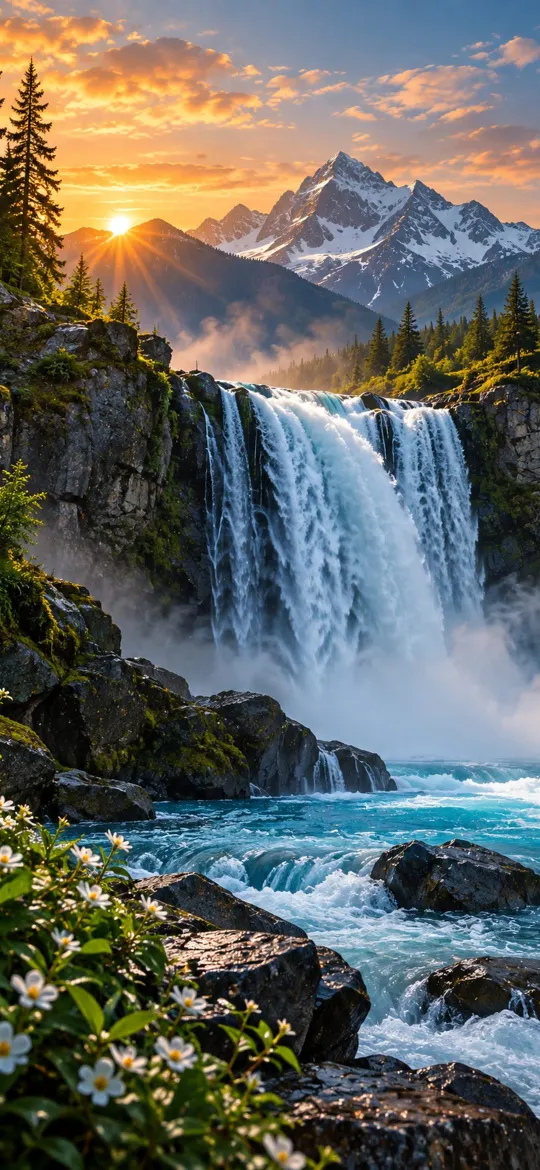 Waterfall Mountain 4K Wallpaper
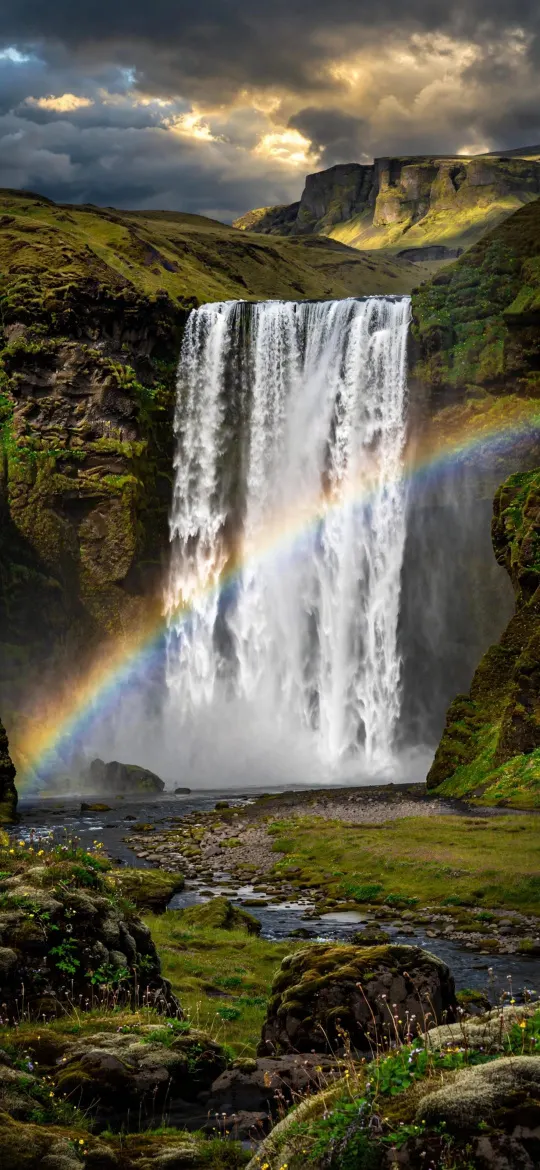 Icelandic Waterfall with Rainbow Landscape 4K Wallpaper
How do I keep the clock readable on a bright beach photo?
Pick a clock colour that contrasts with the sky behind it, or make the top of the image darker. Long-press the Lock Screen, tap Customise, choose the Lock Screen, then tap the clock to change its font and colour. Pale sand and white clouds are the usual problem, because a white clock simply disappears on them.
- Drag the photo down with two fingers so more blue sky sits behind the time.
- Pinch to zoom in slightly if the horizon is too high; zooming crops the edges, so start from a large file.
- Try Depth Effect if the photo supports layering; on a beach shot it can tuck the clock behind a palm tree, but Apple notes it may not work if the subject is too high, too low or would hide too much of the time.
- Tap the time and switch it to the more transparent look if a solid clock feels heavy over a bright sky.
Our guide to a Lock Screen wallpaper that keeps the clock readable covers contrast in more detail, and Depth Effect on iPhone explains why the clock sometimes refuses to go behind the subject.
Colour tips for an aesthetic beach Lock Screen
Beach wallpaper aesthetic usually means a limited palette: two or three related colours rather than a full rainbow. Teal, sand and white feel bright and summery. Navy, silver and black feel quiet and work at night. Coral and gold come from sunsets and pair well with a warm-tinted clock.
Match your Home Screen to the same palette. On the Home Screen side of the editor you can use a blurred version of the Lock Screen photo, a solid colour or a different photo. A blurred beach photo turns into a soft blue-and-sand gradient, which keeps app labels easy to read without losing the mood.
Which size should I download for my iPhone?
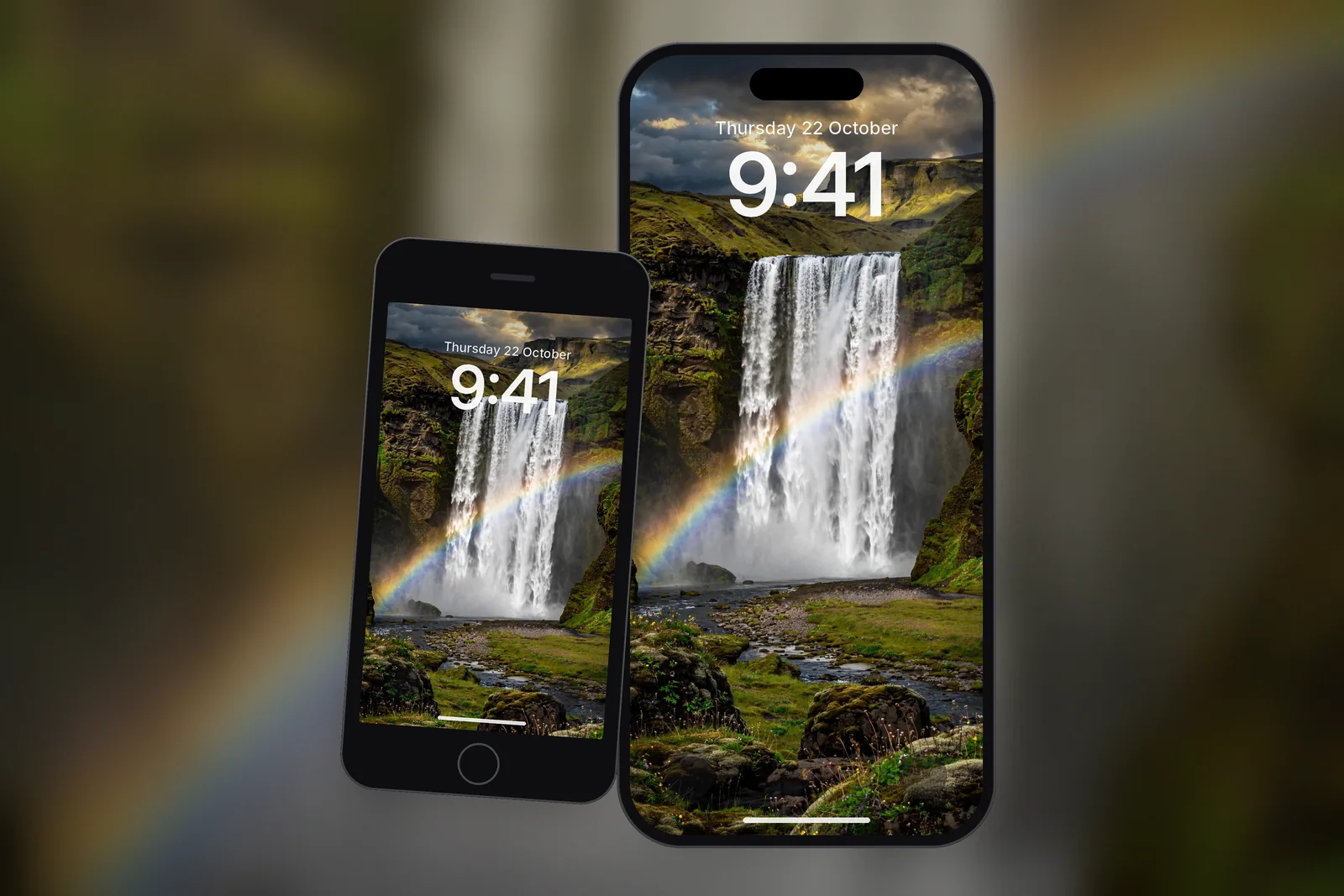
Download the size made for your exact model, so the image is shown pixel for pixel with no soft upscaling. If you are not sure which model you have, check Settings → General → About, then use the table below or the full iPhone wallpaper sizes guide.
| iPhone model | Wallpaper size (pixels) |
|---|---|
| iPhone 18 Pro Max / 17 Pro Max / 16 Pro Max | 1320 × 2868 |
| iPhone 18 Pro / 17 Pro / 17 / 16 Pro | 1206 × 2622 |
| iPhone Air | 1260 × 2736 |
| iPhone 16 / 15 / 15 Pro / 14 Pro | 1179 × 2556 |
| iPhone 17e / 16e / 14 / 13 / 12 | 1170 × 2532 |
| Any phone (4K universal) | 2160 × 3840 |
The 4K universal file is the one to choose if you want to crop the beach yourself, because it gives you spare pixels to zoom and reframe the horizon without losing sharpness. More sea, lake and coast scenes sit in the nature category.
Read next: Desert Wallpaper for iPhone: Dunes, Canyons and Warm Neutrals and Mountain Wallpaper for iPhone: Peaks, Light and a Clear Clock.
Quick answers
What is the best beach wallpaper for iPhone?
The best beach wallpaper for iPhone has plain sky or calm water at the top for the clock, the horizon in the lower half, and few bright details behind the widget row. A turquoise lagoon or a still bay at dusk fits those rules well.
How do I make an ocean wallpaper fit my iPhone screen?
Download the size for your exact model, for example 1206 × 2622 for iPhone 17 Pro. Then go to Settings → Wallpaper → Add New Wallpaper, pick the photo and pinch or drag to frame it.
Why is the clock hard to read on my beach wallpaper?
White clouds and pale sand sit behind the clock, so a white clock has nothing to contrast with. Drag the photo so blue sky sits behind the time, or tap the clock in Customise and choose a darker colour.
Do ocean wallpapers drain the battery?
A still photo uses no more power than any other still wallpaper. On OLED iPhones, darker water scenes such as moonlit seas light fewer pixels, which can save a little power at high brightness.
How do I use my own beach photo as an iPhone wallpaper?
Go to Settings → Wallpaper → Add New Wallpaper → Photos, pick the picture, pinch and drag with two fingers to frame it, then tap Add. On iPhone 12 or later, a shot with a clear subject such as a palm tree may also offer the Spatial Scene 3D effect.
Sources
- Create a custom iPhone Lock Screen, Apple Support
- Change the wallpaper on iPhone, Apple Support
- Change your iPhone wallpaper, Apple Support