iPhone guide
iPhone wallpaper size for Canva, Photoshop and Procreate
- 2160 × 3840 pxOne canvas that fits every iPhone
- 1206 × 2622 pxiPhone 17, 17 Pro, 18 Pro and 16 Pro
- 460 ppiiPhone 17 screen; the DPI field doesn't matter
- PNG or JPEGsRGB, or Display P3 with the profile embedded
For an iPhone wallpaper, set the canvas in pixels: 2160 × 3840 px fits every iPhone, or use your model's exact size, such as 1206 × 2622 px for iPhone 17 and iPhone 18 Pro. In Canva that's Custom size in px, in Photoshop File › New in pixels, and in Procreate a custom canvas in Pixels. Keep the top and bottom quiet for the clock and controls, export a PNG or a high-quality JPEG, and save it to Photos on your iPhone.
Pick the canvas size in pixels
These sizes come from our iPhone wallpaper sizes chart, which lists every model.
| Canvas | Size in pixels |
|---|---|
| Universal 4K, any iPhone | 2160 × 3840 |
| iPhone 18 Pro Max, 17 Pro Max, 16 Pro Max | 1320 × 2868 |
| iPhone 18 Pro, 17 Pro, 17, 16 Pro | 1206 × 2622 |
| iPhone Air | 1260 × 2736 |
| iPhone 16, 15, 15 Pro, 14 Pro | 1179 × 2556 |
| iPhone 17e, 16e, 14, 13 | 1170 × 2532 |
The universal size is a 9:16 frame, a little wider than the 19.5:9 screens of Face ID iPhones, so with the picture centered they show about the middle 1,770 of its 2,160 pixels across. iPhone Duo's wider screens trim the top and bottom instead: the inner screen held upright shows about 3,070 of the 3,840 rows. Keep the important parts inside a central 1,770 × 3,070 area and one file works everywhere. For your own phone only, use its exact size, and check which iPhone you have if you aren't sure.
Why pixels, not inches
A screen has no print size. It shows a grid of pixels, and what matters is how many your canvas has. Apple lists the iPhone 17 display as 2622 by 1206 pixels at 460 ppi, so the picture covers about 2.6 × 5.7 inches of glass. Type 2.6 × 5.7 inches at 72 ppi into an app and you get about 187 × 410 pixels, far too few.
The ppi or DPI field changes nothing on the phone once the pixel count is right; Adobe suggests 72 ppi for screen designs. If an app insists on inches or centimeters, divide the pixels by the ppi, then multiply by 2.54 for centimeters. At 300 ppi, 2160 × 3840 px is 7.2 × 12.8 inches, or 18.29 × 32.51 cm (182.9 × 325.1 mm).
Canva: a custom size in px
- On the Canva home page, select Custom size.
- Set the unit to px rather than in, mm or cm.
- Type the width and height, for example 2160 and 3840.
- Select Create new design.
- When you've finished, select Share, then Download, and choose PNG or JPG.
Check a phone wallpaper template's pixel size before you use it, since it may not match your iPhone. In her Canva tutorial, Brenda Cadman notes that the 2x and 3x size options and the JPG quality controls carry Canva's Pro crown. You don't need them: a download at the size you set is the right file.
Photoshop: a new document in pixels
These steps follow Adobe's guide to the New Document dialog:
- Choose File › New, or press Command-N on a Mac (Ctrl+N on Windows).
- In Preset Details, set the unit menu to pixels and type the Width and Height. Choose Portrait and leave Artboards off.
- Set Color Mode to RGB and Resolution to 72 pixels per inch.
- Under Advanced Options, pick a Color Profile: sRGB, or Display P3 on a wide color display.
- Select Create.
To export, choose File › Export › Export As, pick PNG or JPG (with a high quality setting) and keep the size at 1x. Under Color Space, Export As can convert to sRGB and embed the profile: keep the conversion for an sRGB design, and turn it off, profile embedded, for a Display P3 one.
Procreate: a custom canvas in pixels
On iPad, Procreate's handbook gives these steps:
- In the Gallery, tap the + button at the top right to open the New Canvas menu.
- Tap the icon of a rectangle with a + at the top right of that menu to open the custom canvas screen.
- Under Dimensions, use the unit buttons beside the keypad to choose Pixels, then enter the Width and Height. Leave DPI as it is.
- Under Color Profile, keep RGB: Display P3 is the default, or choose sRGB IEC61966-2.1.
- Create the canvas.
Procreate warns that larger canvases allow fewer layers, so 2160 × 3840 gives you fewer than your phone's exact size. To export, tap Actions › Share, then PNG or JPEG, and pick AirDrop or another destination in the share sheet.
On iPhone, Procreate Pocket works the same way: tap + at the bottom right of the Gallery, then the smaller + at the top right for a custom canvas. Export with the ellipsis button, then Actions › Share › Share Image › PNG, and save it straight to Photos.
Leave room for the clock and Dynamic Island
The iPhone draws over your design. Apple's Lock Screen guide shows the date, time and widgets near the top, and controls such as the flashlight at the bottom.
- The Dynamic Island or notch sits at the top center and hides what's beneath it; Apple's design guidelines tell app makers to keep content clear of it.
- Dragging the clock's bottom-right corner makes it taller, so leave extra room if you do; see resizing the Lock Screen clock.
- On the Home Screen, app icons and the Dock sit over the lower part of the picture.
A quick check: cover the top third and the bottom strip with a translucent shape on its own layer, see whether the design still works, then delete that layer before you export. Pictures that keep their detail low and the sky open work well:
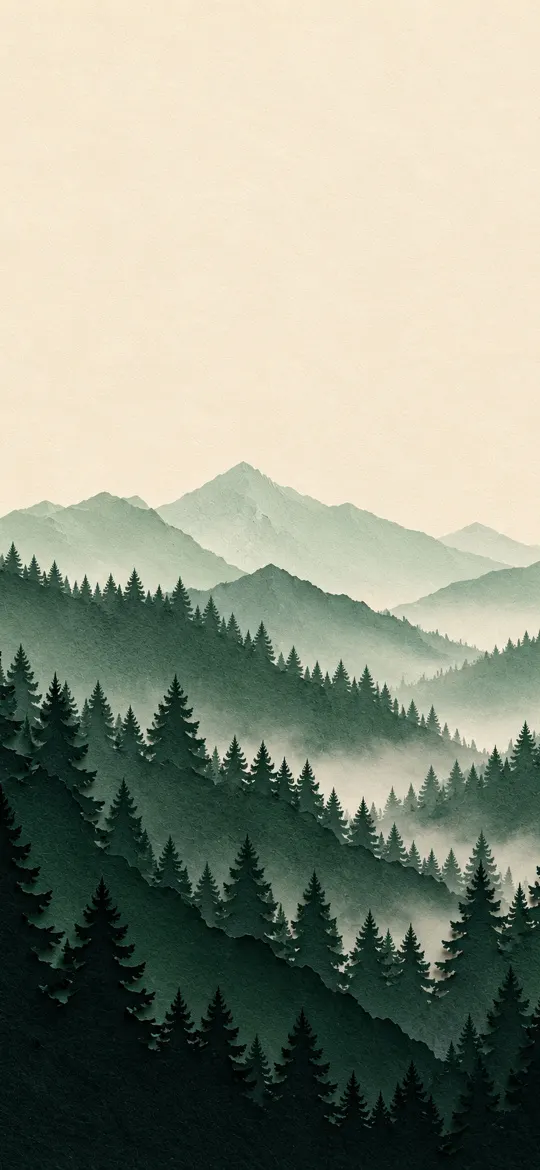 Paper-Cut Mountains at Sunset
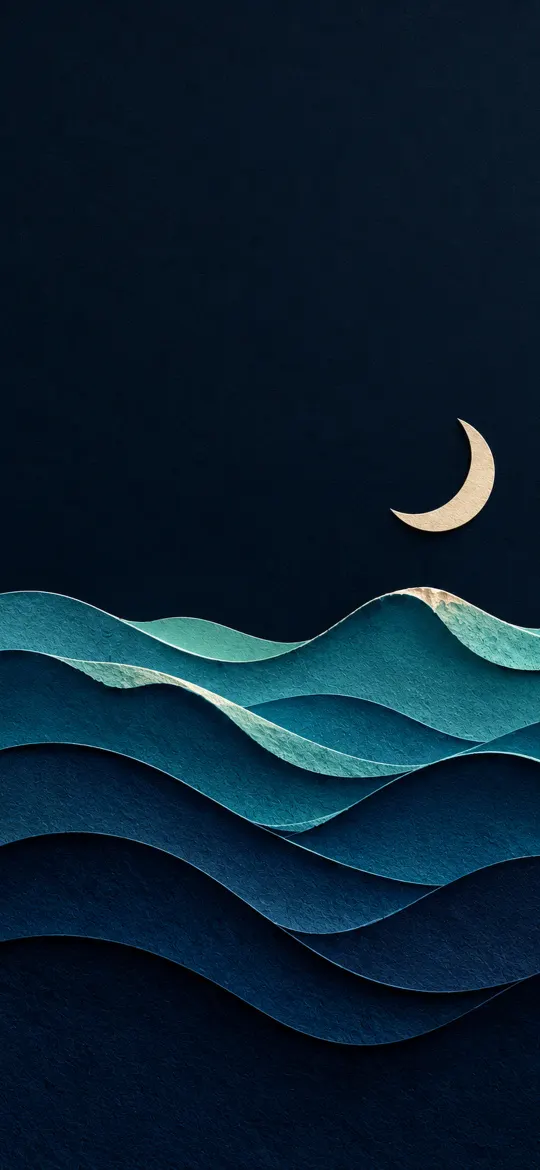 Paper-Cut Ocean Waves with Moon
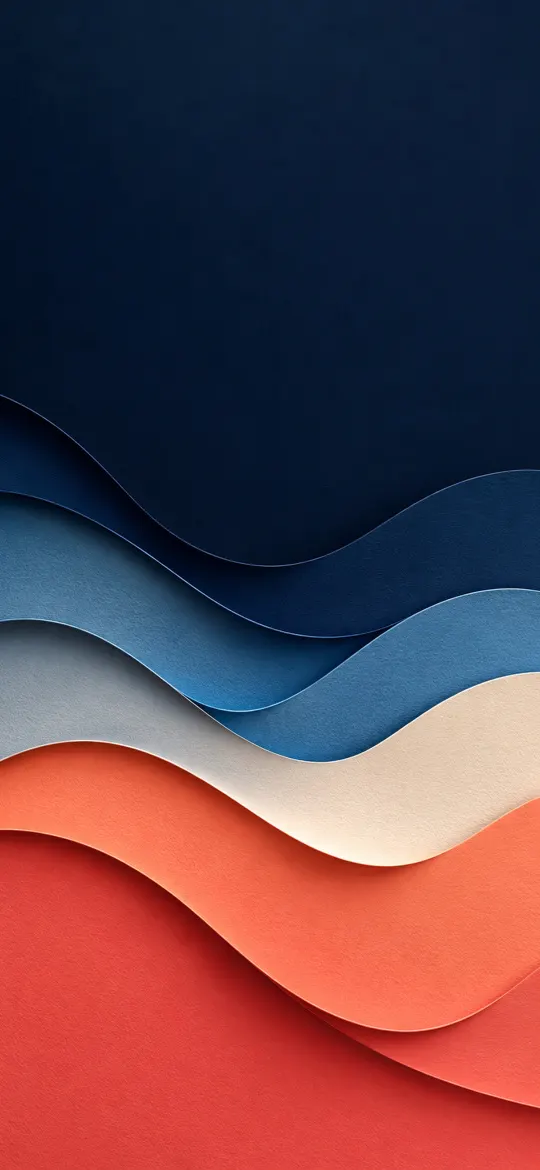 Layered Paper Cut Waves
 Red Torii Gate on a Misty Lake
Our post on making a wallpaper for iPhone gives rough proportions for these areas and a collage layout.
Choose PNG or JPEG, sRGB or Display P3
| Choice | Pick it for | Why |
|---|---|---|
| PNG | Flat color, text, gradients, line art | Lossless, so fades stay clean |
| JPEG, high quality | Photos and busy textures | Much smaller, with little visible loss |
| sRGB | Most designs | Apple says it shows accurate color on most displays |
| Display P3 | Designs made on a wide color display | iPhone screens support P3's richer colors |
For wide color images, Apple's Human Interface Guidelines recommend Display P3 at 16 bits per channel, saved as PNG, and note that you need a wide color display to design them. A P3 gradient can also look clipped on an sRGB screen. Either way, keep the color profile embedded.
Get the file onto your iPhone
- Send the file with AirDrop or a cloud folder. Between your own devices on one Apple Account, Apple says AirDrop items are accepted automatically.
- If it lands in the Files app, save it to Photos; our download guide shows the taps.
- In Photos, open the picture, tap the Share button and choose Use as Wallpaper. Or go to Settings › Wallpaper › Add New Wallpaper and tap Photos.
- Pinch and drag with two fingers to frame it, tap Add, then choose Set as Wallpaper Pair or Customize Home Screen.
Common questions
What size should an iPhone wallpaper be in Canva?
Choose Custom size, set the unit to px and enter 2160 × 3840 for any iPhone, or your model's exact size, such as 1320 × 2868 for iPhone 18 Pro Max. Download it from Share › Download as PNG or JPG.
What is the iPhone wallpaper size in inches or centimeters?
A screen has no print size, only pixels. If an app insists, divide by the ppi: at 300 ppi, 2160 × 3840 px is 7.2 × 12.8 inches, or 18.29 × 32.51 cm.
What DPI should I use in Photoshop or Procreate?
Any value works, because the iPhone only uses the pixel count. Adobe suggests 72 ppi for screen designs; just set the width and height in pixels.
Should I use sRGB or Display P3 for an iPhone wallpaper?
Use sRGB unless you design on a wide color display. iPhone screens support P3, and Apple recommends PNG for P3 images, but a P3 gradient can look clipped on sRGB screens.
Sources
Specifications were checked against these pages on 18 November 2026. Product names are trademarks of Apple Inc.; this site is not affiliated with Apple.
- Create documents using presets in Photoshop on desktop Adobe
- Export settings and export location preferences Adobe
- Gallery: Create Procreate Handbook
- Actions: Share Procreate Handbook
- Create Custom Size Design in Canva University of Detroit Mercy
- How to Download & Share Designs in Canva Brenda Cadman